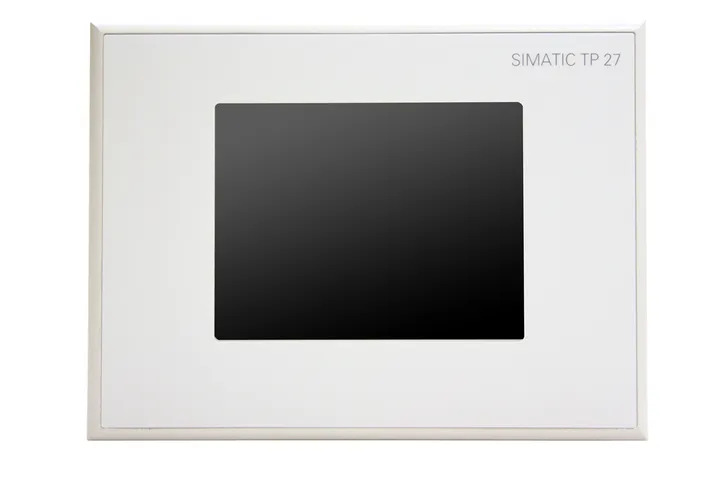
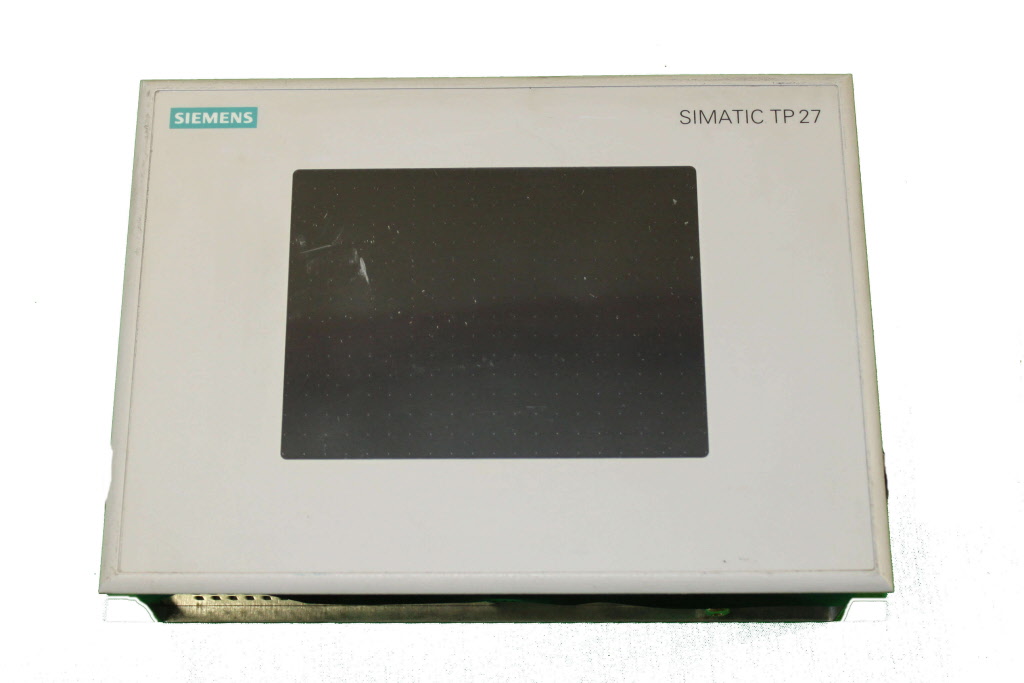
Siemens 6AV6355-1AA47-7CF0 OP 77A
€ 270,42
The Siemens 6AV6355-1AA47-7CF0 is an operator panel belonging to the SIMATIC HMI OP 77A series, manufactured by Siemens. It is a compact, key-operated panel designed for machine-level human-machine interface applications, providing operators with a straightforward interface for monitoring and controlling automated processes. The OP 77A series sits within the SIMATIC HMI Basic Panels generation and is intended for use with Siemens SIMATIC S7 PLCs.
The OP 77A features a monochrome STN LCD display with a resolution of 160 x 80 pixels, capable of displaying text and simple graphics. The panel is equipped with a membrane keypad for operator input, including function keys and system keys. It communicates via MPI and PROFIBUS DP interfaces, enabling direct connection to SIMATIC S7-200, S7-300, and S7-400 PLCs. The unit operates on a 24 V DC supply and is rated to IP65 on the front face, making it suitable for panel-mounted installations in industrial environments.
The OP 77A is commonly deployed in manufacturing, machine building, and process automation applications where a cost-effective, robust operator interface is required. It is well suited for small to medium-sized machines where text-based status display, alarm management, and parameter input are the primary HMI requirements. Industries such as packaging, food and beverage, and general factory automation frequently use this panel type for local machine control stations.
Technical Specifications
| Display Type | Monochrome STN LCD |
|---|---|
| Display Resolution | 160 x 80 pixels |
| Display Colors | Monochrome (blue/white) |
| Input Voltage | 24 V DC |
| Communication Interface | MPI, PROFIBUS DP |
| IP Protection Rating (Front) | IP65 |
| IP Protection Rating (Rear) | IP20 |
| Operating Temperature | 0 °C to +50 °C |
| Storage Temperature | -20 °C to +60 °C |
| Relative Humidity | 10 % to 90 % (non-condensing) |
| Mounting | Panel mounting |
| Series/Product Family | SIMATIC HMI OP 77A |
| Certifications | CE, UL |
| Input Type | Membrane keypad |
Common Error Codes & System Events
- Event ID: 10000
- Communication error between the HMI panel and the connected PLC. The panel cannot establish or maintain a connection.
Check MPI or PROFIBUS DP cable connections and termination resistors. Verify the PLC address and baud rate settings match the HMI project configuration. Ensure the PLC is in RUN mode. - Event ID: 10001
- Connection to the configured PLC has been lost during operation.
Inspect the communication cable for damage or loose connectors. Verify the PLC is powered and operational. Re-establish the connection and check for address conflicts on the bus. - Event ID: 20000
- Project download error. The configuration project could not be transferred to the panel successfully.
Check the PC-to-panel transfer cable and connection. Ensure the panel is set to transfer mode. Verify that the project was compiled without errors in WinCC flexible or ProTool. - Event ID: 40000
- System memory low. The panel is running low on available runtime memory.
Reduce the number of active alarms or logged data entries. Simplify the project if possible. Consider clearing the alarm buffer and restarting the panel. - Event ID: 50000
- Configuration error detected. The loaded project contains settings incompatible with the panel hardware.
Verify that the project was created for the correct panel type (OP 77A). Recompile and re-download the project using the correct device target in WinCC flexible. - Event ID: 70000
- Internal device fault. A hardware or firmware error has been detected within the panel.
Perform a power cycle of the panel. If the fault persists, perform a factory reset. If the issue continues, the panel may require repair or replacement. - Event ID: 60000
- Tag read/write error. The panel was unable to read from or write to a configured PLC tag.
Verify the tag address in the HMI project matches the actual PLC data block or memory address. Check that the PLC program has not been modified without updating the HMI project.
Frequently Asked Questions
Which PLCs are compatible with the OP 77A panel?
The OP 77A is compatible with Siemens SIMATIC S7-200, S7-300, and S7-400 PLCs via MPI or PROFIBUS DP communication interfaces. It can also connect to S7-200 via PPI protocol.
What software is used to configure the OP 77A?
The OP 77A is configured using Siemens WinCC flexible or the older ProTool configuration software. Projects are compiled on a PC and downloaded to the panel via a PC/PPI or MPI cable.
What is the supply voltage for the 6AV6355-1AA47-7CF0?
The panel operates on a 24 V DC supply voltage, which is the standard supply for SIMATIC HMI operator panels.
What is the front panel protection rating of the OP 77A?
The front face of the OP 77A is rated to IP65, making it resistant to dust ingress and low-pressure water jets, suitable for panel-mounted industrial installations.
Can the OP 77A display graphics or only text?
The OP 77A can display both text and simple bitmap graphics on its monochrome STN LCD. However, its 160 x 80 pixel resolution limits graphical complexity compared to larger or colour HMI panels.
Troubleshooting
Display remains blank after power on
Measure the 24 V DC supply voltage at the panel power connector. Check for blown fuses in the control cabinet supply circuit. Verify the power connector is fully seated.
Restore the 24 V DC supply to within specification. Replace any blown fuses. If the supply is correct and the display remains blank, the internal power supply or display backlight may have failed and the unit should be sent for repair.
Panel shows communication error and cannot connect to PLC
Check the MPI or PROFIBUS DP cable for physical damage, loose connectors, and correct termination at both ends of the bus. Verify the bus address and baud rate configured in the HMI project match the PLC settings.
Replace or reseat the communication cable. Correct any address or baud rate mismatches in the HMI project and re-download. Ensure termination resistors are active only at the two physical ends of the bus segment.
Project download fails or panel does not enter transfer mode
Confirm the panel is set to transfer mode via the Start Center or loader menu. Check the PC-to-panel cable type and COM port settings. Verify the WinCC flexible project targets the correct panel model.
Restart the panel and select Transfer from the Start Center menu. Use the correct Siemens PC adapter cable. Recompile the project ensuring the correct device (OP 77A) is selected, then retry the download.
Operator keys are unresponsive or intermittently failing
Inspect the membrane keypad surface for physical damage, contamination, or deformation. Test each key systematically in a diagnostic or key test screen if available in the project.
Clean the keypad surface with a dry cloth. If individual keys have failed due to membrane wear, the front panel membrane assembly should be replaced. This typically requires the unit to be returned for repair.
Alarm buffer is full and new alarms are not being recorded
Access the alarm view on the panel and check the number of stored alarms. If the buffer is at maximum capacity, new alarms may be suppressed or overwritten depending on configuration.
Acknowledge and clear existing alarms from the alarm buffer. In the WinCC flexible project, review the alarm buffer size setting and increase it if necessary, then re-download the project to the panel.
| Condition | Repair, Used, Refurbished, New in box (sealed) |
|---|
Related products
-
Siemens 6AV3627-1NK00-2AX0 SIMATIC OP 27
Price range: € 749,00 through € 964,00 -
Siemens 6AV6642-5AA00-0QE0 TP177B
€ 394,00 -
Siemens 6AV3627-1QK00-0AX0 OP27
Price range: € 649,00 through € 869,00