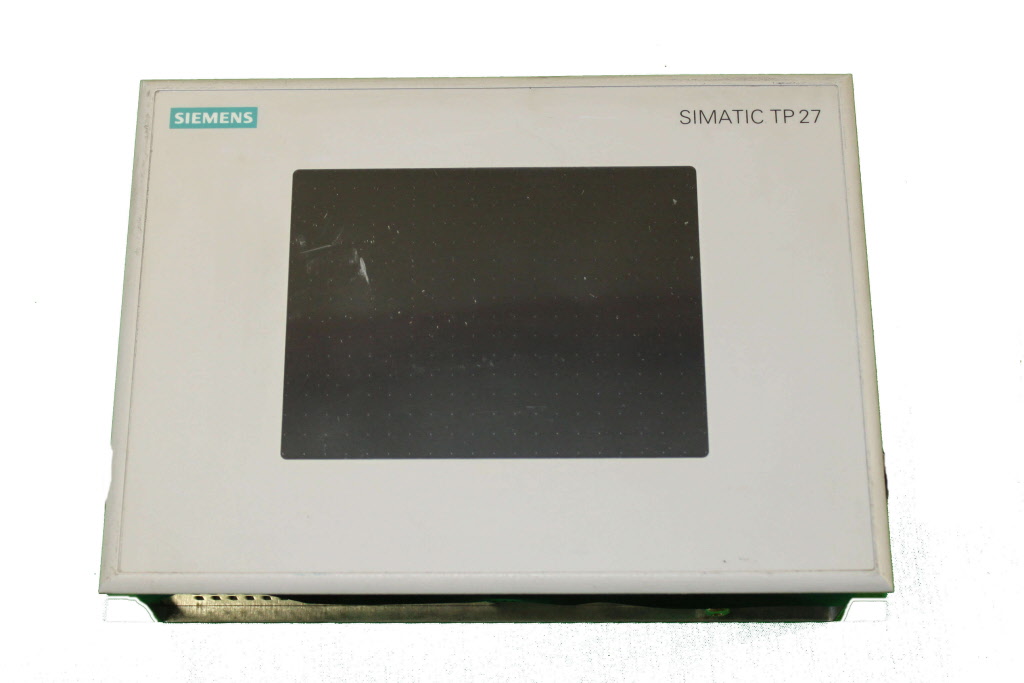
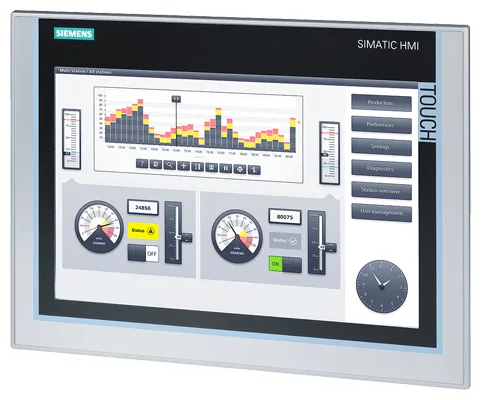
Siemens 6AV6321-1EC23-1MY0 OP 321
€ 2.495,00
The Siemens 6AV6321-1EC23-1MY0 is an operator panel (OP) belonging to the SIMATIC HMI product family, designed for machine-level human-machine interface applications. This unit provides a compact, text-based display interface for monitoring and controlling industrial processes. As part of the SIMATIC OP series, it is engineered to integrate seamlessly with Siemens SIMATIC S7 and S5 programmable logic controllers.
The OP 321 features a multi-line LCD text display capable of showing alphanumeric characters and system messages. It includes a membrane keypad with function keys for operator input, and supports serial communication interfaces for connection to PLCs and other controllers. The unit operates on a 24 V DC supply and is built to withstand industrial environments, with a front panel protection rating suitable for panel mounting applications.
The 6AV6321-1EC23-1MY0 is typically deployed in manufacturing, process automation, and machine tool applications where a cost-effective, reliable text-based operator interface is required. It is well suited for conveyor systems, packaging machinery, and general factory automation where operators need to monitor process values, acknowledge alarms, and enter setpoints without requiring a full graphical display.
Technical Specifications
| Display Type | LCD Text Display |
|---|---|
| Input Voltage | 24 V DC |
| Communication Interface | RS-232 / RS-422 / RS-485 (serial) |
| Protection Rating (Front) | IP 65 |
| Protection Rating (Rear) | IP 20 |
| Operating Temperature | 0 °C to +50 °C |
| Storage Temperature | -20 °C to +60 °C |
| Relative Humidity | 10% to 90% (non-condensing) |
| Mounting | Panel mounting |
| Series/Product Family | SIMATIC HMI OP Series |
| Certifications | CE, UL |
Common Error Codes and System Events
- Event ID: 10000
- Communication error between the OP and the connected PLC or controller. The operator panel cannot establish or maintain a connection.
Check the serial communication cable connections and wiring. Verify the communication parameters (baud rate, parity, stop bits) match the PLC configuration. Inspect the cable for damage and replace if necessary. - Event ID: 10001
- Timeout error on the communication link. The OP did not receive a response from the PLC within the expected time window.
Check the PLC is powered and in RUN mode. Verify cable integrity and connection at both ends. Reduce communication load or increase the timeout setting in the OP configuration. - Event ID: 10002
- Configuration data error. The project data loaded on the OP is inconsistent or corrupted.
Re-download the project from ProTool or STEP 7 to the operator panel. Ensure the project version is compatible with the OP firmware version. - Event ID: 20000
- Internal device error or hardware fault detected within the operator panel.
Cycle power to the OP. If the error persists, perform a factory reset. If the fault remains, the unit may require repair or replacement. - Event ID: 40000
- Project download error. Transfer of configuration data from the programming device to the OP failed.
Check the transfer cable connection between the PC and the OP. Verify the correct COM port and transfer settings in ProTool. Retry the download. - Event ID: 50000
- Memory error. Insufficient memory available on the OP to store the loaded project or runtime data.
Reduce the project size by removing unused screens, messages, or variables. Ensure the project does not exceed the memory capacity of the OP 321. - Event ID: 60000
- Firmware version mismatch. The firmware on the OP is not compatible with the project created in the configuration software.
Update the OP firmware to the version required by the project, or reconfigure the project targeting the installed firmware version using ProTool.
Frequently Asked Questions
What communication interfaces does the 6AV6321-1EC23-1MY0 support?
The OP 321 supports serial communication via RS-232, RS-422, and RS-485 interfaces, allowing connection to SIMATIC S7 and S5 PLCs as well as third-party controllers using compatible protocols.
What software is used to configure and program this operator panel?
The OP 321 is configured using Siemens ProTool configuration software. Projects are created on a PC and downloaded to the panel via a serial transfer cable.
What is the supply voltage for the 6AV6321-1EC23-1MY0?
The unit operates on a 24 V DC supply voltage, which is standard for SIMATIC HMI operator panels used in industrial control cabinet installations.
Is this operator panel compatible with SIMATIC S7-300 and S7-400 PLCs?
Yes, the OP 321 is compatible with SIMATIC S7-300 and S7-400 PLCs via serial communication using the MPI or PPI protocol, as well as with S5 PLCs using the appropriate protocol settings.
What is the front panel protection rating of this unit?
The front panel of the 6AV6321-1EC23-1MY0 carries an IP 65 protection rating, making it resistant to dust ingress and low-pressure water jets when correctly installed in a panel cutout.
Troubleshooting
Display remains blank after power is applied
Check the 24 V DC supply voltage at the power input terminals of the OP. Measure with a multimeter to confirm correct voltage level. Inspect internal fuses if accessible.
Ensure the 24 V DC supply is stable and within tolerance. Replace any blown internal fuse with the correct rating. If the supply is correct and the display remains blank, the internal power supply or display unit may require repair.
Communication error displayed on screen; no connection to PLC
Verify the serial communication cable is correctly connected at both the OP and PLC ends. Check that the baud rate, parity, and stop bit settings on the OP match those configured on the PLC communication port.
Correct any wiring faults or loose connectors. Align communication parameters on both devices. Replace the communication cable if damaged. Confirm the PLC is powered and in RUN mode.
Project download fails when transferring from PC to OP
Check the transfer cable connection between the programming PC and the OP serial port. Verify the correct COM port is selected in ProTool and that no other application is using the port.
Use a known-good transfer cable. Close any conflicting applications on the PC. Set the OP to transfer mode before initiating the download. Retry the download from ProTool.
Operator panel displays garbled or incorrect characters on screen
This may indicate a corrupted project download or a firmware/project version mismatch. Check the firmware version on the OP against the ProTool project target settings.
Re-download the project to the OP ensuring the correct device type and firmware version are selected in ProTool. If the issue persists, perform a factory reset and re-download the project.
Function keys do not respond to operator input
Inspect the membrane keypad for physical damage, contamination, or deformation. Check whether the issue is with specific keys or all keys, and verify the key assignments in the ProTool project configuration.
Clean the keypad surface carefully. If individual keys are unresponsive due to membrane damage, the keypad membrane may need replacement. Verify key function assignments in the project and re-download if configuration errors are found.
| Condition | Repair, Used, Refurbished, New in box (sealed) |
|---|
Related products
-
Siemens 6AV3627-1QK00-0AX0 OP27
Price range: € 649,00 through € 869,00 -
Siemens 6AV6642-8BA10-0AA0 TP177B
Price range: € 964,00 through € 1.611,00 -
Siemens 6AV6545-8CC10-0AA0 Mobile Panel 177
€ 1.247,00