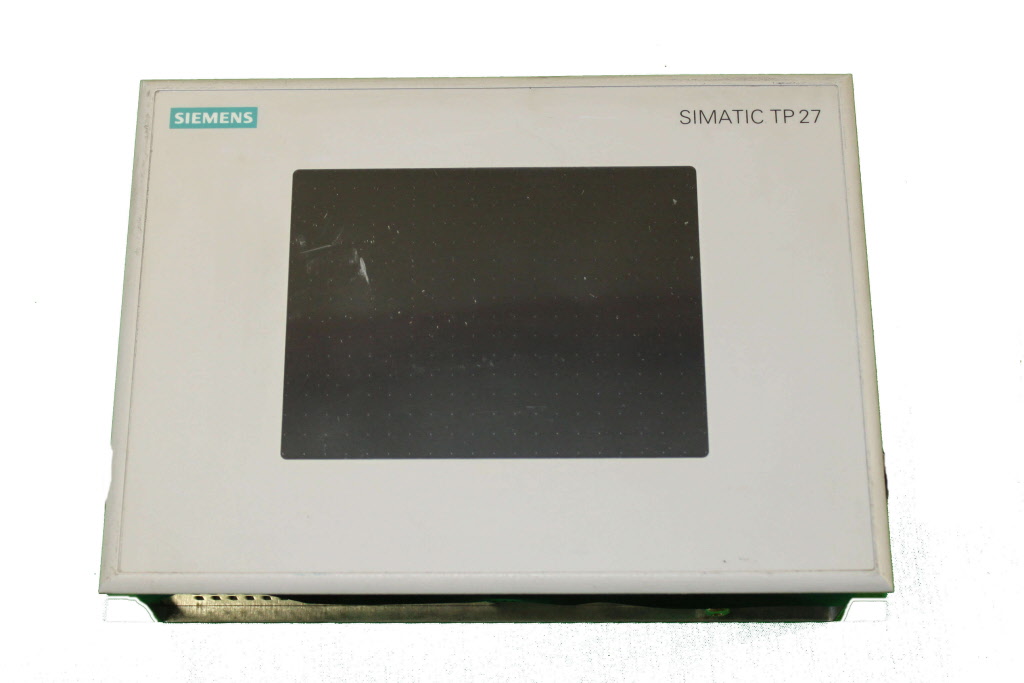
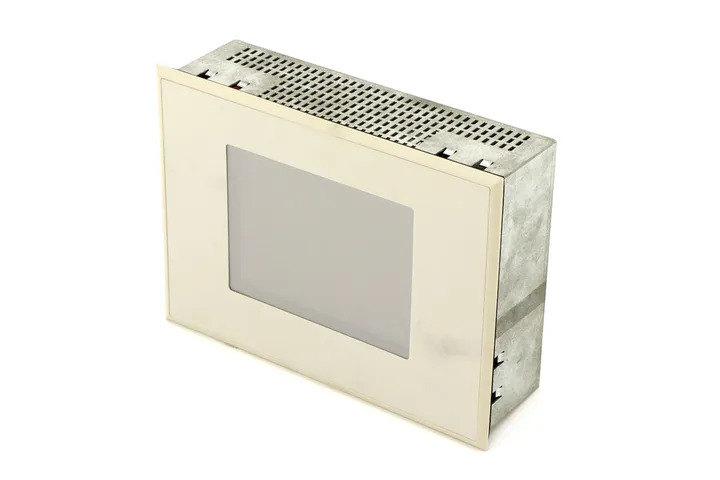
Siemens 6AV5030-1EL20-0AC0 SIMATIC OP 30
€ 1.830,00
The Siemens 6AV5030-1EL20-0AC0 is an Operator Panel (OP 30) belonging to the SIMATIC HMI family, designed for operator control and monitoring tasks in industrial automation environments. This unit provides a text-based interface for machine-level visualization and process control, and is part of Siemens' established SIMATIC OP series of operator panels. It is intended for direct integration with Siemens SIMATIC PLCs and compatible controllers.
The OP 30 features a multi-line LCD text display capable of showing alphanumeric characters and system messages, along with a membrane keypad for operator input. It supports communication via the MPI (Multi-Point Interface) protocol, enabling direct connection to SIMATIC S5 and S7 series PLCs. The panel is configured using Siemens ProTool software, and stores project data in internal non-volatile memory. The unit is built for panel-mount installation with a protection rating of IP65 on the front face, making it suitable for industrial cabinet integration.
The SIMATIC OP 30 is widely used in manufacturing, machine building, and process automation applications where straightforward text-based operator interaction is required. It is commonly found on packaging machines, conveyor systems, and general-purpose industrial machinery where operators need to monitor process values, acknowledge alarms, and input setpoints. Its compact form factor and robust construction make it appropriate for demanding industrial environments with limited panel space.
Technical Specifications
| Display Type | LCD text display |
|---|---|
| Display Lines | 4 lines of 20 characters |
| Input/Operating Voltage | 24 V DC |
| Communication Interface | MPI (Multi-Point Interface), RS-232 |
| IP/Protection Rating | IP65 (front panel) |
| Mounting | Panel mounting |
| Configuration Software | ProTool |
| PLC Compatibility | SIMATIC S5, SIMATIC S7 |
| Operating Temperature | 0 °C to +50 °C |
| Storage Temperature | -20 °C to +60 °C |
| Relative Humidity | 10% to 90% (non-condensing) |
| Series/Product Family | SIMATIC OP series |
Common Error Codes & System Events
- System Error 1
- MPI communication fault – no connection established to the configured PLC
Check MPI cable connections and termination resistors. Verify MPI address settings on both the OP 30 and the PLC. Ensure the baud rate matches on all MPI nodes. - System Error 2
- Project data missing or corrupted – no valid project loaded in the operator panel
Re-download the project from ProTool to the OP 30 via the configured interface. Check the integrity of the project file before transfer. - System Error 3
- Internal memory error – fault detected in non-volatile memory during self-test
Perform a complete reset of the operator panel and reload the project. If the error persists, the unit may require repair or replacement of internal memory components. - System Error 4
- Power supply undervoltage – supply voltage dropped below the minimum operating threshold
Measure the 24 V DC supply at the panel connector. Ensure the power supply unit is rated for the load and that wiring connections are secure. - System Error 5
- Watchdog timeout – the panel processor did not respond within the expected time window
Cycle power to the operator panel. If the fault recurs, check for excessive electrical noise on the supply or communication lines and verify grounding. - Configuration Error
- Incompatible or incorrect configuration detected – project settings do not match the connected hardware
Verify that the PLC type, MPI address, and baud rate configured in ProTool match the actual hardware. Re-download the corrected project to the panel. - Communication Timeout
- No response received from the PLC within the configured timeout period during runtime
Check the MPI network for cable faults, loose connectors, or missing bus termination. Verify the PLC is in RUN mode and the MPI node address is unique on the network.
Frequently Asked Questions
What communication interface does the OP 30 use to connect to a PLC?
The OP 30 communicates via MPI (Multi-Point Interface), which allows direct connection to SIMATIC S7 and compatible S5 PLCs. An RS-232 interface is also available for configuration and data transfer.
What software is used to configure and program the OP 30?
The OP 30 is configured using Siemens ProTool software. Projects are created on a PC and downloaded to the panel via the serial or MPI interface.
What is the supply voltage for the 6AV5030-1EL20-0AC0?
The operator panel requires a 24 V DC supply voltage for operation.
Is the OP 30 compatible with SIMATIC S7-300 PLCs?
Yes, the OP 30 supports MPI communication and is compatible with SIMATIC S7-300 and S7-400 PLCs, as well as certain SIMATIC S5 controllers.
What is the front panel protection rating of the OP 30?
The OP 30 has an IP65 protection rating on the front face when correctly installed in a panel cutout, making it resistant to dust and water jets.
Troubleshooting
Display remains blank after power is applied
Check the 24 V DC supply voltage at the panel power connector using a multimeter. Inspect the internal fuse if accessible. Verify that the power supply is capable of delivering sufficient current.
Restore the correct 24 V DC supply voltage. Replace any blown internal fuse with the correct rating. If the display remains blank with correct supply voltage, the internal power supply or display unit may require repair.
OP 30 shows 'No Connection' or communication error to PLC at startup
Verify MPI cable continuity and check that bus termination resistors are correctly placed at both ends of the MPI network. Confirm that the MPI address of the OP 30 does not conflict with any other node on the network.
Replace or reseat the MPI cable. Set unique MPI addresses for all devices on the network. Ensure baud rate settings match across all MPI nodes and that termination is active only at the physical ends of the bus.
Project cannot be downloaded from ProTool to the OP 30
Check the serial or MPI connection between the PC and the OP 30. Verify that the correct COM port and transfer settings are selected in ProTool. Ensure the panel is in transfer mode.
Place the OP 30 in transfer mode via the panel menu. Use the correct PC-to-OP cable (e.g., PC-MPI adapter or serial cable). Confirm ProTool communication settings match the panel configuration.
Operator inputs via keypad are not responding
Inspect the membrane keypad for physical damage, contamination, or worn key contacts. Check whether the issue is limited to specific keys or affects the entire keypad.
Clean the keypad surface. If individual keys are unresponsive due to worn contacts, the membrane keypad assembly may need to be replaced. Verify that the project configuration correctly maps the physical keys to the intended functions.
Panel displays garbled text or incorrect characters on screen
This may indicate a corrupted project file or a communication error during the last project download. Check whether the issue appeared after a recent project transfer.
Re-download the project from ProTool to the OP 30, ensuring the transfer completes without interruption. If the problem persists, perform a factory reset of the panel and reload the project from a verified project file.
| Condition | Repair, Used, Refurbished, New in box (sealed) |
|---|
Related products
-
Siemens 6AV3627-1QK00-0AX0 OP27
Price range: € 649,00 through € 869,00 -
Siemens 6AG1642-0BD01-2AX0 TP177B
€ 714,00