Siemens 6AV7260-0DB21-0BX0 SIMATIC IPC277D
€ 2.027,00
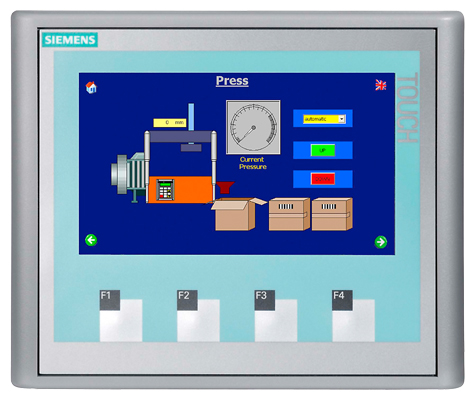
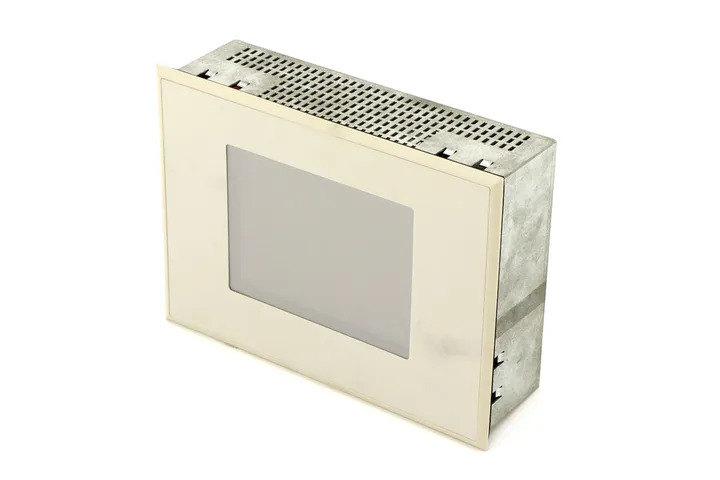
The Siemens 6AV7260-0DB21-0BX0 is a Panel PC belonging to the SIMATIC IPC277D series, part of Siemens' industrial PC product line designed for demanding automation and process visualization environments. This unit is a 15-inch multi-touch Panel PC that integrates computing power and HMI functionality into a single compact device. It is engineered for front-panel mounting in control cabinets and operator stations, providing a robust platform for SCADA, HMI, and process control applications.
The IPC277D features a 15-inch widescreen TFT display with a projected capacitive (PCAP) multi-touch interface, supporting up to 4 simultaneous touch points for intuitive operator interaction. The unit is based on an Intel Atom processor platform and supports Windows Embedded Standard 7 or Windows 7 operating systems, providing compatibility with standard industrial software packages including SIMATIC WinCC and WinCC flexible. Communication interfaces include multiple USB ports, Ethernet (RJ45), and optional PROFIBUS or PROFINET connectivity, enabling seamless integration into Siemens automation networks. The front panel achieves IP65 protection rating, making it resistant to dust and water ingress in harsh industrial environments.
The SIMATIC IPC277D is widely deployed in manufacturing, automotive, chemical processing, and food and beverage industries where reliable human-machine interface solutions are required. Its fanless design option and solid-state storage make it suitable for environments with vibration, temperature variation, and contamination risks. The device is commonly used as an operator panel for controlling production lines, monitoring process parameters, and visualizing plant data in conjunction with SIMATIC S7 PLCs and distributed I/O systems.
Technical Specifications
| Display Size | 15 inch |
|---|---|
| Display Type | TFT widescreen |
| Touch Technology | Projected capacitive (PCAP) multi-touch, up to 4 touch points |
| Display Resolution | 1024 x 768 px (XGA) |
| Display Colors | 16.7 million colors |
| Processor | Intel Atom |
| Operating System | Windows Embedded Standard 7 / Windows 7 |
| Input/Operating Voltage | 24 V DC |
| IP/Protection Rating | IP65 (front panel) |
| Communication Interface | 2x USB 2.0, 2x Ethernet RJ45 (10/100/1000 Mbit/s) |
| Mounting | Front panel mounting |
| Operating Temperature | 0 °C to +50 °C |
| Storage Temperature | -20 °C to +60 °C |
| Relative Humidity | 5 % to 90 % (non-condensing) |
| Certifications | CE, UL, cULus |
Common Error Codes & System Events
- Event ID: 100
- Operating system startup error or boot failure detected during POST sequence.
Check storage medium (SSD/CFast card) for integrity. Verify BIOS settings and restore default BIOS configuration if necessary. Replace storage medium if corrupted. - Event ID: 1000
- Application crash or unexpected termination of the HMI runtime software (e.g., WinCC).
Review Windows Event Viewer logs for the faulting module. Reinstall or repair the HMI runtime software. Check for software version compatibility with the operating system. - Event ID: 6008
- The previous system shutdown was unexpected, indicating a power loss or system crash.
Check the 24 V DC power supply for voltage stability and adequate current capacity. Inspect power connectors and wiring. Review event logs for preceding errors. - Display No Signal
- No video output or display remains blank after power-on.
Verify 24 V DC supply voltage at the power connector. Check internal display cable connections. Test with an external monitor via VGA/DVI if available. Replace backlight inverter or display assembly if faulty. - Touch Not Responding
- Touchscreen input is unresponsive or erratic.
Clean the touch surface with a dry cloth. Recalibrate the touch controller via the operating system settings. Update or reinstall the touch driver. If hardware failure is confirmed, replace the touch overlay. - Ethernet Link Failure
- Network communication is not established or connection drops intermittently.
Check Ethernet cable and switch port. Verify IP address configuration and subnet settings. Inspect RJ45 connector for damage. Test with a known-good cable and switch port. - Overtemperature Warning
- Internal temperature has exceeded the permissible operating threshold.
Ensure ambient temperature is within the 0 °C to +50 °C operating range. Verify that cabinet ventilation is adequate. Clean any dust from ventilation slots. Check that the panel PC is not mounted in a sealed enclosure without thermal management. - Storage Device Error
- The system cannot read from or write to the internal storage medium (SSD or CFast card).
Check the storage device seating and connector. Run a disk check utility from the operating system. Replace the CFast card or SSD if errors persist. Restore the system image from backup.
Frequently Asked Questions
What is the supply voltage for the SIMATIC IPC277D 6AV7260-0DB21-0BX0?
The unit operates on a 24 V DC supply voltage. Ensure the power source provides stable voltage within the specified tolerance range to prevent unexpected shutdowns.
What operating systems are supported by this Panel PC?
The IPC277D supports Windows Embedded Standard 7 and Windows 7. It is compatible with Siemens SIMATIC WinCC and WinCC flexible HMI runtime software.
What is the IP protection rating of the front panel?
The front panel of the 6AV7260-0DB21-0BX0 achieves IP65 protection, making it resistant to dust ingress and water jets. The rear of the unit is not rated to IP65.
Is the touchscreen compatible with gloved operation?
The projected capacitive (PCAP) multi-touch screen is generally not optimized for standard gloved operation. For glove-compatible use, verify glove type compatibility or consider resistive touch variants in the IPC277 series.
What communication interfaces are available on this unit?
The unit provides two USB 2.0 ports and two Gigabit Ethernet (RJ45) interfaces. Optional expansion may include PROFIBUS or PROFINET depending on the configuration ordered.
Troubleshooting
Panel PC does not power on after 24 V DC is applied
Measure the supply voltage at the power connector with a multimeter to confirm 24 V DC is present and within tolerance. Check the internal fuse on the power input board.
Replace the blown fuse with the correct rating as specified in the hardware manual. If voltage is absent, repair or replace the external power supply unit. If fuse replacement does not resolve the issue, the internal power supply board may require replacement.
Display is blank but the system appears to be running (HDD activity, network active)
Check if the backlight is functioning by shining a torch at the display surface to detect a faint image. Verify display cable connections internally.
Replace the backlight assembly or inverter board if the backlight has failed. If the display cable is loose or damaged, reseat or replace it. In cases of complete display failure, replace the TFT display module.
Touchscreen registers incorrect touch positions or is unresponsive
Check for physical damage or contamination on the touch surface. Verify that the touch driver is correctly installed in Device Manager under Windows.
Clean the touch surface thoroughly. Recalibrate the touch controller using the calibration tool in the Windows Control Panel. Reinstall the touch driver from the Siemens support portal. If the touch overlay is physically damaged, replace the touch panel assembly.
System freezes or reboots unexpectedly during operation
Review the Windows Event Viewer System and Application logs for critical errors preceding the freeze or reboot. Monitor CPU temperature and supply voltage stability.
Ensure the 24 V DC supply is stable and free from voltage spikes. Verify that the operating temperature is within specification. Update firmware and drivers to the latest versions available from Siemens. If RAM or storage faults are identified in logs, replace the affected component.
Ethernet communication is intermittent or not established
Check the Ethernet cable, switch port, and LED indicators on the RJ45 connector. Verify IP configuration settings in Windows Network Adapter settings.
Replace the Ethernet cable and test on a different switch port. Reconfigure the IP address and subnet mask. Update the network adapter driver. If the RJ45 port is physically damaged, the unit may require motherboard-level repair or replacement.
| Condition | Repair, Used, Refurbished, New in box (sealed) |
|---|
Related products
-
Siemens 6AG1643-0AA01-4AX0 MP 277
€ 1.278,00 -
Siemens 6AG1642-0BD01-4AX0 TP177B
€ 555,00