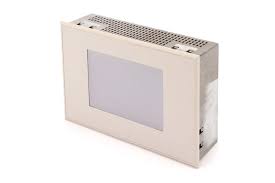
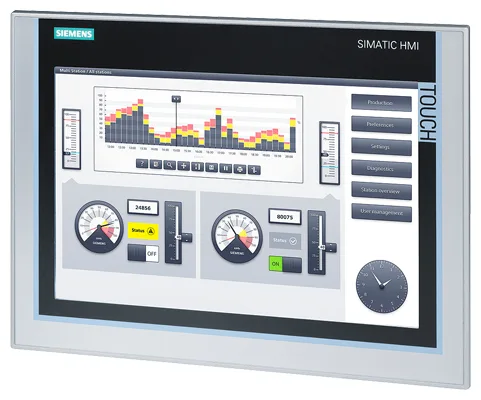
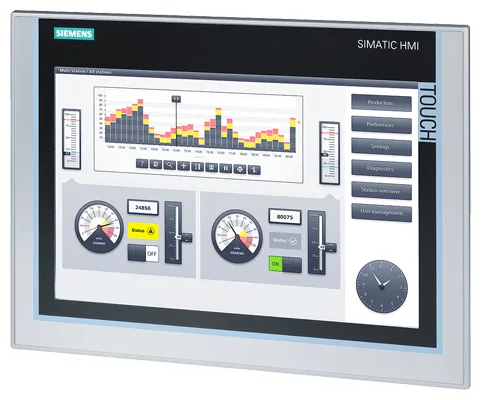
Siemens 6AV7241-5SB07-0FA0 SIMATIC IPC277D
€ 1.980,00
The Siemens 6AV7241-5SB07-0FA0 is a panel PC belonging to the SIMATIC IPC277D series, part of Siemens' industrial PC product line designed for demanding automation and process visualization environments. This unit functions as a high-performance operator panel and industrial PC, combining computing power with a robust touch-screen interface suitable for machine-level HMI applications. It is engineered to integrate seamlessly within Siemens' TIA Portal ecosystem and SIMATIC automation environments.
The IPC277D features a widescreen display with multi-touch capability, supporting projected capacitive (PCT) touch technology for precise and reliable operator input. It is powered by an Intel Atom processor and runs Microsoft Windows Embedded Standard 7 or Windows 7 Ultimate, providing a full PC platform for running SCADA, WinCC, or third-party visualization software. The unit offers multiple communication interfaces including PROFINET, Ethernet, USB ports, and optionally PROFIBUS, enabling flexible integration into existing plant networks. The fanless design and solid-state storage options contribute to high reliability in continuous industrial operation.
The SIMATIC IPC277D is widely deployed in manufacturing, automotive, food and beverage, pharmaceutical, and process industries where a combination of robust HMI functionality and PC-based computing is required at the machine or panel level. Its wide operating temperature range and high IP rating on the front panel make it suitable for installation in control cabinets and harsh production environments. The device is commonly used to run Siemens WinCC Runtime, STEP 7, or TIA Portal-based visualization applications directly at the machine.
Technical Specifications
| Series | SIMATIC IPC277D |
|---|---|
| Display Size | 15.4 inch widescreen |
| Display Resolution | 1280 x 800 px |
| Touch Technology | Projected Capacitive (PCT) Multi-Touch |
| Processor | Intel Atom E3827, 1.75 GHz dual-core |
| Operating System | Windows Embedded Standard 7 / Windows 7 Ultimate |
| RAM | 2 GB DDR3 (expandable to 4 GB) |
| Storage | Compact Flash or SSD (configurable) |
| Input Voltage | 24 V DC |
| Power Consumption | Approx. 40 W |
| Communication Interfaces | 2x PROFINET/Ethernet (RJ45), 4x USB 2.0, 1x USB 3.0, optional PROFIBUS |
| IP Rating (Front) | IP65 |
| IP Rating (Rear) | IP20 |
| Operating Temperature | 0 °C to +50 °C |
| Storage Temperature | -20 °C to +60 °C |
| Mounting | Panel mounting |
| Certifications | CE, UL, cULus |
Common Error Codes & System Events
- Event ID: 100001
- Runtime communication error — loss of connection between WinCC Runtime and the PLC or controller.
Check PROFINET/Ethernet cabling and network configuration. Verify PLC is online and IP addresses are correctly assigned. Restart WinCC Runtime if connection is not re-established automatically. - Event ID: 100002
- Project download failed — the HMI project could not be transferred to the device.
Verify that the PC and engineering station are on the same network subnet. Check firewall settings and ensure WinCC or TIA Portal version matches the runtime version on the device. - Event ID: 100003
- Storage medium error — fault accessing Compact Flash or SSD storage device.
Check that the storage medium is properly seated. Replace the Compact Flash card or SSD if read/write errors persist. Back up project data before replacement. - Event ID: 100004
- Operating system startup failure — Windows fails to boot or becomes unresponsive during startup.
Attempt a controlled restart. If the issue persists, restore the OS image using the Siemens recovery partition or a factory recovery USB. Check storage medium integrity. - Event ID: 100005
- Overtemperature warning — internal temperature of the IPC has exceeded the recommended operating threshold.
Check ambient temperature and ensure adequate ventilation around the panel. Verify that the panel cutout dimensions and clearances comply with installation guidelines. Clean any dust from ventilation areas. - Event ID: 100006
- USB device not recognized — a connected USB peripheral is not detected or causes a system error.
Disconnect the USB device and restart the IPC. Use only USB devices compatible with the installed operating system. Check USB port integrity and update drivers if necessary. - Event ID: 100007
- Touch screen not responding — the PCT touch input is unresponsive or inaccurate.
Perform a touch screen recalibration via the Windows control panel or SIMATIC IPC settings. Clean the display surface. If the issue persists, check the internal touch controller ribbon cable connection or replace the touch panel assembly. - Event ID: 100008
- Power supply undervoltage — the 24 V DC supply voltage has dropped below the permissible operating range.
Measure the supply voltage at the IPC power connector. Ensure the power supply unit provides a stable 24 V DC within the specified tolerance. Check wiring for voltage drops due to cable resistance or loose connections.
Frequently Asked Questions
What operating systems are supported on the SIMATIC IPC277D 6AV7241-5SB07-0FA0?
This unit supports Windows Embedded Standard 7 and Windows 7 Ultimate. The specific OS variant depends on the order configuration. Third-party software compatible with these operating systems can also be installed.
What visualization software can be run on this panel PC?
The IPC277D is designed to run Siemens WinCC Runtime (including WinCC Runtime Advanced and WinCC Runtime Professional), as well as STEP 7 and TIA Portal-based applications. Third-party SCADA and HMI software compatible with Windows 7 can also be used.
What is the front panel protection rating of the 6AV7241-5SB07-0FA0?
The front panel of the IPC277D achieves IP65 protection, making it resistant to dust ingress and low-pressure water jets. The rear of the unit is rated IP20.
Does this unit support PROFIBUS communication?
PROFIBUS is available as an optional interface on the IPC277D. The base unit includes PROFINET/Ethernet interfaces; PROFIBUS connectivity requires the appropriate optional module or integrated interface depending on the order configuration.
Can the storage medium be replaced or upgraded in the field?
Yes, the IPC277D supports field-replaceable Compact Flash cards and SSD storage. Siemens recommends using approved storage media and restoring the OS image and project data after replacement using the provided recovery tools.
Troubleshooting
Display remains blank after power is applied
Check that 24 V DC is present at the power supply connector using a multimeter. Verify the power cable is correctly wired and the supply unit is functioning. Check if the power LED on the unit is illuminated.
If supply voltage is correct but the display remains off, attempt a hard reset by holding the power button. If the display backlight has failed, the backlight or display assembly may need replacement. If no power LED is present, inspect internal fuses and the power supply board.
Touch screen input is inaccurate or unresponsive
Determine whether the issue is software-related by connecting an external USB mouse to verify OS responsiveness. Check the display surface for contamination or damage. Review Windows Device Manager for touch controller errors.
Recalibrate the touch screen via Windows Control Panel or the SIMATIC IPC configuration tool. Clean the display with a lint-free cloth. If hardware failure is confirmed, replace the PCT touch panel assembly and reconnect the internal ribbon cable securely.
WinCC Runtime fails to start or crashes on startup
Review Windows Event Viewer logs for application errors related to WinCC Runtime. Check available storage space on the system drive. Verify that the installed WinCC Runtime version is compatible with the project file version.
Free up disk space if storage is near capacity. Reinstall WinCC Runtime using the original installation media. If the project file is corrupted, restore from the last known good backup. Ensure all Siemens software licenses (SIMATIC License Manager) are valid and correctly assigned.
Loss of communication with PLC over PROFINET
Ping the PLC IP address from the IPC to verify network connectivity. Check Ethernet cable integrity and switch/hub status. Review the WinCC or TIA Portal connection configuration for correct IP address and device name settings.
Replace the Ethernet cable if damaged. Verify that the PROFINET device name and IP address assigned in the project match the physical PLC configuration. Restart the WinCC Runtime connection or re-download the HMI project if configuration mismatch is found.
IPC277D fails to boot Windows and displays a recovery prompt
This typically indicates corruption of the Windows OS partition, often caused by an improper shutdown or storage medium failure. Check the Compact Flash or SSD for errors using the recovery environment's disk check tools.
Use the Siemens factory recovery partition or a Siemens-provided recovery USB drive to restore the OS image to factory state. After recovery, reinstall the WinCC Runtime and restore the HMI project from backup. If the storage medium is faulty, replace it with an approved Siemens spare part before restoring.
| Condition | Repair, Used, Refurbished, New in box (sealed) |
|---|
Related products
-
Siemens 6AV3627-1QK00-2AX0 OP27
Price range: € 749,00 through € 1.658,00 -
Siemens 6AG1642-0BA01-4AX1 TP177B
€ 1.040,00 -
Siemens 6AV6545-8CC10-0AA0 Mobile Panel 177
€ 1.247,00