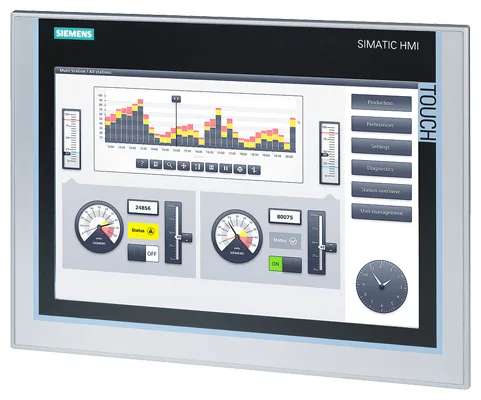
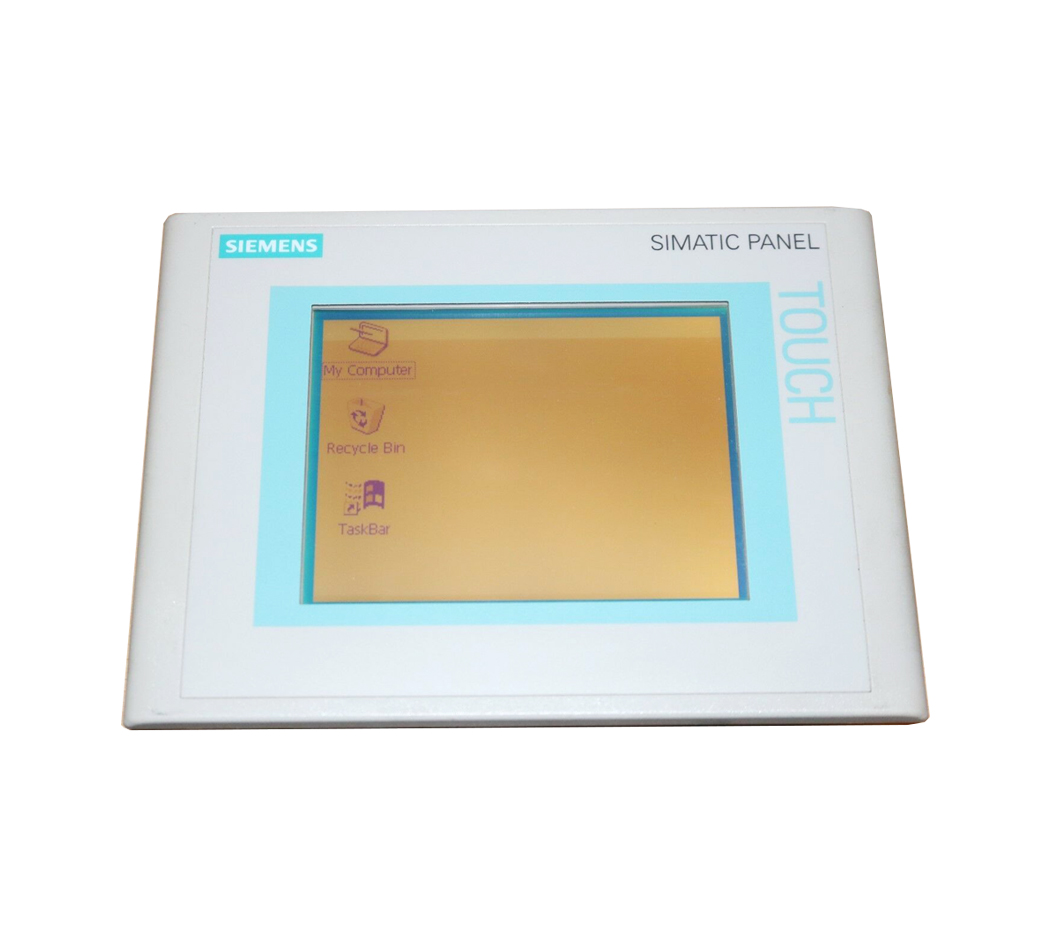
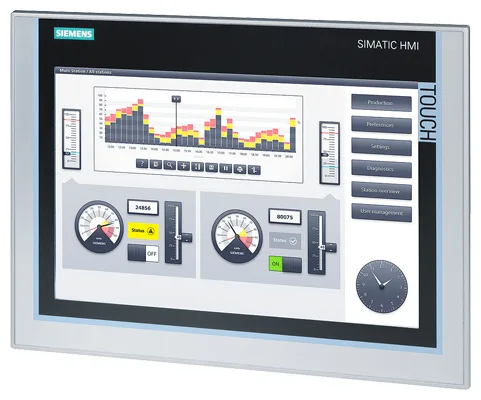
Siemens 6AV6646-1BC18-0AA0 SIMATIC KTP800 Basic
€ 915,00
The Siemens 6AV6646-1BC18-0AA0 is a SIMATIC KTP800 Basic Panel, part of the Siemens SIMATIC Basic Panel series of compact human-machine interface devices. This unit features an 8-inch widescreen TFT display and combines key-and-touch operation, making it suitable for straightforward visualization and operator control tasks. It is designed for integration into the Siemens SIMATIC automation environment and is configured using the WinCC Basic engineering software included with SIMATIC STEP 7 Basic or TIA Portal.
The KTP800 Basic panel offers a 65,536-color (16-bit) TFT display with a resolution of 800 x 480 pixels and supports both touch input and 8 configurable function keys for tactile operation. It communicates via a PROFINET interface (RJ45) for integration with S7-1200 and S7-300/400 PLCs, and includes a USB port for project transfer and data backup. The panel operates on 24 V DC supply voltage, has 10 MB of user memory for project data, and supports a range of display and alarm functions within the WinCC Basic runtime environment.
The SIMATIC KTP800 Basic is widely used in machine-level visualization applications across manufacturing, packaging, food and beverage, and general industrial automation. Its compact form factor and combination of touch and key operation make it well suited for panel installations where reliable operator interaction is required without the complexity of a full-featured PC-based HMI. The panel is particularly common in applications paired with SIMATIC S7-1200 controllers for small to mid-range machine automation.
Technical Specifications
| Display Size | 8 inch (widescreen) |
|---|---|
| Display Resolution | 800 x 480 pixels |
| Display Colors | 65,536 (16-bit) |
| Display Type | TFT LCD |
| Touch Technology | Resistive touch screen |
| Function Keys | 8 configurable function keys |
| Input/Operating Voltage | 24 V DC |
| Power Consumption | Approx. 6 W |
| Communication Interface | PROFINET (RJ45), USB (Type A and Type B) |
| User Memory | 10 MB |
| Operating Temperature | 0 °C to +50 °C |
| Storage Temperature | -20 °C to +60 °C |
| Relative Humidity | 10% to 90% (non-condensing) |
| IP Rating (Front) | IP65 |
| IP Rating (Rear) | IP20 |
| Mounting | Panel mounting |
| Certifications | CE, UL, cULus |
| Series/Product Family | SIMATIC Basic Panel |
Common Error Codes & System Events
- Event ID: 10000
- Connection to the PLC could not be established or has been interrupted.
Check PROFINET cable connections and IP address configuration. Verify PLC is in RUN mode and the correct communication driver is configured in the project. - Event ID: 10001
- Communication timeout between HMI panel and the configured PLC controller.
Check network integrity, verify IP settings on both HMI and PLC, and ensure no IP address conflicts exist on the network. - Event ID: 20000
- Project download failed or project data is corrupted.
Re-download the project from TIA Portal via USB or PROFINET. Ensure the WinCC Basic version matches the panel firmware version. - Event ID: 40000
- HMI panel firmware version is incompatible with the loaded project.
Update the panel firmware using the ProSave tool or TIA Portal to match the version used during project engineering. - Event ID: 50000
- Internal device error or hardware fault detected on the panel.
Perform a panel reset. If the fault persists, check for physical damage to the unit and consider replacing the panel or returning it for repair. - Event ID: 60000
- Insufficient user memory available for the current project.
Reduce project size by removing unused screens, images, or archive data. Ensure project memory usage does not exceed the 10 MB user memory limit. - Event ID: 70000
- Tag or variable update error; one or more tags cannot be read from the PLC.
Verify tag addresses in the TIA Portal project match the actual PLC data block or I/O addresses. Check for PLC program changes that may have altered variable addresses.
Frequently Asked Questions
Which PLCs are compatible with the SIMATIC KTP800 Basic (6AV6646-1BC18-0AA0)?
The KTP800 Basic is primarily designed for use with SIMATIC S7-1200 PLCs via PROFINET. It also supports communication with S7-300 and S7-400 controllers using the appropriate PROFINET connection configuration in TIA Portal.
What software is required to configure and program this HMI panel?
The KTP800 Basic is configured using WinCC Basic, which is included with SIMATIC STEP 7 Basic and TIA Portal. It is not compatible with WinCC Flexible or older SIMATIC ProTool software.
How is a project transferred to the KTP800 Basic panel?
Projects can be transferred to the panel via USB (using a USB Type A to Type B cable) or via PROFINET Ethernet. The ProSave tool can also be used for firmware updates and data backup.
What is the supply voltage requirement for the KTP800 Basic?
The panel requires a 24 V DC power supply. The permissible voltage range is typically 19.2 V DC to 28.8 V DC, and the power consumption is approximately 6 W.
Can the KTP800 Basic be used in outdoor or harsh environments?
The front face of the panel is rated IP65, providing protection against dust and water jets, making it suitable for industrial panel installations. The rear of the unit is rated IP20, so it must be installed in an enclosure for protection from the environment.
Troubleshooting
Display remains blank after power on
Check that 24 V DC is present at the power supply terminals of the panel. Measure voltage at the connector to confirm supply is within the 19.2–28.8 V DC range. Inspect for any blown fuses in the supply circuit.
Restore correct supply voltage if out of range. If voltage is correct and display remains blank, the internal power supply or backlight may have failed. Consider replacing the panel or having the backlight/power board repaired.
HMI shows 'No connection to PLC' message on startup
Verify the PROFINET cable is securely connected to the RJ45 port on both the HMI and the PLC or network switch. Check the IP address settings on the panel against the configured PLC address in the TIA Portal project.
Correct any IP address mismatches using the panel's Start Center settings menu. Replace the Ethernet cable if damaged. Ensure the PLC is powered and in RUN mode.
Touchscreen does not respond or responds inaccurately
Check for physical damage or contamination on the touch surface. Determine if the issue is limited to specific screen areas, which may indicate a damaged resistive touch layer.
Clean the screen surface with a soft, dry cloth. Recalibrate the touchscreen via the panel's Start Center or Control Panel settings. If calibration does not resolve the issue, the touch panel assembly may require replacement.
Project download fails or is interrupted during transfer
Check the USB cable or PROFINET connection used for transfer. Verify that the TIA Portal project WinCC Basic version matches the firmware version installed on the panel. Check available user memory on the panel.
Update the panel firmware using ProSave to match the TIA Portal version. Use a known-good USB cable and ensure the project size does not exceed 10 MB. Perform a panel reset before re-attempting the download.
Panel repeatedly restarts or enters an error loop after loading a project
This may indicate a corrupted project file or a firmware incompatibility. Check the event log accessible via the panel's Start Center for specific event IDs.
Perform a factory reset of the panel via the Start Center boot menu, then re-download a freshly compiled project from TIA Portal. If the issue persists, update the panel firmware to the latest compatible version using ProSave.
| Condition | Repair, Used, Refurbished, New in box (sealed) |
|---|
Related products
-
Siemens 6AV6642-8BA12-0AB0 TP177B
€ 879,00 -
Siemens 6AV6642-0BC01-1AX0 TP177B
Price range: € 630,00 through € 1.421,00 -
Siemens 6AG1642-0BA01-4AX0 TP177B
€ 675,00