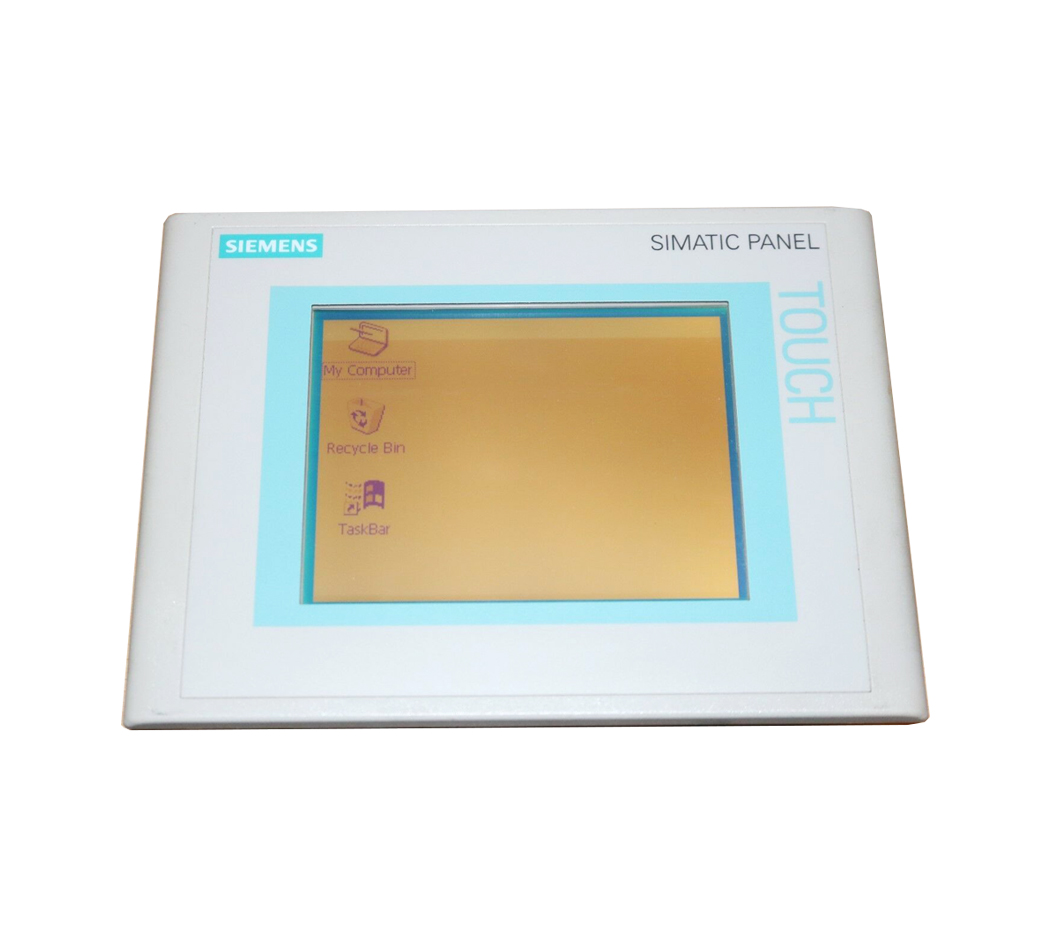
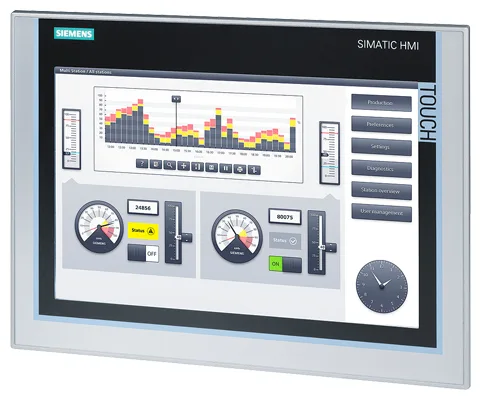
Siemens 6AV6446-3BA40-3BY4 MP370
The Siemens 6AV6446-3BA40-3BY4 is a Multi Panel MP370 belonging to the SIMATIC HMI Multi Panel family, manufactured by Siemens. This panel PC is designed for demanding visualization and operator control tasks in industrial automation environments. It combines a large-format display with robust computing capabilities, making it suitable for complex SCADA and HMI applications.
The MP370 features a 12.1-inch TFT color display with a resolution of 800 x 600 pixels (SVGA) and supports touch screen operation. It runs on Microsoft Windows CE, providing a familiar operating environment for SIMATIC WinCC flexible runtime software. The unit communicates via MPI, PROFIBUS DP, and Ethernet interfaces, and includes USB ports for peripheral connectivity. Onboard memory supports project storage and runtime data, and the panel is built to withstand the electrical noise and vibration typical of industrial cabinet installations.
The MP370 is widely deployed in manufacturing, automotive, chemical processing, and water treatment industries where operators require a large, clear visualization interface. It is commonly integrated with Siemens S7-300 and S7-400 PLCs via MPI or PROFIBUS, and with S7 systems over Industrial Ethernet. Its panel-mount design and IP65 front protection rating make it suitable for installation in control cabinets and operator stations exposed to dust and water splash.
Technical Specifications
| Display Size | 12.1 inch |
|---|---|
| Display Resolution | 800 x 600 pixels (SVGA) |
| Display Colors | 256 colors (TFT) |
| Touch Technology | Resistive touch screen |
| Input/Operating Voltage | 24 V DC |
| Power Consumption | Max. 30 W |
| Operating System | Windows CE 5.0 |
| Communication Interface | MPI, PROFIBUS DP, Ethernet (RJ45), USB |
| IP/Protection Rating | IP65 (front), IP20 (rear) |
| Operating Temperature | 0 °C to +50 °C |
| Storage Temperature | -20 °C to +60 °C |
| Relative Humidity | 10% to 90%, non-condensing |
| Mounting | Panel mounting |
| Certifications | CE, UL, cULus |
| Series/Product Family | SIMATIC HMI Multi Panel MP370 |
Common Error Codes & System Events
- Event ID: 1000
- Connection to PLC lost or communication timeout on MPI/PROFIBUS interface.
Check MPI/PROFIBUS cable connections and termination resistors. Verify PLC address settings match the HMI project configuration. - Event ID: 1003
- Tag read/write error — the HMI cannot read or write a configured tag from the PLC.
Verify the tag address exists in the PLC program. Check data block numbers and variable addresses in WinCC flexible. - Event ID: 10000
- Project download failed or project file is corrupt.
Re-download the project from the engineering PC using WinCC flexible. Ensure the project version is compatible with the panel firmware version. - Event ID: 20000
- Runtime license missing or expired for WinCC flexible runtime.
Transfer a valid WinCC flexible runtime license to the panel using the Automation License Manager. - Event ID: 40000
- Internal memory full — insufficient storage space for logging or project data.
Delete unused data logs, alarm archives, or recipe files. Consider using an external storage device via USB. - Event ID: 50000
- Firmware update error — firmware transfer to the panel was interrupted or failed.
Restart the panel in bootstrap/transfer mode and re-initiate the firmware update from the ProSave tool on the engineering PC. - Event ID: 70000
- Touch screen calibration error — touch input is misaligned or unresponsive.
Access the Control Panel via the Start menu and run the touch screen calibration utility. If unresponsive, recalibrate using a stylus.
Frequently Asked Questions
What software is used to configure and program the MP370?
The MP370 is configured using Siemens WinCC flexible engineering software. Projects are created on a PC and downloaded to the panel via MPI, PROFIBUS, Ethernet, or USB.
Which PLCs are compatible with the Siemens MP370?
The MP370 is compatible with Siemens S7-200, S7-300, and S7-400 PLCs via MPI or PROFIBUS DP, and with S7 systems over Industrial Ethernet. It also supports communication with third-party controllers via configurable drivers in WinCC flexible.
What is the supply voltage for the 6AV6446-3BA40-3BY4?
The panel operates on 24 V DC. Ensure the power supply is within the specified tolerance range to avoid damage or instability.
Does the MP370 support recipe management and data logging?
Yes, the MP370 supports recipe management, data logging, and alarm archiving through WinCC flexible runtime. Data can be stored internally or on external USB storage devices.
What is the front panel protection rating of the MP370?
The front panel of the MP370 carries an IP65 protection rating, making it resistant to dust ingress and water jets, suitable for installation in industrial control cabinets.
Troubleshooting
Display remains blank after power on
Check the 24 V DC supply voltage at the power connector. Verify the supply is within tolerance and the connector is firmly seated. Check if the backlight timeout setting has activated screen blanking.
Restore correct 24 V DC supply. If the backlight has timed out, touch the screen to reactivate it. If the display remains blank with correct power, the backlight inverter or display unit may require replacement.
HMI cannot communicate with the PLC over MPI or PROFIBUS
Verify cable connections and check that bus termination resistors are correctly placed at both ends of the bus. Confirm that the MPI/PROFIBUS address configured in the HMI project matches the physical PLC address.
Replace or reseat the MPI/PROFIBUS cable. Correct address settings in WinCC flexible and re-download the project. Ensure only one active bus termination exists at each cable end.
Touch screen does not respond accurately to input
The touch screen calibration may have drifted. Access the Windows CE Control Panel and open the touch screen calibration tool to assess alignment accuracy.
Perform a full touch screen recalibration using the calibration utility in the Control Panel. If the issue persists after calibration, the touch overlay may be damaged and require replacement.
Panel repeatedly reboots or freezes during runtime
Check the 24 V DC supply for voltage drops or ripple under load. Inspect the panel for signs of overheating. Review the WinCC flexible project for script errors or memory leaks in data logging configurations.
Stabilize the power supply and ensure adequate ventilation around the panel. Simplify or correct the WinCC flexible project configuration. If the issue persists, perform a factory reset and re-download the project.
Project download fails from engineering PC
Verify the communication interface settings (IP address for Ethernet, or MPI address for serial connection) on both the engineering PC and the panel. Check that the panel is in Transfer mode.
Set the panel to Transfer mode via the Start Center or by pressing the Transfer button during startup. Correct the interface settings in WinCC flexible under Transfer settings and retry the download.
| Condition | Repair, Used, Refurbished, New in box (sealed) |
|---|
Related products
-
Siemens 6AV6642-0BA01-1AX1 TP177B
Price range: € 723,00 through € 2.499,00 -
Siemens 6AV6642-0BC01-1AX0 TP177B
Price range: € 630,00 through € 1.421,00 -
Siemens 6AV6545-0AA15-2AX0 TP 270
Price range: € 399,00 through € 1.149,00