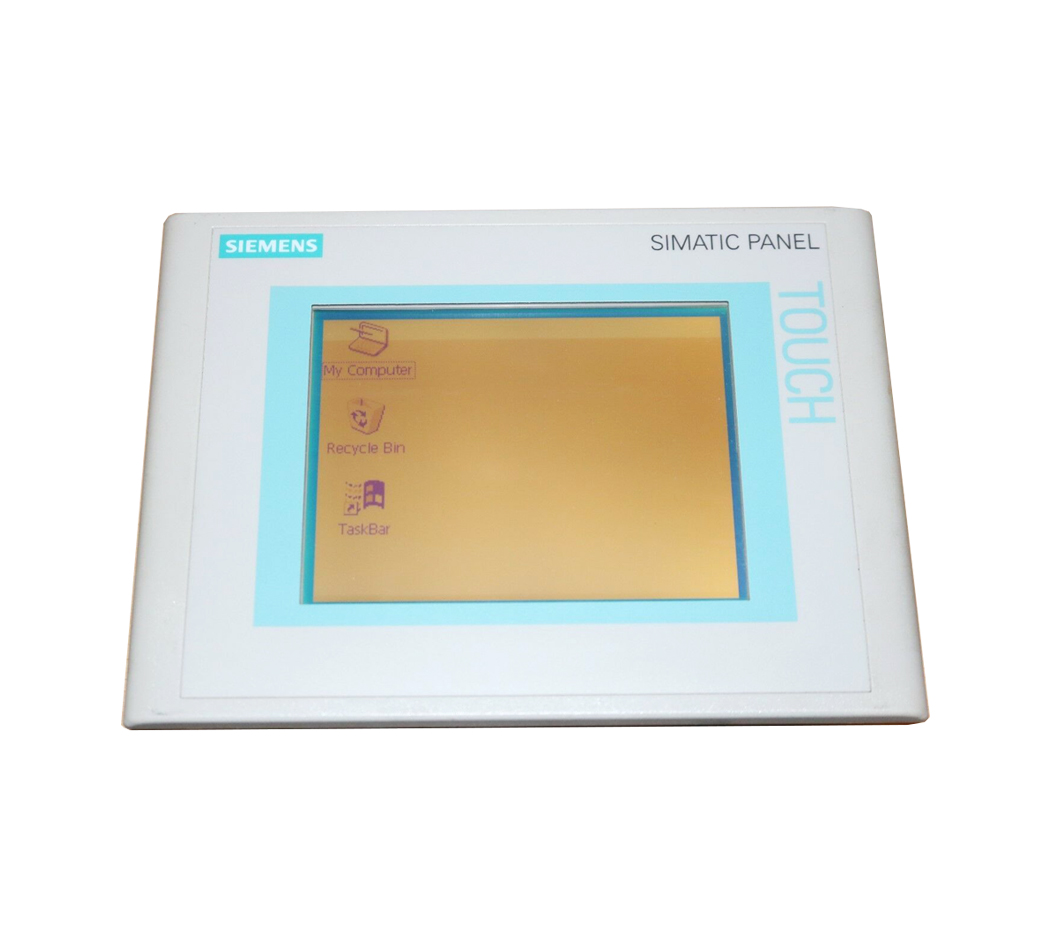
Siemens 6AV6362-4AA08-0AE1 SIMATIC HMI TP 177B
€ 261,48
The Siemens 6AV6362-4AA08-0AE1 is a Touch Panel belonging to the SIMATIC HMI TP 177B series, part of the broader SIMATIC HMI 170 family manufactured by Siemens. This panel is a compact operator interface device designed for machine-level visualization and control tasks in industrial automation environments. It features a 5.7-inch TFT color display and is configured for operation with PROFIBUS DP and MPI communication interfaces.
The TP 177B 6AV6362-4AA08-0AE1 is equipped with a resistive touch screen and supports 256 colors on its TFT display at a resolution of 320 x 240 pixels (QVGA). The panel operates on a 24 V DC supply and includes 512 KB of user memory for project data, with an integrated flash memory for project and recipe storage. It supports configuration via Siemens WinCC flexible software and is compatible with SIMATIC S7-200, S7-300, and S7-400 PLC families through its MPI/PROFIBUS DP interface.
The TP 177B is widely deployed in machine building, packaging machinery, conveyor systems, and general factory automation applications where a compact yet capable HMI is required. Its rugged front panel with IP65 protection rating makes it suitable for installation in control cabinet doors exposed to dust and water spray. The panel's compatibility with the SIMATIC controller ecosystem makes it a practical choice for integrating into existing Siemens-based automation architectures.
Technical Specifications
| Display Size | 5.7 inch |
|---|---|
| Display Type | TFT color |
| Display Resolution | 320 x 240 pixels (QVGA) |
| Display Colors | 256 colors |
| Touch Technology | Resistive touch screen |
| Input/Operating Voltage | 24 V DC |
| Communication Interface | MPI / PROFIBUS DP (RS-485) |
| User Memory | 512 KB |
| Configuration Software | WinCC flexible 2005 or higher |
| Operating Temperature | 0 °C to +50 °C |
| Storage Temperature | -20 °C to +60 °C |
| Relative Humidity | 10% to 90% (non-condensing) |
| IP Rating (Front) | IP65 |
| IP Rating (Rear) | IP20 |
| Mounting | Panel mounting |
| Certifications | CE, UL, cULus |
Common Error Codes & System Events
- Event ID: 10000
- Configuration error detected on the HMI panel; the loaded project is incompatible or corrupted.
Reload the project using WinCC flexible. Verify the project was compiled without errors before transfer. - Event ID: 20000
- Communication error between the HMI panel and the connected PLC via MPI or PROFIBUS DP.
Check physical wiring and bus termination resistors. Verify MPI/PROFIBUS address settings on both the HMI and PLC. Ensure baud rate settings match. - Event ID: 40000
- Tag read/write error; the HMI cannot access a configured PLC variable.
Verify the PLC program contains the referenced data block or variable. Check that the PLC is in RUN mode and the address is correct in the WinCC flexible project. - Event ID: 50000
- Recipe data error; recipe records cannot be read from or written to flash memory.
Check available flash memory space. Re-transfer the project and recipe data. If the problem persists, perform a factory reset and reload the project. - Event ID: 60000
- System startup error; the panel fails to boot correctly or the operating system cannot be loaded.
Perform a panel reset by holding the appropriate key combination during power-on. If the issue persists, use the Siemens ProSave tool to restore the operating system image. - Event ID: 70000
- Backup/restore error; data transfer to or from a memory card failed.
Check that the memory card is correctly inserted and is a supported type. Format the card using the panel's control panel utility and retry the backup or restore operation. - Event ID: 80000
- Screen saver or display fault; the display does not activate or remains blank after the screen saver period.
Check the 24 V DC supply voltage at the power connector. Verify screen saver settings in the project. If the display hardware is faulty, the panel may require repair or replacement of the display unit.
Frequently Asked Questions
Which PLC families are compatible with the TP 177B 6AV6362-4AA08-0AE1?
The TP 177B is compatible with SIMATIC S7-200, S7-300, and S7-400 PLCs via the integrated MPI/PROFIBUS DP interface. It can also communicate with other controllers that support PROFIBUS DP protocol.
What software is required to configure and program this HMI panel?
The panel is configured using Siemens WinCC flexible 2005 or a later version. Project transfer to the panel can be performed via MPI, PROFIBUS DP, or a serial PC/PPI cable depending on the configuration.
What is the front panel protection rating of the TP 177B?
The front panel of the TP 177B carries an IP65 protection rating, making it resistant to dust ingress and water jets, suitable for installation in control cabinet doors.
Can the TP 177B store recipe data?
Yes, the TP 177B supports recipe management and can store recipe data in its integrated flash memory. Additional storage can be provided via a compatible memory card.
What is the operating voltage for the 6AV6362-4AA08-0AE1?
The panel operates on a 24 V DC supply voltage, which is the standard supply voltage for SIMATIC HMI panels in this series.
Troubleshooting
Display remains blank after power on
Measure the 24 V DC supply voltage at the panel's power connector. Check for blown internal fuses or wiring faults. Observe whether the panel emits any startup sounds or LED activity.
Ensure the 24 V DC supply is within the specified tolerance. If the supply is correct and the display remains blank, the backlight or display unit may have failed and the panel should be sent for repair or the backlight replaced.
HMI panel cannot communicate with the PLC
Check the MPI or PROFIBUS DP cable connections and verify bus termination is correctly applied at both ends of the network. Confirm that the HMI and PLC are configured with unique and correct bus addresses and matching baud rates.
Replace or reseat the communication cable. Correct any address conflicts or baud rate mismatches in the WinCC flexible project settings and the PLC hardware configuration. Reload the project to the panel after making corrections.
Touch screen does not respond or responds inaccurately
Check whether the touch screen responds at all by attempting input in multiple areas. Determine if the issue is a full failure or a calibration drift by observing where touch inputs register relative to the intended target.
Perform a touch screen recalibration through the panel's control panel settings. If the touch screen is physically damaged or unresponsive after recalibration, the touch glass assembly may need to be replaced.
Panel fails to boot and displays a system error or hangs at startup
Observe the startup sequence for any error messages or event IDs displayed on screen. Check whether the issue occurs consistently or intermittently, which may indicate a corrupted project or operating system image.
Use the Siemens ProSave tool connected via MPI or serial interface to restore the panel's operating system. After restoring the OS, reload the WinCC flexible project to the panel.
Project transfer from PC to panel fails
Verify the communication cable type and connection between the PC and the panel. Check that the correct communication channel (MPI, PROFIBUS, or serial) is selected in WinCC flexible transfer settings and that the panel is in transfer mode.
Place the panel in transfer mode manually via the Start Center or control panel. Ensure the PC communication adapter (e.g., PC Adapter USB) drivers are correctly installed. Retry the transfer with the correct interface settings selected in WinCC flexible.
| Condition | Repair, Used, Refurbished, New in box (sealed) |
|---|
Related products
-
Siemens 6AG1642-0BD01-2AX0 TP177B
€ 714,00 -
Siemens 6AV6642-0BC01-1AX0 TP177B
Price range: € 630,00 through € 1.421,00 -
Siemens 6AG1545-0CC10-4AX0 SIPLUS HMI TP900
€ 1.340,00