Siemens 6AV6355-4AA00-0AA1 OP 77A
€ 1.195,00
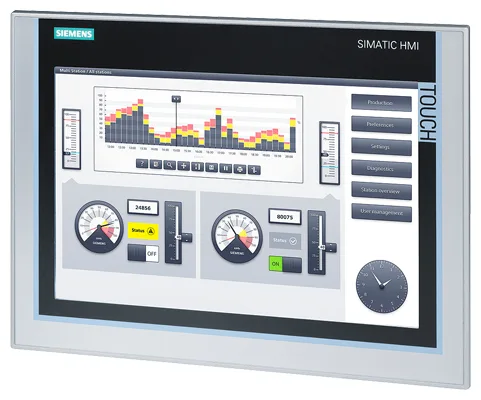
The Siemens 6AV6355-4AA00-0AA1 is the OP 77A operator panel, part of the SIMATIC HMI Basic Panels product family. This compact panel-mount operator terminal is designed for straightforward machine-level human-machine interface tasks, providing operators with a clear text-based display and dedicated function keys. It belongs to the SIMATIC HMI portfolio and is intended for use with Siemens SIMATIC S7 PLCs and other compatible controllers.
The OP 77A features a 4-line STN LCD text display capable of showing alphanumeric characters, enabling clear presentation of process values, messages, and status information. It communicates via MPI and PROFIBUS DP interfaces, allowing direct integration into existing Siemens automation networks. The panel supports configuration through WinCC flexible software and offers function keys with LED indicators for direct operator control. Its compact and robust housing is rated IP65 on the front face, making it suitable for panel-mount installation in industrial enclosures.
The OP 77A is widely used in manufacturing, machine building, and process automation applications where a cost-effective, reliable operator interface is required without the need for graphical display capabilities. It is commonly found on packaging machines, conveyor systems, and general-purpose industrial machinery where operators need to monitor process values and acknowledge alarms. Its compatibility with the SIMATIC S7 controller family and support for PROFIBUS DP makes it a practical choice for integration into existing Siemens-based automation architectures.
Technical Specifications
| Display Type | STN LCD, text-based |
|---|---|
| Display Lines | 4 lines |
| Characters per Line | 20 characters |
| Input/Operating Voltage | 24 V DC |
| Power Consumption | 4.5 W (typical) |
| Communication Interface | MPI, PROFIBUS DP |
| IP Rating (Front) | IP65 |
| IP Rating (Rear) | IP20 |
| Operating Temperature | 0 °C to +50 °C |
| Storage Temperature | -20 °C to +60 °C |
| Relative Humidity | 10% to 90% (non-condensing) |
| Mounting | Panel mount |
| Certifications | CE, UL |
| Configuration Software | WinCC flexible 2005 or higher |
Common Error Codes & System Events
- System Error 1
- Communication error between OP 77A and connected PLC via MPI or PROFIBUS DP
Check MPI/PROFIBUS cable connections and termination resistors. Verify bus address settings on the panel and PLC. Ensure baud rate settings match on all devices. - System Error 2
- Project data missing or corrupted on the operator panel
Re-transfer the project from the configuration PC using WinCC flexible. Ensure the correct project file is downloaded and the transfer is completed without interruption. - System Error 3
- Operating voltage out of range or power supply fault
Measure the 24 V DC supply voltage at the panel connector. Ensure the supply is within the specified tolerance range and check wiring connections. - System Error 4
- No connection to configured PLC — panel cannot establish communication at startup
Verify PLC is powered and running. Check PROFIBUS DP or MPI address configuration on both the panel and the PLC. Inspect cable integrity and connector pins. - Transfer Mode Active
- Panel is in transfer mode waiting for project download from configuration PC
Connect the configuration PC running WinCC flexible and initiate the project transfer. If unintended, restart the panel and check startup configuration settings. - Alarm Buffer Overflow
- The alarm buffer on the panel has reached its maximum capacity
Acknowledge and clear pending alarms on the panel. Review the alarm configuration in WinCC flexible to ensure alarm classes and buffer sizes are correctly defined. - PLC Connection Timeout
- Communication with the PLC has been lost during operation
Check PROFIBUS DP or MPI network integrity. Verify PLC is in RUN mode and network cables are undamaged. Restart communication by cycling power to the panel if necessary.
Frequently Asked Questions
What communication interfaces does the OP 77A support?
The OP 77A supports MPI and PROFIBUS DP communication interfaces, allowing direct connection to Siemens SIMATIC S7-200, S7-300, and S7-400 PLCs as well as other PROFIBUS DP-compatible controllers.
What software is required to configure the OP 77A?
The OP 77A is configured using Siemens WinCC flexible 2005 or a later compatible version. Projects are transferred to the panel via the MPI or PROFIBUS DP interface from a configuration PC.
What is the supply voltage for the 6AV6355-4AA00-0AA1?
The OP 77A requires a 24 V DC supply voltage. Ensure the power supply is within the specified tolerance to guarantee reliable operation.
Is the OP 77A suitable for outdoor or washdown environments?
The front face of the OP 77A is rated IP65, providing protection against dust and water jets, making it suitable for panel-mount installation in industrial environments. The rear of the unit is rated IP20 and must be protected within an enclosure.
Can the OP 77A display graphical content?
No, the OP 77A is a text-based operator panel with a 4-line alphanumeric LCD display. It does not support graphical or bitmap image display. For graphical HMI functionality, a panel from the SIMATIC TP or MP series would be required.
Troubleshooting
Display remains blank after power on
Check the 24 V DC supply voltage at the panel power connector. Verify that the supply is within the specified range and that all wiring connections are secure.
Restore correct 24 V DC supply voltage. If voltage is correct and display remains blank, inspect internal fuse and connector integrity. The panel may require repair or replacement of the internal power supply board.
Panel shows communication error and cannot connect to PLC
Verify MPI or PROFIBUS DP cable connections at both the panel and PLC. Check that bus termination resistors are correctly placed at both ends of the network. Confirm that the bus address and baud rate settings on the panel match those configured in the PLC project.
Correct any wiring faults, replace damaged cables, and ensure bus termination is properly applied. Adjust address and baud rate settings in WinCC flexible if necessary and re-download the project.
Panel is stuck in transfer mode and will not start normally
The panel startup configuration may be set to always enter transfer mode, or a previous transfer was interrupted leaving the panel in an incomplete state.
Connect a configuration PC with WinCC flexible and complete a full project transfer. After successful transfer, reconfigure the startup behavior in the panel settings to normal operation mode.
Function key LEDs do not illuminate as expected
Check the PLC program logic controlling the LED output bits associated with the function keys. Verify that the correct variable addresses are mapped in the WinCC flexible project for LED control.
Correct the PLC program or WinCC flexible variable mapping to ensure the LED control bits are correctly addressed. Re-download the updated project to the panel and test key LED behavior.
Alarm messages are not displayed on the panel
Check the alarm configuration in the WinCC flexible project to ensure alarm triggers are correctly linked to PLC bit variables. Verify that the PLC is setting the alarm bits as expected during the fault condition.
Correct the alarm variable mapping in WinCC flexible and re-download the project. Confirm PLC logic is correctly setting alarm trigger bits and that the alarm class display settings are enabled on the panel.
| Condition | Repair, Used, Refurbished, New in box (sealed) |
|---|
Related products
-
Siemens 6AG1643-0AA01-4AX0 MP 277
€ 1.278,00 -
Siemens 6AG1642-0BA01-4AX1 TP177B
€ 1.040,00 -
Siemens 6AV6642-0BC01-1AX1 TP177B
Price range: € 657,00 through € 1.249,00