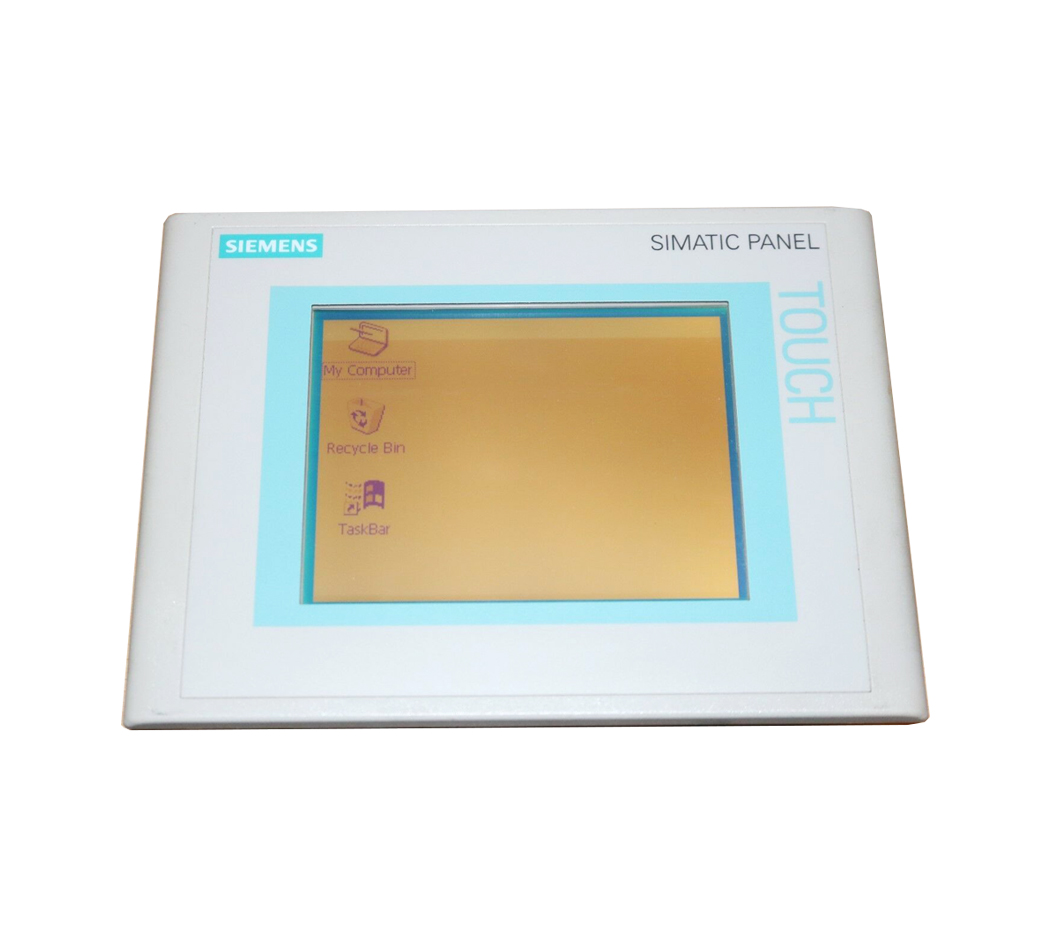
Siemens 6AV6355-1FA00-0DL6 OP 77B
€ 1.995,00
The Siemens 6AV6355-1FA00-0DL6 is the OP 77B operator panel, part of the SIMATIC HMI Basic Panels product family. This unit provides a compact, keypad-based human-machine interface designed for straightforward machine-level operation and monitoring tasks. It belongs to the SIMATIC HMI generation and is manufactured by Siemens as a cost-effective solution for basic panel communication with SIMATIC controllers.
The OP 77B features a 4-line STN monochrome LCD display capable of showing text and simple graphics, with a resolution of 160 x 64 pixels. The panel is equipped with a membrane keypad for operator input, including function keys and system keys. It supports MPI and PROFIBUS DP communication interfaces for direct connection to SIMATIC S7-200, S7-300, and S7-400 PLCs. The unit operates on 24 V DC supply voltage and is rated to IP65 at the front panel, making it suitable for panel-mount installations in industrial environments.
The OP 77B is widely used in manufacturing, machine building, and process automation applications where a simple, reliable operator interface is required without the need for touchscreen or color display capabilities. It is commonly found on standalone machines, conveyor systems, and packaging equipment where operators need to monitor status messages, acknowledge alarms, and adjust setpoints. Its compact form factor and robust keypad design make it well suited for environments with limited panel space or where gloved operation is required.
Technical Specifications
| Display Type | STN monochrome LCD |
|---|---|
| Display Resolution | 160 x 64 pixels |
| Display Lines | 4 lines of text |
| Input/Operating Voltage | 24 V DC |
| Communication Interface | MPI, PROFIBUS DP |
| IP Rating (Front) | IP65 |
| IP Rating (Rear) | IP20 |
| Operating Temperature | 0 °C to 50 °C |
| Storage Temperature | -20 °C to 60 °C |
| Relative Humidity | 10 % to 90 % (non-condensing) |
| Mounting | Panel mount |
| Certifications | CE, UL |
| Series/Product Family | SIMATIC HMI OP 77B |
Common Error Codes & System Events
- Event ID: 10000
- Configuration error detected during startup; the loaded project is incompatible with the panel firmware version.
Reload the correct project using SIMATIC WinCC flexible or ProTool. Ensure the project version matches the panel firmware. - Event ID: 10001
- Communication link to the PLC has been interrupted or cannot be established.
Check MPI or PROFIBUS DP cable connections and termination resistors. Verify the PLC address and baud rate settings match the panel configuration. - Event ID: 10002
- No project found in the panel memory; the panel is operating without a loaded configuration.
Transfer a valid project to the panel using SIMATIC WinCC flexible via the MPI or serial interface. - Event ID: 10003
- Panel memory is full; the project or data log cannot be stored.
Reduce the project size or clear existing data logs. Transfer an optimized project to the panel. - Event ID: 10004
- Firmware update failed or firmware is corrupted.
Repeat the firmware update procedure using the correct firmware file for the OP 77B via the serial transfer cable. - Event ID: 10005
- Tag read/write error; the panel cannot access a configured PLC data address.
Verify the PLC tag addresses in the WinCC flexible project. Confirm the PLC program contains the expected data blocks and variables. - Event ID: 10006
- Operator input rejected; a key press was not accepted due to a locked or inactive input field.
Check the configured input enable conditions in the project. Ensure the relevant screen object is enabled and the PLC is in the correct operating mode.
Frequently Asked Questions
Which PLCs are compatible with the OP 77B?
The OP 77B supports direct connection to SIMATIC S7-200, S7-300, and S7-400 PLCs via MPI or PROFIBUS DP. It can also communicate with SIMATIC S5 controllers using appropriate protocol settings.
What software is used to configure the OP 77B?
The OP 77B is configured using Siemens SIMATIC WinCC flexible or the older ProTool configuration software. Projects are transferred to the panel via the MPI interface or a serial PC/PPI cable.
What is the supply voltage for the 6AV6355-1FA00-0DL6?
The panel requires a 24 V DC supply voltage. Ensure the power supply is within the specified tolerance range to avoid operational issues.
Does the OP 77B support touchscreen input?
No, the OP 77B uses a membrane keypad for operator input and does not have a touchscreen. Input is performed via dedicated function keys and system keys on the front panel.
What is the front panel protection rating of the OP 77B?
The front panel of the OP 77B is rated to IP65, providing protection against dust ingress and low-pressure water jets, making it suitable for typical industrial panel installations.
Troubleshooting
Display remains blank after power is applied
Measure the 24 V DC supply voltage at the panel power connector. Check for blown fuses in the control cabinet supply circuit.
Restore the correct 24 V DC supply voltage within the specified tolerance. If the display remains blank with correct voltage, the internal power supply or display backlight may be faulty and the unit should be sent for repair.
Panel displays 'No connection to PLC' or communication error on startup
Inspect the MPI or PROFIBUS DP cable for physical damage and verify connector seating. Check that the bus termination resistors are correctly placed at both ends of the network segment.
Replace damaged cables, correct termination, and verify that the PLC address and baud rate configured in the WinCC flexible project match the actual PLC settings. Ensure the PLC is powered and in RUN mode.
Project transfer from PC to panel fails
Verify the transfer cable type and COM port settings on the PC. Confirm the panel is set to transfer mode by accessing the panel's system menu during startup.
Use the correct Siemens PC/MPI adapter or serial transfer cable. Set the panel to transfer mode, select the correct COM port and baud rate in WinCC flexible, and retry the project download.
Function keys do not respond to operator input
Check whether the keys are disabled by a configured enable condition in the project. Inspect the membrane keypad for physical damage or contamination under the keys.
Review the WinCC flexible project to confirm that function key enable conditions are correctly configured. If the keypad is physically damaged, the front membrane assembly should be replaced.
Alarm messages are not displayed on the panel
Verify that the alarm tags in the WinCC flexible project are correctly mapped to the PLC bit addresses. Confirm the PLC program is setting the alarm bits as expected.
Correct any tag address mismatches in the project configuration and retransfer the project to the panel. Test alarm triggering by manually setting the relevant PLC bits during commissioning.
| Condition | Repair, Used, Refurbished, New in box (sealed) |
|---|
Related products
-
Siemens 6AV6642-0BA01-1AX1 TP177B
Price range: € 723,00 through € 2.499,00 -
Siemens 6AV6642-0BC01-1AX0 TP177B
Price range: € 630,00 through € 1.421,00 -
Siemens 6AV6643-0AA01-1AX1 TP277
€ 249,00