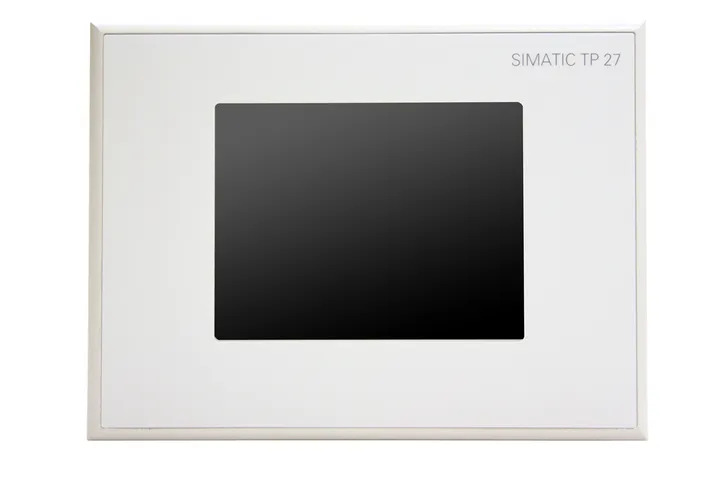
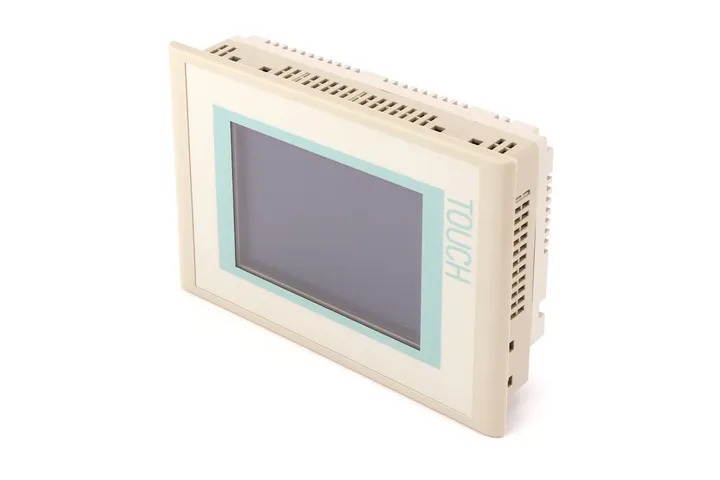
Siemens 6AV6355-1CA47-7CA4 OP 177B
€ 3.495,00
The Siemens 6AV6355-1CA47-7CA4 is an Operator Panel (OP 177B) belonging to the SIMATIC HMI series, designed for machine-level human-machine interface applications. This unit provides a monochrome or color display with keypad-based operation, enabling operators to monitor and control industrial processes directly at the machine. As part of the SIMATIC HMI comfort and mobile panel lineage, it integrates seamlessly into Siemens automation environments.
The OP 177B features a 5.7-inch STN display and supports both MPI/PROFIBUS DP and Ethernet communication interfaces, allowing flexible integration with SIMATIC S7-200, S7-300, and S7-400 PLCs. It is configured using WinCC flexible engineering software and supports recipe management, alarm logging, and trend display functions. The panel operates on 24 V DC and is rated IP65 on the front face, making it suitable for panel-mount installations in industrial enclosures.
The OP 177B is widely deployed in manufacturing, packaging, and process automation applications where a compact, robust operator interface is required at the machine level. Its keypad-based input with function keys makes it well-suited for environments where touchscreen operation is impractical, such as dusty or high-vibration settings. Industries including automotive, food and beverage, and general machine building commonly use this panel for local HMI tasks.
Technical Specifications
| Display Size | 5.7 inch |
|---|---|
| Display Type | STN LC display |
| Display Colors | 256 colors |
| Input/Operating Voltage | 24 V DC |
| Power Consumption | Max. 12 W |
| Communication Interface | MPI/PROFIBUS DP, Ethernet (RJ45) |
| Operating Temperature | 0 °C to 50 °C |
| Storage Temperature | -20 °C to 60 °C |
| Relative Humidity | 10% to 90% (non-condensing) |
| IP Rating (Front) | IP65 |
| IP Rating (Rear) | IP20 |
| Mounting | Panel mounting |
| Configuration Software | WinCC flexible 2005 or higher |
| PLC Compatibility | SIMATIC S7-200, S7-300, S7-400 |
| Certifications | CE, UL, cULus |
Common Error Codes and System Events
- Event ID: 10000
- Communication error between the HMI panel and the connected PLC or controller.
Check MPI/PROFIBUS DP or Ethernet cable connections. Verify PLC address settings and communication parameters in WinCC flexible project. Ensure the PLC is powered and in RUN mode. - Event ID: 10001
- Connection to the configured PLC has been lost during runtime.
Inspect physical communication cables for damage. Verify network address and baud rate settings match the PLC configuration. Restart both the HMI panel and the PLC if necessary. - Event ID: 20000
- Project download error — the project could not be transferred to the HMI device.
Check the transfer cable or network connection between the engineering PC and the HMI. Ensure the panel is in Transfer mode and that the correct communication interface is selected in WinCC flexible. - Event ID: 40000
- Internal device error or system fault detected on the HMI panel.
Perform a panel restart. If the fault persists, reload the WinCC flexible project. Check for firmware compatibility and update if required. - Event ID: 50000
- Data memory error — recipe or tag data could not be read or written correctly.
Check available memory on the panel. Clear obsolete recipe data or archived logs. If the error persists, perform a memory reset and reload the project. - Event ID: 60000
- Firmware or operating system mismatch detected on the HMI device.
Update the panel firmware using ProSave or WinCC flexible to a version compatible with the loaded project. Ensure the project is recompiled and re-downloaded after the firmware update. - Event ID: 70000
- Screen saver or backlight timeout has been triggered, display has gone dark.
This is a normal operational event. Press any key to reactivate the display. Adjust the screen saver timeout settings in the WinCC flexible project if required.
Frequently Asked Questions
Which PLCs are compatible with the OP 177B (6AV6355-1CA47-7CA4)?
The OP 177B is compatible with SIMATIC S7-200, S7-300, and S7-400 PLCs via MPI/PROFIBUS DP. Ethernet-based communication with S7 controllers is also supported depending on the firmware version.
What software is required to configure the OP 177B?
The OP 177B is configured using Siemens WinCC flexible 2005 or a later version. Projects are compiled in WinCC flexible and downloaded to the panel via MPI, PROFIBUS DP, or Ethernet.
What is the operating voltage of the 6AV6355-1CA47-7CA4?
The panel operates on 24 V DC with a maximum power consumption of approximately 12 W.
What is the front panel protection rating of the OP 177B?
The front face of the OP 177B is rated IP65, making it resistant to dust ingress and low-pressure water jets, suitable for panel-mount installation in industrial enclosures.
Can the OP 177B firmware be updated in the field?
Yes, the firmware can be updated using the Siemens ProSave tool or via WinCC flexible. The update is performed over the MPI, PROFIBUS DP, or Ethernet interface.
Troubleshooting
Display remains blank after power is applied
Measure 24 V DC supply voltage at the power connector. Check internal fuse if accessible. Verify that the power supply can deliver sufficient current for the panel.
Ensure the 24 V DC supply is stable and within tolerance. Replace the power supply if voltage is absent or out of range. If the supply is correct and the display remains blank, the backlight or internal power board may require replacement.
HMI panel fails to communicate with the PLC
Check the MPI or PROFIBUS DP cable connections and verify the bus termination resistors are correctly set at both ends of the network. Confirm the panel address and baud rate match the PLC settings.
Correct any address or baud rate mismatches in the WinCC flexible project and re-download. Replace damaged communication cables. Ensure bus terminators are installed at the physical ends of the PROFIBUS segment.
Project download from engineering PC fails
Verify that the panel is set to Transfer mode before initiating the download. Check the communication cable between the PC and the panel, and confirm the correct interface is selected in WinCC flexible.
Switch the panel to Transfer mode via the Start Center menu. Use a known-good MPI or Ethernet cable. Ensure the PC firewall is not blocking the WinCC flexible transfer process.
Touchscreen or keypad inputs are not responding correctly
Check for physical damage to the keypad membrane or function keys. Verify that the project configuration correctly maps the hardware keys to the intended functions.
Recalibrate the input interface if applicable. If individual keys are unresponsive due to membrane damage, the keypad assembly may need to be replaced. Re-download the project to rule out configuration errors.
Panel repeatedly restarts or enters a boot loop
This may indicate a corrupted project file or a firmware mismatch. Check the panel's Start Center for error messages during boot. Verify that the loaded firmware version is compatible with the WinCC flexible project version.
Use ProSave to restore the panel firmware to a stable version. Re-download the WinCC flexible project after firmware restoration. If the issue persists, perform a factory reset via ProSave and reload all software.
| Condition | Repair, Used, Refurbished, New in box (sealed) |
|---|
Related products
-
Siemens 6AV3627-1NK00-2AX0 SIMATIC OP 27
Price range: € 749,00 through € 964,00 -
Siemens 6AG1545-0CC10-4AX0 SIPLUS HMI TP900
€ 1.340,00 -
Siemens 6AV6640-0CA11-0AX0 OP 73micro
Price range: € 368,00 through € 1.055,00