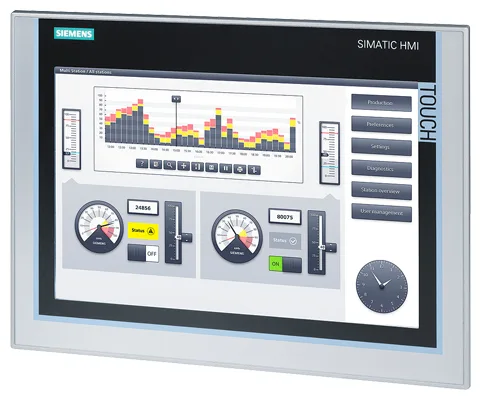
Siemens 6AV6355-1CA47-7CA1 OP 77B
€ 3.495,00
The Siemens 6AV6355-1CA47-7CA1 is an OP 77B operator panel belonging to the SIMATIC HMI Basic Panels product family. It is designed for straightforward machine-level operator control and monitoring tasks, providing a compact and robust interface for industrial automation systems. This unit is part of Siemens' well-established HMI portfolio and is configured for integration with SIMATIC S7 PLCs and other compatible controllers.
The OP 77B features a monochrome LCD display and a membrane keypad for operator input, making it suitable for environments where a touch interface is not required. It supports MPI and PROFIBUS DP communication interfaces for direct connection to SIMATIC S7-200, S7-300, and S7-400 controllers. The panel is engineered for reliable operation in industrial conditions, with a compact housing designed for panel-mount installation and a protection rating suitable for front-face exposure to dust and moisture.
The OP 77B is widely used in manufacturing, machine building, and process automation applications where a cost-effective, dedicated operator interface is needed at the machine level. It is particularly suited for applications requiring status display, parameter entry, and alarm acknowledgment without the complexity of a full graphical HMI. Industries such as automotive, food and beverage, packaging, and general factory automation commonly deploy this panel for local operator interaction with SIMATIC-controlled machinery.
Technical Specifications
| Display Type | Monochrome LCD |
|---|---|
| Display Size | 4 lines x 20 characters |
| Input/Operating Voltage | 24 V DC |
| Power Consumption | 4 W (typical) |
| Communication Interface | MPI, PROFIBUS DP |
| IP Rating (Front) | IP65 |
| IP Rating (Rear) | IP20 |
| Operating Temperature | 0 °C to +50 °C |
| Storage Temperature | -20 °C to +60 °C |
| Relative Humidity | 10% to 90% (non-condensing) |
| Mounting | Panel mounting |
| Certifications | CE, UL, cULus |
| Series/Product Family | SIMATIC HMI OP 77B |
| PLC Compatibility | SIMATIC S7-200, S7-300, S7-400 |
Common Error Codes & System Events
- Event ID: 10000
- Communication error between the OP 77B and the connected PLC. The panel cannot establish or maintain a connection to the controller.
Check MPI or PROFIBUS DP cable connections and termination resistors. Verify the PLC address settings match the configuration in the HMI project. Ensure the PLC is powered and in RUN mode. - Event ID: 10001
- Connection to the configured PLC has been lost during operation.
Inspect the communication cable for damage or loose connectors. Verify bus termination and cable shielding. Restart both the HMI panel and the PLC if the connection is not restored automatically. - Event ID: 20000
- Configuration or project download error. The panel cannot load or execute the configured project.
Re-download the project from ProTool or WinCC flexible to the panel. Verify the project is compiled without errors and is compatible with the OP 77B firmware version. - Event ID: 40000
- Internal device error or hardware fault detected on the panel.
Perform a panel reset. If the error persists, check the supply voltage at the power connector and verify it is within the 24 V DC specification. Contact Siemens support or arrange for unit repair if the fault remains. - Event ID: 50000
- Firmware update error. The firmware transfer to the panel was interrupted or failed.
Repeat the firmware update procedure using the correct firmware version for the OP 77B. Ensure a stable power supply and communication connection during the update process. - System Memory Error
- Insufficient memory available to load the configured project or runtime data.
Reduce the project size by removing unused tags, alarms, or screens. Verify that the project does not exceed the memory limits of the OP 77B. - Tag Acquisition Error
- One or more configured tags cannot be read from the PLC within the defined update cycle.
Check that the tag addresses in the HMI project match the actual PLC data block or memory addresses. Verify PLC program is running and the relevant data areas are accessible.
Frequently Asked Questions
Which PLCs are compatible with the OP 77B (6AV6355-1CA47-7CA1)?
The OP 77B is compatible with SIMATIC S7-200, S7-300, and S7-400 PLCs via MPI or PROFIBUS DP interfaces. It can also be connected to certain SIMATIC 500/505 and third-party controllers depending on the driver configuration.
What software is used to configure and program the OP 77B?
The OP 77B is configured using Siemens ProTool or WinCC flexible engineering software. Projects are compiled and downloaded to the panel via the MPI or PROFIBUS DP interface.
What is the supply voltage requirement for this panel?
The OP 77B requires a 24 V DC supply voltage. Ensure the power source is within the specified tolerance range to guarantee reliable operation.
What is the front panel protection rating of the OP 77B?
The front face of the OP 77B carries an IP65 protection rating, making it resistant to dust ingress and low-pressure water jets, suitable for panel-mount installation in industrial enclosures.
Can the OP 77B be used as a replacement for older Siemens OP7 or OP17 panels?
The OP 77B is designed as a successor to earlier SIMATIC operator panels such as the OP7 and OP17. Migration of existing projects may require adaptation in WinCC flexible or ProTool due to differences in functionality and configuration.
Troubleshooting
Display remains blank after power on
Measure the 24 V DC supply voltage at the power connector on the rear of the panel. Check for blown fuses or wiring faults in the supply circuit.
Restore the 24 V DC supply to within specification. If the supply is correct and the display remains blank, the internal power supply or display unit may be faulty and the panel should be sent for repair.
Panel displays 'No connection to PLC' or communication error on startup
Verify the MPI or PROFIBUS DP cable is correctly connected and that bus termination resistors are properly placed at both ends of the bus. Check that the PLC address configured in the HMI project matches the actual PLC station address.
Correct any wiring or termination issues. Update the HMI project configuration to match the PLC address and re-download the project. Restart both the panel and the PLC.
Panel keypad buttons are unresponsive or intermittently responsive
Inspect the membrane keypad for physical damage, contamination, or wear. Check the internal ribbon cable connection between the keypad and the main board if the unit is open for service.
Clean the keypad surface if contamination is present. If the keypad membrane is damaged or the ribbon cable is faulty, replace the keypad assembly or the affected internal component.
Project download fails or is interrupted during transfer
Check the communication cable between the programming PC and the panel. Verify that the correct COM port and transfer settings are selected in the engineering software. Ensure the panel is in transfer mode.
Use a known-good MPI or PROFIBUS DP cable. Set the panel to transfer mode manually via the panel menu before initiating the download. Retry the download with the correct project and firmware version.
Alarm messages are not displayed or acknowledged correctly
Verify that the alarm tags in the HMI project are correctly mapped to the corresponding PLC bit addresses. Check that the PLC program is writing to the correct alarm trigger bits.
Correct any tag address mismatches in the WinCC flexible or ProTool project. Re-download the updated project to the panel and test alarm triggering from the PLC program.
| Condition | Repair, Used, Refurbished, New in box (sealed) |
|---|
Related products
-
Siemens 6AV6545-0AA15-2AX0 TP 270
Price range: € 399,00 through € 1.149,00 -
Siemens 6AV3607-1NH00-0AX0 OP7
€ 615,00