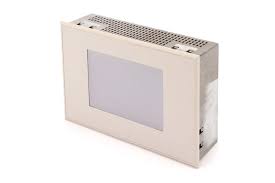
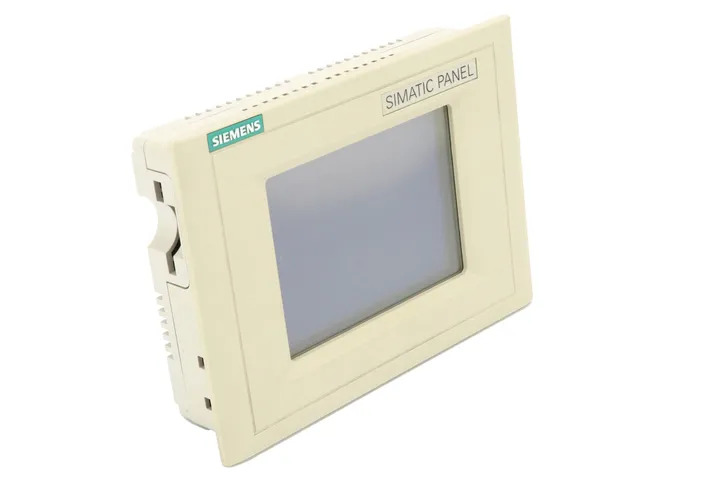
Siemens 6AV6355-1CA47-7BC0 OP 77B
€ 3.495,00
The Siemens 6AV6355-1CA47-7BC0 is an OP 77B operator panel belonging to the SIMATIC HMI Basic Panels product family. This compact panel provides a text-based operator interface designed for straightforward machine-level control and monitoring tasks. It is part of Siemens' established line of operator panels intended for integration with SIMATIC S7 PLCs and other compatible controllers.
The OP 77B features a 4-line STN LCD display capable of showing alphanumeric text and basic graphics, with a membrane keypad for operator input. It supports MPI and PROFIBUS DP communication interfaces, enabling direct connection to SIMATIC S7-200, S7-300, and S7-400 PLCs. The panel operates on a 24 V DC supply and is configured using WinCC flexible software. It offers a compact, robust housing rated to IP65 on the front face, making it suitable for panel-mount installations in industrial environments.
The OP 77B is widely used in manufacturing, machine building, and process automation applications where a cost-effective, reliable text-based HMI is required. It is commonly found on packaging machines, conveyor systems, and general-purpose industrial machinery where operators need to monitor process values, acknowledge alarms, and adjust setpoints without requiring a full graphical touchscreen interface.
Technical Specifications
| Display Type | STN LCD |
|---|---|
| Display Lines | 4 lines of text |
| Display Characters per Line | 20 characters |
| Input Method | Membrane keypad |
| Input/Operating Voltage | 24 V DC |
| Power Consumption | 4.5 W (typical) |
| Communication Interface | MPI, PROFIBUS DP |
| Configuration Software | WinCC flexible 2005 or higher |
| IP Rating (Front) | IP65 |
| IP Rating (Rear) | IP20 |
| Operating Temperature | 0 °C to +50 °C |
| Storage Temperature | -20 °C to +60 °C |
| Relative Humidity | 10% to 90%, non-condensing |
| Mounting | Panel mounting |
| Certifications | CE, UL, cULus |
Common Error Codes and System Events
- Event ID: 10000
- Communication error between the OP 77B and the connected PLC. The panel cannot establish or maintain a connection.
Check MPI or PROFIBUS DP cable connections and termination resistors. Verify the PLC address settings match the configuration in WinCC flexible. Ensure the PLC is in RUN mode. - Event ID: 10001
- Connection to the configured PLC has been interrupted during operation.
Inspect the communication cable for damage or loose connectors. Verify bus termination and cable shielding. Restart the panel and PLC if the connection is not restored automatically. - Event ID: 20000
- Project download error. The configuration project could not be transferred to the panel.
Verify the PC-to-panel transfer cable is correctly connected. Ensure the panel is set to transfer mode. Check that the WinCC flexible project is compatible with the OP 77B firmware version. - Event ID: 40000
- System memory low. The panel's available memory for runtime data is insufficient.
Reduce the number of active alarms or data records stored on the device. Review the project configuration to optimize memory usage and re-download the project. - Event ID: 50000
- Firmware update error. An error occurred during a firmware update procedure.
Repeat the firmware update using the correct firmware version for the OP 77B. Ensure a stable power supply during the update process and use the correct transfer tool. - Event ID: 60000
- Internal device error. A hardware or system fault has been detected within the panel.
Perform a power cycle on the panel. If the error persists, reset the panel to factory defaults. If the fault remains, the unit may require repair or replacement. - Event ID: 30000
- Tag update error. One or more configured tags cannot be read from or written to the PLC.
Verify the tag addresses in the WinCC flexible project match the actual PLC data block or memory addresses. Check that the PLC program is running and the relevant data areas are accessible.
Frequently Asked Questions
Which PLCs are compatible with the OP 77B (6AV6355-1CA47-7BC0)?
The OP 77B is compatible with SIMATIC S7-200, S7-300, and S7-400 PLCs via MPI or PROFIBUS DP interfaces. It can also communicate with certain third-party controllers that support these protocols.
What software is used to configure the OP 77B?
The OP 77B is configured using Siemens WinCC flexible 2005 or later versions. The project is then downloaded to the panel via a PC adapter cable or PROFIBUS connection.
What is the supply voltage for the OP 77B?
The OP 77B requires a 24 V DC power supply. Ensure the supply is within the specified tolerance range to guarantee reliable operation.
What is the front panel protection rating of the OP 77B?
The front face of the OP 77B is rated to IP65, providing protection against dust ingress and low-pressure water jets, making it suitable for panel-mount installation in industrial environments.
Can the OP 77B display graphical images or only text?
The OP 77B is primarily a text-based operator panel with a 4-line alphanumeric display. It does not support full graphical image display, making it suited for applications requiring simple text-based monitoring and control.
Troubleshooting
Display remains blank after power on
Check that 24 V DC is present at the power supply terminals of the panel using a multimeter. Inspect the power connector for loose or damaged wiring.
Restore the correct 24 V DC supply. If voltage is confirmed but the display remains blank, inspect the internal fuse and replace if blown. If the issue persists, the panel may require internal repair.
Panel cannot communicate with the PLC
Verify the MPI or PROFIBUS DP address configured in the WinCC flexible project matches the address set on the PLC. Check the bus cable for continuity and correct termination at both ends of the bus.
Correct any address mismatches in the project configuration and re-download. Replace damaged cables and ensure bus termination resistors are correctly installed at the physical ends of the bus segment.
Project download fails from PC to panel
Confirm the panel is in transfer mode before initiating the download. Check that the PC adapter or transfer cable is correctly connected and recognized by the PC.
Set the panel to transfer mode via the panel's start menu. Use a known-good PC adapter cable and verify the correct COM port or USB driver is installed on the PC. Retry the download.
Alarm messages are not displaying on the panel
Check the tag addresses associated with alarm bits in the WinCC flexible project. Verify that the PLC program is correctly setting the alarm trigger bits and that the communication link is active.
Correct any incorrect tag addresses in the alarm configuration and re-download the project. Confirm the PLC logic is functioning as intended by monitoring the relevant bits in the PLC programming software.
Keypad buttons are unresponsive or intermittently responsive
Inspect the membrane keypad surface for physical damage, contamination, or excessive wear. Test each key systematically to identify whether the issue is isolated to specific keys or affects the entire keypad.
Clean the keypad surface with a dry cloth to remove contamination. If specific keys are physically damaged or the membrane is worn through, the keypad membrane or the entire panel front assembly may need replacement.
| Condition | Repair, Used, Refurbished, New in box (sealed) |
|---|
Related products
-
Siemens 6AG1642-0BD01-2AX0 TP177B
€ 714,00 -
Siemens 6AV3627-1QK00-2AX0 OP27
Price range: € 749,00 through € 1.658,00 -
Siemens 6AV6640-0CA01-0AX0 OP 73micro
Price range: € 279,00 through € 444,13