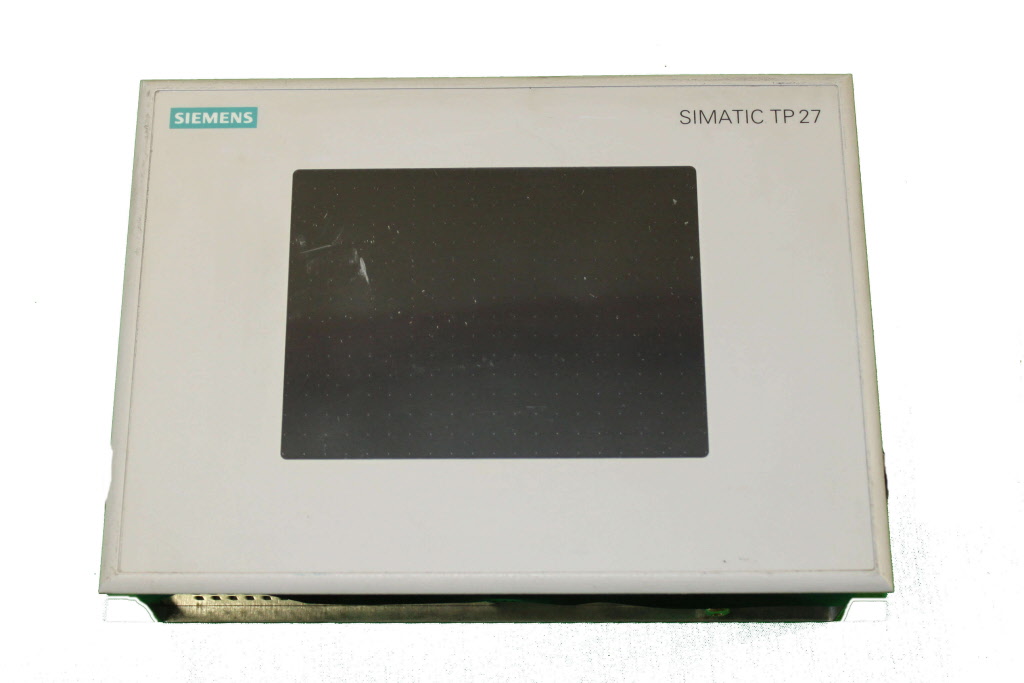
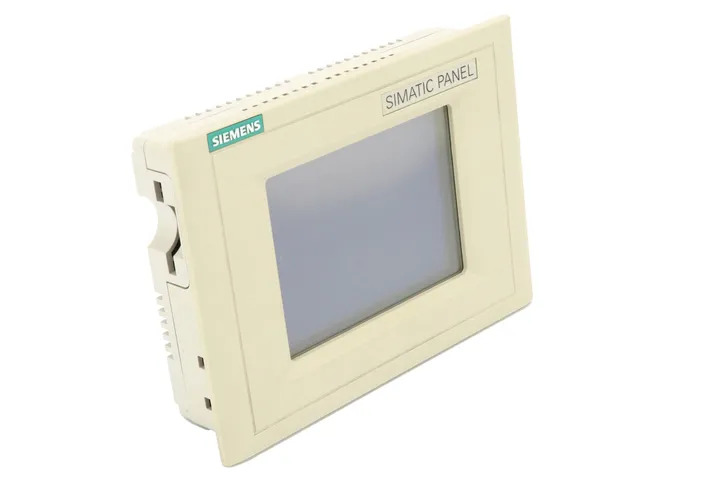
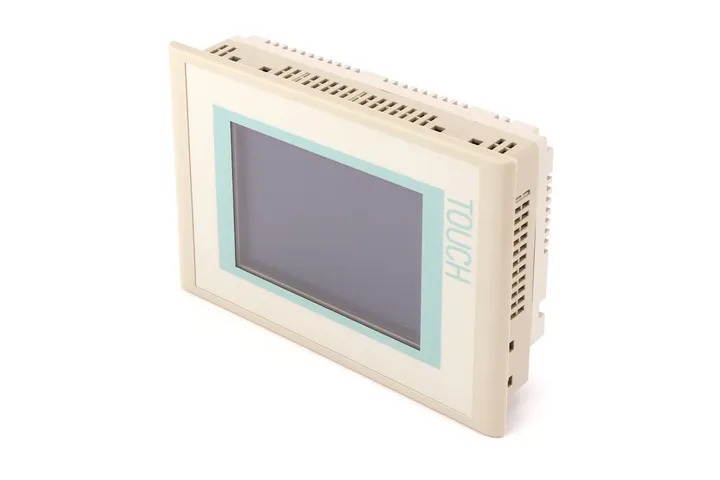
Siemens 6AV6355-1CA31-8DM4 OP 35
€ 2.995,00
The Siemens 6AV6355-1CA31-8DM4 is an Operator Panel (OP 35) belonging to the SIMATIC HMI family, designed for human-machine interface applications in industrial automation environments. This unit provides a graphical display interface for process visualization, operator control, and status monitoring. It is part of Siemens' established OP series, which integrates seamlessly with SIMATIC S7 and S5 PLC families.
The OP 35 features a monochrome or color STN LCD display with a resolution of 320 x 240 pixels (QVGA), supporting graphical and text-based process visualization. It is equipped with a membrane keypad for operator input and supports communication via MPI (Multi-Point Interface) and PROFIBUS-DP, enabling direct connection to Siemens SIMATIC controllers. The panel includes configurable function keys, an integrated real-time clock, and onboard flash memory for project storage. Configuration is performed using Siemens ProTool software.
The OP 35 is commonly deployed in machine-level control panels across manufacturing, packaging, and process industries. Its compact front-panel mounting design makes it suitable for integration into control cabinets and machine enclosures where space is limited. The panel is well-suited for applications requiring reliable operator interaction with SIMATIC-based control systems in moderate environmental conditions.
Technical Specifications
| Display Type | STN LCD |
|---|---|
| Display Resolution | 320 x 240 pixels (QVGA) |
| Display Colors | Monochrome (blue/white) |
| Input Voltage | 24 V DC |
| Power Consumption | Approx. 15 W |
| Communication Interface | MPI, PROFIBUS-DP |
| Operating Temperature | 0 °C to +50 °C |
| Storage Temperature | -20 °C to +60 °C |
| Relative Humidity | 10 % to 90 % (non-condensing) |
| IP Rating (Front) | IP 65 |
| IP Rating (Rear) | IP 20 |
| Mounting | Panel mounting (flush) |
| Configuration Software | ProTool |
| Series | SIMATIC OP 35 |
Common Error Codes and System Events
- Event ID: 10000
- Communication error between the OP panel and the connected PLC. The panel cannot establish or maintain a connection to the controller.
Check MPI or PROFIBUS-DP cable connections and termination resistors. Verify the PLC address settings match the OP configuration. Ensure the PLC is in RUN mode. - Event ID: 10001
- Connection to PLC interrupted during operation. The panel lost communication with the configured controller.
Inspect cabling for damage or loose connectors. Check bus termination and cable shielding. Restart both the panel and PLC if the connection is not restored automatically. - Event ID: 20000
- Project download error. The configuration project could not be transferred to the panel successfully.
Verify the PC-to-panel connection (serial or MPI). Ensure ProTool configuration matches the panel type and firmware version. Retry the download after restarting the panel. - Event ID: 40000
- System memory error. The panel detected a fault in internal flash memory or project data integrity.
Reload the project from ProTool. If the error persists, perform a factory reset and re-download the configuration. Replace the panel if memory faults continue. - Event ID: 50000
- Firmware version mismatch. The loaded project was created for a different firmware version than currently installed on the panel.
Update the panel firmware to match the ProTool project version, or recompile and download the project using the correct ProTool version. - Event ID: 60000
- Watchdog timeout. The panel's internal watchdog detected a system hang or processing fault.
Perform a controlled restart of the panel. If the fault recurs frequently, check for project configuration errors or excessive screen update loads. Contact Siemens support if the issue persists. - Event ID: 70000
- Operator input buffer overflow. Too many keypress events were queued without being processed.
Review the project configuration for slow-responding scripts or communication delays. Optimize screen change logic and reduce unnecessary polling of PLC variables.
Frequently Asked Questions
Which communication interfaces does the OP 35 (6AV6355-1CA31-8DM4) support?
The OP 35 supports MPI (Multi-Point Interface) and PROFIBUS-DP for communication with Siemens SIMATIC S7 and S5 controllers. These interfaces allow direct integration into existing Siemens automation networks.
What software is used to configure the Siemens OP 35?
The OP 35 is configured using Siemens ProTool software. Projects are created on a PC and then downloaded to the panel via a serial or MPI connection.
What is the supply voltage for the OP 35 panel?
The OP 35 operates on a 24 V DC supply voltage, which is standard for SIMATIC HMI panels and compatible with typical industrial control cabinet power supplies.
What is the front panel protection rating of the OP 35?
The front panel of the OP 35 carries an IP 65 protection rating, making it resistant to dust ingress and low-pressure water jets, suitable for installation in industrial machine panels.
Is the OP 35 compatible with SIMATIC S5 PLCs?
Yes, the OP 35 supports communication with both SIMATIC S7 and S5 series PLCs via MPI and PROFIBUS-DP interfaces, provided the appropriate driver is configured in the ProTool project.
Troubleshooting
Display remains blank after power is applied
Measure the 24 V DC supply voltage at the panel's power connector. Check for blown internal fuses or incorrect polarity on the supply wiring.
Correct any wiring errors and ensure the supply voltage is within the specified 24 V DC range. If the supply is correct and the display remains blank, the internal power supply or backlight inverter may require replacement.
Panel displays 'No connection to PLC' or communication error on startup
Verify the MPI or PROFIBUS-DP cable is correctly connected and terminated at both ends. Check that the PLC address configured in ProTool matches the actual PLC station address.
Replace or reseat the communication cable, ensure correct bus termination resistors are installed, and confirm matching address settings in both the PLC and the OP 35 project configuration.
Touchscreen or keypad inputs are not responding
Check whether the panel is in transfer mode or if a project is loaded and running. Inspect the membrane keypad for physical damage or contamination around the key area.
Reload the project via ProTool if the panel is stuck in transfer mode. If keys are physically damaged, the membrane keypad assembly should be replaced.
Project download fails or times out during transfer
Check the PC-to-panel communication cable (serial or MPI adapter). Verify that the correct COM port and transfer settings are selected in ProTool. Confirm the panel is in transfer mode.
Switch the panel to transfer mode manually via the panel menu, use a known-good cable, and ensure ProTool transfer settings match the panel's communication parameters. Retry the download.
Panel restarts repeatedly or shows watchdog fault
A watchdog fault typically indicates a software hang caused by a corrupted project, incompatible firmware, or excessive processing load on the panel.
Perform a factory reset on the panel and re-download a freshly compiled project from ProTool. Ensure the firmware version on the panel is compatible with the ProTool version used to create the project.
| Condition | Repair, Used, Refurbished, New in box (sealed) |
|---|
Related products
-
Siemens 6AV3627-1QK00-0AX0 OP27
Price range: € 649,00 through € 869,00 -
Siemens 6AV6640-0CA01-0AX0 OP 73micro
Price range: € 279,00 through € 444,13 -
Siemens 6AV6640-0CA11-0AX0 OP 73micro
Price range: € 368,00 through € 1.055,00