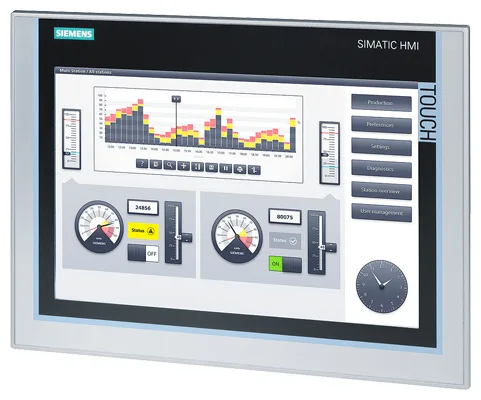
Siemens 6AV6355-1AA47-7DA5 OP 177B
€ 1.995,00
The Siemens 6AV6355-1AA47-7DA5 is an operator panel belonging to the OP 177B series within the SIMATIC HMI family. This unit serves as a human-machine interface designed for machine-level visualization and control tasks in industrial automation environments. It combines a monochrome or color display with function keys and touch capability, providing flexible operator interaction options.
The OP 177B panel features a 5.7-inch STN display and supports communication via PROFIBUS DP and MPI interfaces, enabling direct integration with Siemens S7-200, S7-300, and S7-400 PLCs. The device runs on the WinCC flexible runtime environment and offers configurable function keys, trend displays, alarm management, and recipe handling. It operates on a 24 V DC supply and is rated to IP65 on the front face, making it suitable for panel-mount installations in demanding environments.
The OP 177B is widely deployed in machine building, packaging, material handling, and process automation applications. Its compatibility with the SIMATIC S7 controller family and support for PROFIBUS DP makes it a practical choice for retrofitting or extending existing Siemens automation architectures. The panel is particularly suited for mid-complexity applications requiring reliable local operator control and status visualization.
Technical Specifications
| Display Size | 5.7 inch |
|---|---|
| Display Type | STN LCD |
| Display Colors | 256 colors |
| Display Resolution | 320 x 240 pixels (QVGA) |
| Touch Technology | Resistive touchscreen with function keys |
| Input/Operating Voltage | 24 V DC |
| Power Consumption | Max. 9 W |
| Communication Interface | PROFIBUS DP, MPI, RS-422/485 |
| Operating Temperature | 0 °C to +50 °C |
| Storage Temperature | -20 °C to +60 °C |
| Relative Humidity | 10% to 90%, non-condensing |
| IP/Protection Rating | IP65 (front), IP20 (rear) |
| Mounting | Panel mounting |
| Certifications | CE, UL, cULus |
| Series/Product Family | SIMATIC HMI OP 177B |
Common Error Codes & System Events
- Event ID: 10000
- Configuration error detected during startup; the loaded project is incompatible with the panel firmware version.
Re-transfer the project using a compatible version of WinCC flexible. Ensure firmware and configuration tool versions match. - Event ID: 10001
- Communication connection to the PLC has been lost or cannot be established.
Check PROFIBUS/MPI cable connections and termination resistors. Verify PLC address settings match the HMI project configuration. - Event ID: 20000
- System memory is insufficient to load the current project or runtime components.
Reduce project size, remove unused screens or scripts, and re-transfer the project to the panel. - Event ID: 40000
- Internal device error detected; a hardware fault has been identified in the panel.
Perform a panel reset. If the error persists, the unit may require repair or replacement of internal components. - Event ID: 50000
- Backup battery voltage is low; the real-time clock data may be lost on power failure.
Replace the internal backup battery with the correct type as specified in the OP 177B operating instructions. - Event ID: 60000
- Tag update error; a configured tag cannot be read from or written to the connected controller.
Verify tag addresses in the WinCC flexible project match the PLC data block structure. Check for PLC program changes that may have altered variable addresses. - Event ID: 70000
- Firmware update failed or was interrupted during the update process.
Restart the firmware update procedure using the correct firmware file for the OP 177B. Ensure stable power supply during the update.
Frequently Asked Questions
Which PLCs are compatible with the OP 177B panel?
The OP 177B is compatible with Siemens SIMATIC S7-200, S7-300, and S7-400 PLCs via MPI or PROFIBUS DP interfaces. It can also communicate with S7-1200 and S7-1500 controllers using appropriate communication drivers in WinCC flexible.
What software is used to configure the OP 177B?
The OP 177B is configured using Siemens WinCC flexible engineering software. Projects are transferred to the panel via a PC/PPI cable, MPI connection, or USB-to-serial adapter depending on the available interface.
What is the supply voltage for the 6AV6355-1AA47-7DA5?
The panel operates on a 24 V DC supply voltage. The power input should be within the specified tolerance range as defined in the OP 177B operating instructions.
Is the OP 177B front panel rated for washdown or dusty environments?
The front face of the OP 177B carries an IP65 protection rating, making it resistant to dust ingress and low-pressure water jets. The rear of the unit is rated IP20 and must be protected within a suitable enclosure.
Can the OP 177B display process trends and alarms?
Yes, the OP 177B supports trend displays, alarm logging, and alarm management functions within the WinCC flexible runtime environment. Recipe management and user administration are also supported features.
Troubleshooting
Display remains blank after power is applied
Measure the 24 V DC supply voltage at the power connector on the rear of the panel. Check for blown internal fuses or incorrect polarity on the supply wiring.
Correct the supply voltage or polarity. If the supply is confirmed correct and the display remains blank, the internal power supply board or backlight inverter may require replacement.
Panel fails to establish communication with the PLC
Check the PROFIBUS DP or MPI cable for continuity and correct termination at both ends of the network. Verify that the bus address configured in the HMI project matches the physical address set on the panel.
Replace or re-terminate the communication cable as needed. Correct the bus address in the WinCC flexible project and re-transfer to the panel. Ensure only one active bus terminator is present at each end of the segment.
Touchscreen does not respond or registers incorrect touch positions
Inspect the touchscreen surface for damage, contamination, or excessive pressure from panel mounting. Access the panel's calibration routine via the Control Panel in the Start Center.
Clean the touchscreen surface with a soft, dry cloth. Run the touchscreen calibration procedure from the panel's operating system menu. If calibration does not resolve the issue, the touchscreen overlay may require replacement.
Project transfer from PC to panel fails or times out
Verify the communication cable type and port settings in WinCC flexible match the physical connection being used. Check that the panel is in Transfer mode before initiating the download.
Set the panel to Transfer mode via the Start Center. Confirm the correct COM port and baud rate are selected in WinCC flexible. Try an alternative cable or USB-to-serial adapter if the issue persists.
Panel displays 'No project' message after power cycle
This indicates the internal flash memory did not retain the project, possibly due to an interrupted transfer or a failing storage component.
Re-transfer the project from WinCC flexible to the panel. If the panel repeatedly loses the project after power cycles, the internal flash memory module may be faulty and the unit should be sent for repair.
| Condition | Repair, Used, Refurbished, New in box (sealed) |
|---|
Related products
-
Siemens 6AV6642-5AA00-0QE0 TP177B
€ 394,00 -
Siemens 6AG1642-0BA01-4AX0 TP177B
€ 675,00 -
Siemens 6AV3607-1NH00-0AX0 OP7
€ 615,00