Siemens 6AV6355-1AA47-7CH2 OP 77A
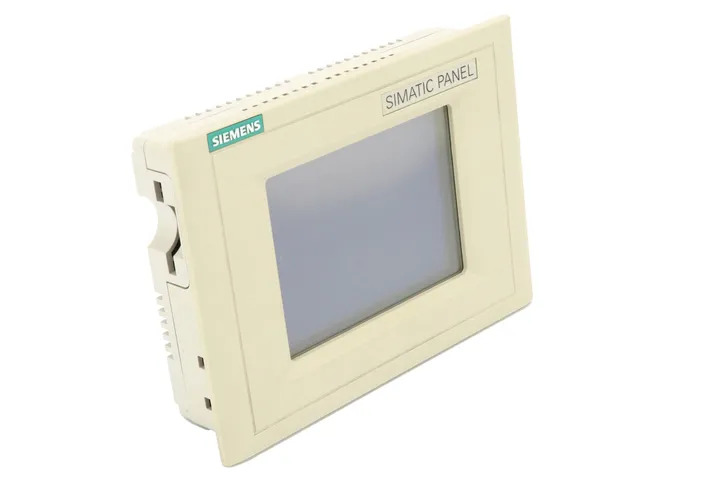
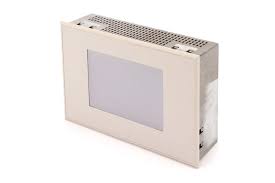
The Siemens 6AV6355-1AA47-7CH2 is an operator panel belonging to the SIMATIC HMI OP 77A series, designed for human-machine interface applications in industrial automation environments. This compact panel provides a key-based operator interface for monitoring and controlling machine processes and is part of Siemens' SIMATIC HMI product family. It is intended for use with Siemens SIMATIC S7 controllers and compatible automation systems.
The OP 77A features a monochrome LCD display with a resolution suitable for displaying process values, alarms, and status messages. It communicates via MPI and PROFIBUS DP interfaces, enabling direct integration with SIMATIC S7-200, S7-300, and S7-400 PLCs. The panel supports configuration through Siemens WinCC flexible software and includes function keys for operator input, along with LED indicators for status feedback.
The OP 77A is widely used in machine building, manufacturing automation, and process control applications where a compact, cost-effective operator interface is required. Its robust construction and compatibility with the SIMATIC controller ecosystem make it suitable for panel mounting in control cabinets across industries such as packaging, material handling, and general factory automation.
Technical Specifications
| Display Type | Monochrome LCD |
|---|---|
| Display Size | 4 lines x 20 characters |
| Communication Interface | MPI, PROFIBUS DP |
| Input/Operating Voltage | 24 V DC |
| Power Consumption | Max. 4 W |
| Operating Temperature | 0 °C to +50 °C |
| Storage Temperature | -20 °C to +60 °C |
| Relative Humidity | 10% to 90% (non-condensing) |
| IP Protection Rating | IP65 (front panel) |
| Mounting | Panel mounting |
| Series/Product Family | SIMATIC HMI OP 77A |
| Configuration Software | WinCC flexible 2005 or higher |
| Certifications | CE, UL |
Common Error Codes & System Events
- Event ID: 10000
- Communication error between the OP 77A and the connected PLC. The panel cannot establish or maintain a connection to the controller.
Check MPI or PROFIBUS DP cable connections and termination resistors. Verify the PLC address settings match the configuration in WinCC flexible. Ensure the PLC is powered and in RUN mode. - Event ID: 10001
- Connection to the PLC was interrupted during operation.
Inspect communication cables for damage or loose connectors. Check for electromagnetic interference sources near the communication lines. Re-establish connection and verify bus termination. - Event ID: 20000
- Configuration download error. The project data could not be transferred to the panel correctly.
Verify the WinCC flexible project is compatible with the OP 77A firmware version. Retry the download via MPI or PROFIBUS DP. Check the PC-to-panel communication cable and interface settings. - Event ID: 40000
- System memory error detected on the panel.
Perform a factory reset of the panel and re-download the project. If the error persists, the internal memory may be faulty and the unit should be sent for repair or replacement. - Event ID: 50000
- Operating system or firmware error on the panel.
Attempt a firmware update using the appropriate Siemens update tool. If the panel fails to boot, a hardware repair or replacement may be required. - Event ID: 60000
- Alarm buffer overflow. The number of pending alarms exceeds the panel's buffer capacity.
Acknowledge and clear existing alarms on the panel. Review the alarm configuration in WinCC flexible to reduce the number of simultaneously active alarms or increase acknowledgement frequency.
Frequently Asked Questions
Which PLCs are compatible with the Siemens OP 77A (6AV6355-1AA47-7CH2)?
The OP 77A is compatible with Siemens SIMATIC S7-200, S7-300, and S7-400 PLCs via MPI or PROFIBUS DP interfaces. It can also be used with S7-1200 and S7-1500 controllers in some configurations depending on firmware and project settings.
What software is required to configure the OP 77A?
The OP 77A is configured using Siemens WinCC flexible 2005 or a later version. Projects are downloaded to the panel via MPI or PROFIBUS DP using a standard PC adapter cable.
What is the supply voltage for the OP 77A?
The OP 77A operates on a 24 V DC supply voltage. Ensure the power supply is within the specified tolerance range to avoid operational issues.
What is the IP protection rating of the OP 77A front panel?
The front panel of the OP 77A carries an IP65 protection rating, making it resistant to dust and low-pressure water jets when correctly installed in a panel cutout.
Can the OP 77A display graphics or only text?
The OP 77A is a character-based panel and displays text in a 4-line by 20-character format. It does not support graphical displays or bitmap images.
Troubleshooting
Display remains blank after power on
Check the 24 V DC supply voltage at the panel's power connector. Verify that the supply is within the specified voltage range and that the connector is firmly seated.
Restore the correct 24 V DC supply. If the supply is correct and the display remains blank, inspect the internal fuse and replace if blown. If the fault persists, the panel may require repair or replacement of the power supply board.
Panel shows communication error and cannot connect to PLC
Verify the MPI or PROFIBUS DP address configured in the WinCC flexible project matches the address set on the panel. Check all cable connections, bus termination resistors, and that the PLC is powered and in RUN mode.
Correct any address mismatches in the project configuration and re-download. Replace damaged cables and ensure proper bus termination at both ends of the network. Reduce cable length if it exceeds the specification for the selected baud rate.
Project download fails or is incomplete
Check the PC-to-panel communication interface and cable. Confirm the WinCC flexible project version is compatible with the panel firmware. Verify that the panel has sufficient free memory for the project.
Use a compatible PC adapter and correct COM port settings. Update the panel firmware if necessary before downloading. Perform a panel reset to clear any corrupted data before retrying the download.
Function keys do not respond to operator input
Inspect the keypad membrane for physical damage or contamination. Check whether the issue is present in all operating modes or only in specific project screens.
Clean the keypad surface with a dry cloth. If keys remain unresponsive, the keypad membrane assembly may be worn or damaged and should be replaced. Verify the project configuration assigns actions to the relevant function keys.
Panel repeatedly restarts or enters a boot loop
This may indicate corrupted firmware or project data, or an unstable power supply. Measure the 24 V DC supply for voltage fluctuations or drops under load.
Stabilize the power supply and ensure adequate current capacity. Perform a factory reset and re-download the project. If the panel continues to restart, a firmware re-flash or hardware repair may be required.
| Condition | Repair, Used, Refurbished, New in box (sealed) |
|---|
Related products
-
Siemens 6AV6640-0CA01-0AX0 OP 73micro
Price range: € 279,00 through € 444,13 -
Siemens 6AV6545-8CC10-0AA0 Mobile Panel 177
€ 1.247,00 -
Siemens 6AV3627-1QK00-2AX0 OP27
Price range: € 749,00 through € 1.658,00