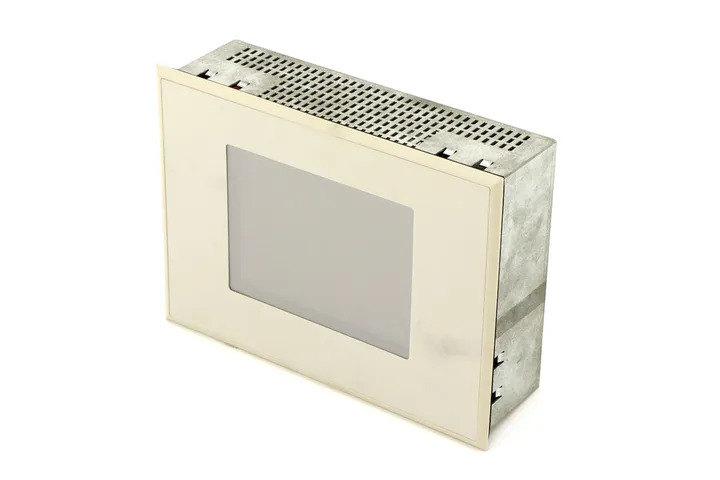
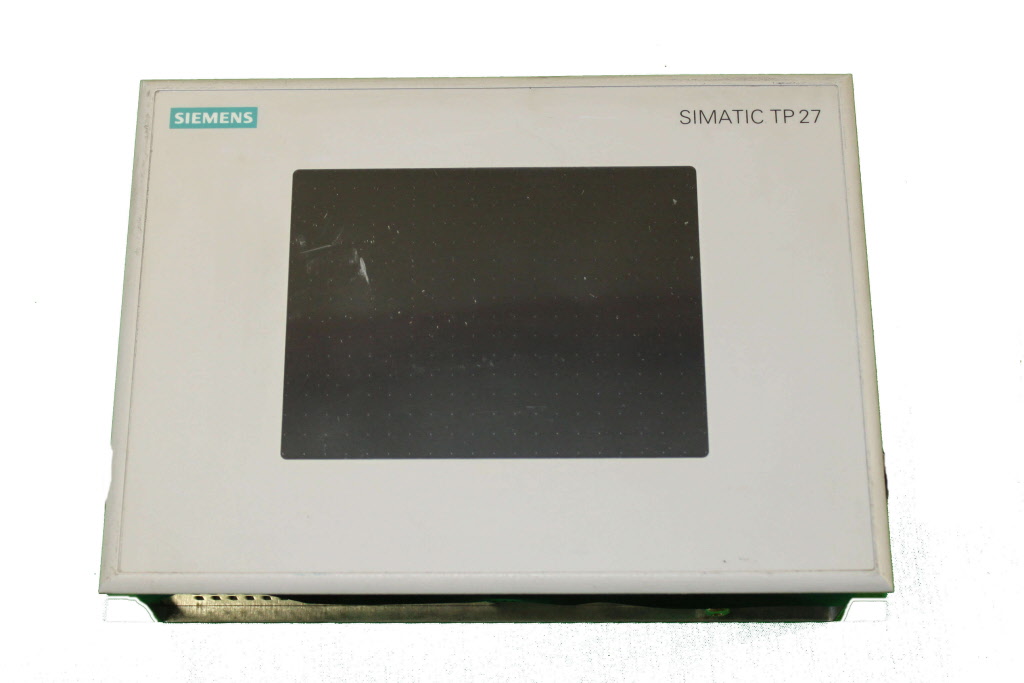
Siemens 6AV6321-1EC04-0MY0 SIMATIC HMI OP7
€ 2.495,00
The Siemens 6AV6321-1EC04-0MY0 is an Operator Panel (OP7) belonging to the SIMATIC HMI product family. This compact operator panel is designed for machine-level human-machine interface applications, providing a straightforward text-based interface for monitoring and controlling industrial processes. It is a successor-compatible device within the Siemens SIMATIC HMI line, intended for use with SIMATIC S7 and S5 PLCs.
The OP7 features a 2-line LCD text display capable of showing alphanumeric characters, along with a membrane keypad for operator input. It supports MPI (Multi-Point Interface) and PPI (Point-to-Point Interface) communication protocols, enabling direct integration with SIMATIC S7-200 and S7-300 controllers. The unit operates on a 24 V DC supply and is configured using Siemens ProTool or WinCC flexible engineering software. The front panel carries an IP65 protection rating, making it suitable for panel-mounting in industrial environments.
The SIMATIC OP7 is widely used in manufacturing, packaging, and process automation applications where a compact, cost-effective operator interface is required at the machine level. It is particularly suited for simple parameter entry, status display, and alarm acknowledgment tasks on standalone machines or production lines. Its robust membrane keypad and sealed front panel make it reliable in environments with dust and moisture exposure.
Technical Specifications
| Display Type | LCD text display |
|---|---|
| Display Lines | 2 lines |
| Characters per Line | 20 characters |
| Input/Operating Voltage | 24 V DC |
| Power Consumption | Approx. 4 W |
| Communication Interface | MPI, PPI, RS-422/RS-485 |
| IP Rating (Front) | IP65 |
| IP Rating (Rear) | IP20 |
| Operating Temperature | 0 °C to 50 °C |
| Storage Temperature | -20 °C to 70 °C |
| Relative Humidity | 10 % to 90 % (non-condensing) |
| Mounting | Panel mounting |
| Certifications | CE, UL |
| Series/Product Family | SIMATIC HMI OP7 |
Common Error Codes & System Events
- Event ID: 10000
- Communication error between OP7 and connected PLC. The operator panel cannot establish or maintain a connection to the controller.
Check MPI/PPI cable connections and termination resistors. Verify the PLC address and baud rate settings match the OP7 configuration. Ensure the PLC is in RUN mode. - Event ID: 10001
- Timeout error on the communication bus. The OP7 did not receive a response from the PLC within the expected time window.
Check for cable faults or excessive bus length. Verify bus termination at both ends. Reduce bus length or check for electromagnetic interference sources near the cable. - Event ID: 20000
- Configuration download error. A fault occurred during transfer of the project configuration from the engineering PC to the OP7.
Verify the serial transfer cable is correctly connected. Ensure ProTool or WinCC flexible is set to the correct COM port and transfer parameters. Retry the download. - Event ID: 40000
- Illegal tag value detected. A process variable received from the PLC is outside the configured limit range.
Check the PLC data block or variable address mapped to the affected tag. Verify the data type and address offset in the OP7 project configuration. - Event ID: 50000
- Operating system error or internal device fault detected on the OP7.
Perform a power cycle of the OP7. If the fault persists, reload the project configuration. If the unit continues to fault, the device may require repair or replacement. - Event ID: 60000
- Memory error. The OP7 has detected a fault in its internal memory or the stored project data is corrupted.
Re-download the project configuration from the engineering PC using ProTool or WinCC flexible. If the error persists after re-download, the internal memory may be faulty and the unit should be serviced.
Frequently Asked Questions
Which PLCs are compatible with the SIMATIC OP7 (6AV6321-1EC04-0MY0)?
The OP7 is compatible with SIMATIC S7-200 (via PPI), S7-300, and S7-400 (via MPI) PLCs. It also supports connection to SIMATIC S5 controllers via the appropriate serial interface adapter.
What software is used to configure and program the OP7?
The OP7 is configured using Siemens ProTool or WinCC flexible engineering software. Projects are transferred to the device via a serial PC-to-OP transfer cable.
What is the supply voltage for the 6AV6321-1EC04-0MY0?
The OP7 operates on a 24 V DC supply voltage. Ensure the power supply is within the specified tolerance range to avoid device faults.
What is the front panel protection rating of the OP7?
The front panel of the OP7 carries an IP65 protection rating, making it resistant to dust ingress and low-pressure water jets when correctly installed in a panel cutout.
Can the OP7 display graphical content or images?
No, the OP7 is a text-based operator panel and can only display alphanumeric characters on its 2-line LCD. It does not support graphical or bitmap content.
Troubleshooting
Display remains blank after power on
Check the 24 V DC supply voltage at the power input terminals of the OP7. Verify the supply is within tolerance and that the connector is fully seated.
Restore correct 24 V DC supply. If the supply is confirmed good and the display remains blank, the internal power supply or LCD backlight may be faulty and the unit should be inspected for repair.
OP7 shows communication error or cannot connect to PLC
Verify the MPI or PPI cable is correctly wired and connected to both the OP7 and the PLC. Check that bus termination resistors are enabled at both ends of the cable. Confirm the PLC address and baud rate in the OP7 project match the actual PLC settings.
Correct any wiring faults, enable bus termination, and ensure address and baud rate settings are consistent across all devices on the bus. Re-download the project if settings were changed.
Project download from PC to OP7 fails
Check that the correct serial transfer cable (PC-to-OP) is connected to the OP7 transfer port and the PC COM port. Verify the COM port number and transfer baud rate are correctly set in ProTool or WinCC flexible.
Use the correct Siemens transfer cable, select the correct COM port in the engineering software, and set the OP7 to transfer mode before initiating the download. Retry the transfer.
Keypad buttons are unresponsive or intermittent
Inspect the membrane keypad for physical damage, contamination, or deformation. Check whether the issue is isolated to specific keys or affects all keys.
Clean the keypad surface with a dry cloth. If specific keys are permanently unresponsive, the membrane keypad overlay may be worn or damaged and requires replacement. Contact a repair specialist for keypad replacement.
Alarm messages are not displayed or acknowledged correctly
Verify that the alarm tags in the OP7 project are correctly mapped to the corresponding PLC data addresses. Check that the PLC program is writing the expected bit values to trigger alarms.
Review the alarm configuration in ProTool or WinCC flexible and confirm the PLC address mapping. Correct any mismatched addresses and re-download the project to the OP7.
| Condition | Repair, Used, Refurbished, New in box (sealed) |
|---|
Related products
-
Siemens 6AV6642-8BA10-0AA0 TP177B
Price range: € 964,00 through € 1.611,00 -
Siemens 6AV3627-1QK00-0AX0 OP27
Price range: € 649,00 through € 869,00