

Siemens 6AV6545-0BC15-2AX0 TP270
Price range: € 599,00 through € 878,90
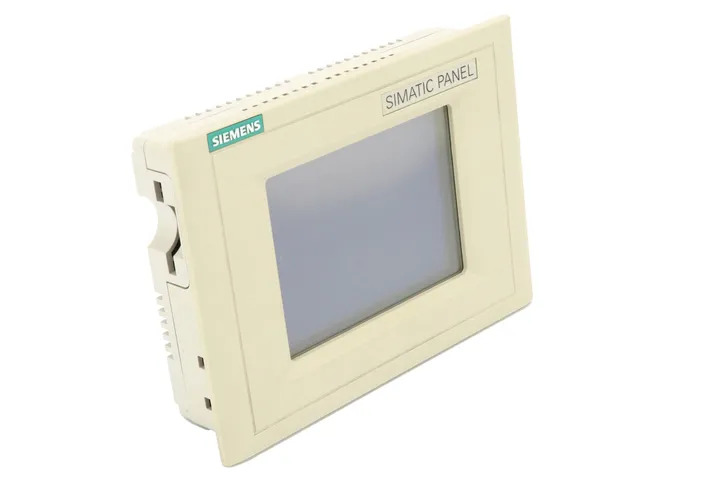
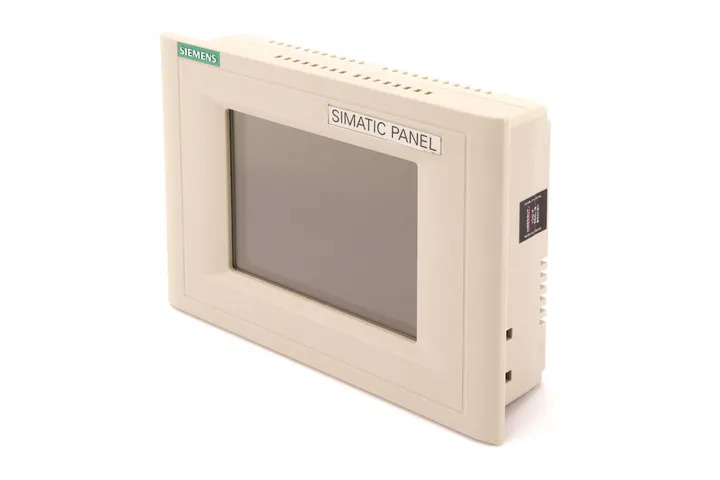
The Siemens 6AV6545-0BC15-2AX0 is a Touch Panel 270 (TP270) HMI device belonging to the SIMATIC Panel family. This unit provides a color touchscreen interface for machine and process visualization, enabling operators to monitor and control industrial automation systems. It is part of Siemens' established TP270 series, designed for panel-mount installation in control cabinets and machine fronts.
The TP270 6AV6545-0BC15-2AX0 features a 10.4-inch TFT color display with 256-color support and a resolution of 640 x 480 pixels (VGA). It is equipped with a resistive touchscreen and includes serial communication interfaces (RS-422/RS-485) as well as a MPI/PROFIBUS DP interface for direct integration with Siemens SIMATIC S7 PLCs. The panel runs on Windows CE and is configured using Siemens WinCC flexible software. It offers 2 MB of user memory for project data and supports data logging and recipe management functions.
The TP270 is widely used in manufacturing, packaging, food and beverage, and general machine-building applications where a robust, mid-range HMI solution is required. Its compatibility with the SIMATIC S7-300 and S7-400 PLC families makes it a standard choice for system integrators working within the Siemens automation ecosystem. The panel's industrial-grade construction and wide operating temperature range make it suitable for demanding production environments.
Technical Specifications
| Display Size | 10.4 inch |
|---|---|
| Display Resolution | 640 x 480 pixels (VGA) |
| Display Colors | 256 colors |
| Display Type | TFT color LCD |
| Touch Technology | Resistive touchscreen |
| Input/Operating Voltage | 24 V DC |
| Power Consumption | Approx. 20 W |
| Communication Interface | MPI/PROFIBUS DP, RS-422/RS-485 |
| User Memory | 2 MB |
| Operating System | Windows CE |
| Operating Temperature | 0 °C to +50 °C |
| Storage Temperature | -20 °C to +60 °C |
| Relative Humidity | 10% to 90% (non-condensing) |
| IP Rating (Front) | IP65 |
| Mounting | Panel mount |
| Certifications | CE, UL |
Common Error Codes & System Events
- Event ID: 10000
- Communication error between HMI panel and PLC. Connection to the configured controller cannot be established.
Check MPI/PROFIBUS DP cable connections and termination resistors. Verify PLC address settings match the HMI project configuration. Confirm PLC is powered and in RUN mode. - Event ID: 10001
- Communication timeout. The HMI panel lost communication with the PLC during operation.
Inspect cable integrity and connector seating. Check for electromagnetic interference sources near the communication cable. Verify bus termination and cable shielding. - Event ID: 20000
- Project download error. Transfer of the WinCC flexible project to the panel failed.
Ensure the correct transfer cable is used and the panel is set to Transfer mode. Verify WinCC flexible version compatibility with the panel firmware. Check available user memory on the device. - Event ID: 40000
- System memory low. Available RAM on the panel is insufficient to run the current project.
Reduce the project size by removing unused screens or data logs. Restart the panel. If the issue persists, consider archiving or reducing recipe data stored on the device. - Event ID: 50000
- Backup battery low or missing. The internal buffer battery voltage is below the required threshold.
Replace the internal lithium backup battery. Refer to the TP270 operating instructions for battery replacement procedure. After replacement, reload the project and verify date/time settings. - Event ID: 60000
- Configuration error. An incompatible or corrupt project file has been detected on the panel.
Re-download a valid WinCC flexible project to the panel. Ensure the project was compiled without errors in WinCC flexible before transfer. Perform a factory reset if corruption persists. - Event ID: 70000
- Touchscreen calibration error. The touch input is misaligned or unresponsive.
Access the Windows CE control panel and run the touchscreen calibration utility. If calibration cannot be completed, inspect the touchscreen overlay for damage and replace if necessary.
Frequently Asked Questions
Which PLCs are compatible with the Siemens TP270 6AV6545-0BC15-2AX0?
The TP270 is primarily designed for use with Siemens SIMATIC S7-300 and S7-400 PLCs via MPI or PROFIBUS DP. It can also communicate with S7-200 PLCs and third-party controllers via the RS-422/RS-485 serial interface using appropriate drivers in WinCC flexible.
What software is required to program or configure this HMI panel?
The TP270 is configured using Siemens WinCC flexible software. The project is then transferred to the panel via a PC adapter cable connected to the MPI interface or via a serial transfer cable.
What is the display size and resolution of the 6AV6545-0BC15-2AX0?
This unit features a 10.4-inch TFT color display with a resolution of 640 x 480 pixels (VGA) and supports 256 colors.
What is the supply voltage for the TP270 panel?
The TP270 6AV6545-0BC15-2AX0 operates on a 24 V DC supply voltage, which is standard for SIMATIC panel-mount HMI devices.
Does the TP270 support data logging and recipe management?
Yes, the TP270 supports both data logging and recipe management functions. These features are configured within the WinCC flexible project and data is stored in the panel's user memory or on an optional memory card.
Troubleshooting
Display remains blank after power on
Measure the 24 V DC supply voltage at the panel's power connector. Check that the supply is within the specified tolerance. Inspect the internal fuse if accessible.
Correct any supply voltage issues. If voltage is correct and the display remains blank, the internal power supply board or backlight inverter may be faulty and require replacement or professional repair.
Touchscreen does not respond or responds inaccurately
Determine whether the issue is a calibration problem or a hardware failure. Attempt to access the Windows CE desktop by connecting a USB mouse or keyboard to verify if the panel is operational.
Run the touchscreen calibration utility from the Windows CE control panel. If calibration does not resolve the issue, inspect the touchscreen overlay for physical damage and replace the touch panel assembly if necessary.
HMI cannot establish communication with the PLC
Verify the MPI or PROFIBUS DP address configured in the WinCC flexible project matches the address set on the PLC. Check cable connections, bus termination resistors at both ends of the network, and cable shielding.
Correct address mismatches in the project configuration and re-download to the panel. Replace damaged cables and ensure proper bus termination. Test with a known-good cable to isolate the fault.
Project transfer from PC to panel fails
Confirm the panel is in Transfer mode (accessible via the Start Center on the Windows CE desktop). Check that the PC adapter or transfer cable is correctly connected and that the correct COM port is selected in WinCC flexible.
Set the panel to Transfer mode before initiating the download. Ensure WinCC flexible project version is compatible with the panel firmware version. Update panel firmware if necessary and retry the transfer.
Panel displays 'No project' or boots to Windows CE desktop only
The user memory may be empty due to a failed transfer, a corrupted project, or a discharged backup battery that caused project data loss.
Re-download the WinCC flexible project to the panel. If the backup battery is depleted, replace it before re-downloading to prevent future data loss on power interruption.
| Condition | Repair, Used, Refurbished, New in box (sealed) |
|---|
Related products
-
Siemens 6AV6640-0CA01-0AX0 OP 73micro
Price range: € 279,00 through € 444,13 -
Siemens 6AG1642-0BD01-4AX0 TP177B
€ 555,00 -
Siemens 6AV6545-8CC10-0AA0 Mobile Panel 177
€ 1.247,00