Siemens 6AV3607-1JC20-0AX1 SIMATIC OP7
Price range: € 465,00 through € 1.500,00
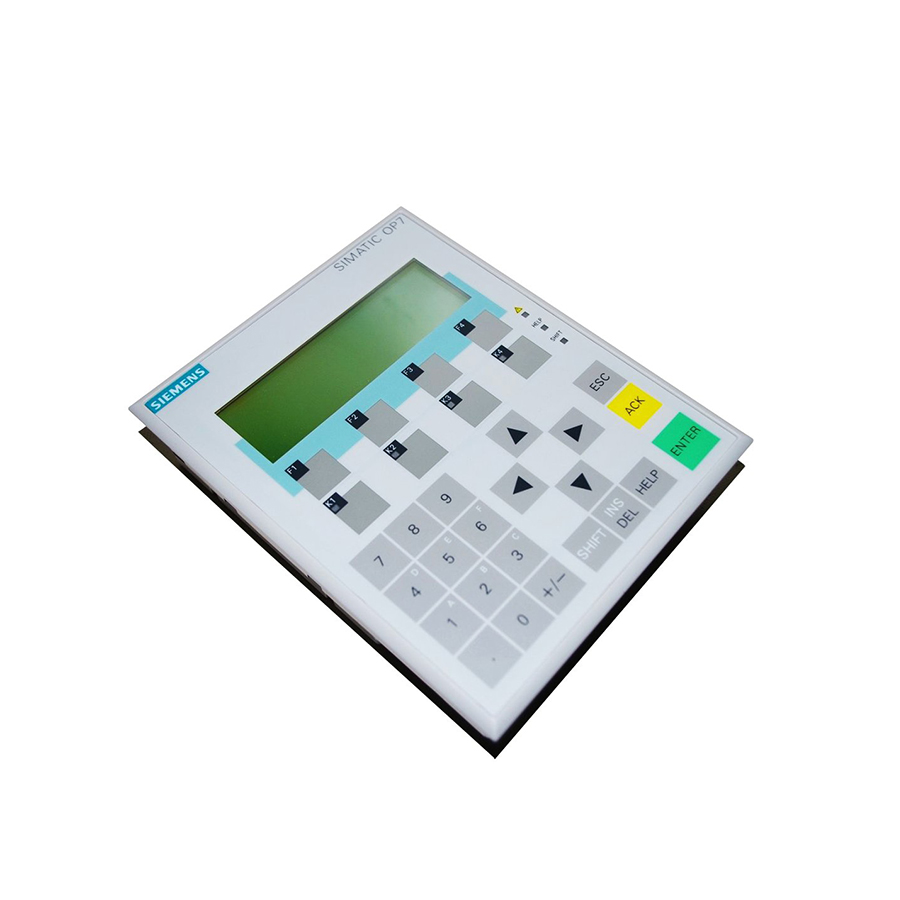
The Siemens SIMATIC OP7 (part number 6AV3607-1JC20-0AX1) is a compact operator panel belonging to the SIMATIC HMI family. It is designed for machine-level human-machine interface applications, providing text-based visualization and operator control for industrial automation systems. The OP7 communicates directly with Siemens SIMATIC S5 and S7 PLCs, serving as a dedicated front-end interface for process monitoring and control.
The 6AV3607-1JC20-0AX1 features a 4-line LCD text display capable of showing alphanumeric characters, along with a membrane keypad for operator input including function keys, numeric keys, and system keys. It supports the MPI (Multi-Point Interface) and PPI communication protocols for direct connection to SIMATIC S7-200 and S7-300 controllers, as well as the SIMATIC S5 protocol via a serial interface. The unit operates on a 24 V DC supply and is designed for panel mounting with a protection rating of IP65 on the front face.
The SIMATIC OP7 is widely used in manufacturing machinery, packaging equipment, conveyor systems, and process automation installations where a cost-effective, text-based operator interface is required. Its compact form factor and robust membrane keypad make it suitable for environments where space is limited and reliable operator input is essential. The panel is particularly common in retrofit and legacy system upgrades involving SIMATIC S5 and early S7 controller platforms.
Technical Specifications
| Display Type | LCD text display, 4 lines x 20 characters |
|---|---|
| Input/Operating Voltage | 24 V DC |
| Power Consumption | Approx. 5 W |
| Communication Interface | MPI, PPI, SIMATIC S5 serial (RS-422/RS-485) |
| IP Protection Rating (Front) | IP65 |
| IP Protection Rating (Rear) | IP20 |
| Operating Temperature | 0 °C to +50 °C |
| Storage Temperature | -20 °C to +60 °C |
| Relative Humidity | 10% to 90%, non-condensing |
| Mounting | Panel mounting |
| Certifications | CE, UL |
| Keypad | Membrane keypad with function keys, numeric keys, and system keys |
| Compatible Controllers | SIMATIC S7-200, S7-300, S5 series |
Common Error Codes & System Events
- Event ID: 10000
- Communication error between OP7 and connected PLC. The connection to the configured controller has been lost or cannot be established.
Check MPI/PPI cable connections and termination resistors. Verify PLC is powered and running. Confirm MPI address settings match configuration in ProTool. - Event ID: 10001
- Configured PLC address not found on the MPI bus. The OP7 cannot locate the controller at the specified network address.
Verify the MPI station address configured in ProTool matches the actual PLC address. Check bus termination and cable integrity. - Event ID: 20000
- Project download error. Transfer of the configuration project from the programming device to the OP7 has failed.
Check the data transfer cable connection. Ensure the OP7 is in transfer mode. Verify ProTool project compatibility with the OP7 firmware version. - Event ID: 40000
- Internal memory error detected. The OP7 has identified a fault in its internal data or program memory.
Perform a memory reset and re-download the project. If the fault persists, the unit may require hardware repair or replacement of the memory module. - Event ID: 50000
- Firmware version mismatch. The loaded project was created with a ProTool version incompatible with the current OP7 firmware.
Update the OP7 firmware to the version required by the ProTool project, or recompile the project using a compatible ProTool version. - Event ID: 60000
- Tag update error. A configured variable (tag) cannot be read from or written to the connected PLC.
Verify the PLC data block and address referenced by the tag exist and are accessible. Check PLC program for correct DB/address configuration. - Event ID: 70000
- Operator input rejected. A value entered by the operator is outside the configured limit range for that tag.
Check the high and low limit values configured for the affected tag in the ProTool project. Adjust limits or inform the operator of the valid input range.
Frequently Asked Questions
Which PLCs are compatible with the SIMATIC OP7 6AV3607-1JC20-0AX1?
The OP7 is compatible with SIMATIC S7-200 (via PPI), S7-300 (via MPI), and SIMATIC S5 controllers via the serial interface. Compatibility is configured using the ProTool configuration software.
What software is used to configure and program the OP7?
The OP7 is configured using Siemens ProTool software. Projects are compiled in ProTool and downloaded to the OP7 via a PC/PPI or MPI cable.
What is the supply voltage for the 6AV3607-1JC20-0AX1?
The OP7 operates on a 24 V DC supply voltage. Ensure the power supply is within the specified tolerance range as defined in the device manual.
What is the front panel protection rating of the OP7?
The front panel of the OP7 carries an IP65 protection rating, making it resistant to dust ingress and low-pressure water jets when correctly installed in a panel cutout.
Can the OP7 display graphics or only text?
The OP7 is a text-based operator panel and can only display alphanumeric characters on its 4-line LCD. It does not support graphical or bitmap image display.
Troubleshooting
Display remains blank after power on
Check that 24 V DC is present at the power supply terminals. Measure voltage at the connector on the rear of the unit. Inspect the internal fuse if accessible.
Restore correct 24 V DC supply. If supply voltage is confirmed correct and the display remains blank, the internal power supply or display unit may be faulty and the panel should be sent for repair.
OP7 shows 'No connection to PLC' or communication error on startup
Verify the MPI or PPI cable is correctly seated at both the OP7 and PLC ends. Check that bus termination is correctly applied at both ends of the MPI segment. Confirm the PLC MPI address matches the address configured in the ProTool project.
Replace or reseat the communication cable. Correct the MPI address in the ProTool project if there is a mismatch, recompile, and re-download the project to the OP7.
Project download from PC to OP7 fails
Confirm the OP7 is set to transfer mode (accessible via the system menu). Check the PC-to-OP7 cable type and COM port settings. Verify the ProTool version is compatible with the OP7 firmware version.
Switch the OP7 to transfer mode before initiating download. Use the correct Siemens PC/PPI cable and ensure the correct COM port and baud rate are selected in ProTool. Update firmware if version mismatch is identified.
Membrane keypad keys not responding or intermittently responding
Inspect the membrane keypad surface for physical damage, contamination, or deformation. Check the internal ribbon cable connection between the keypad and the main PCB if the unit is open for repair.
Clean the keypad surface with a dry cloth. If the ribbon cable is loose or damaged, reseat or replace it. If the keypad membrane itself is worn or damaged, the front panel assembly should be replaced.
OP7 repeatedly restarting or resetting during operation
Check the 24 V DC supply for voltage dips or instability under load. Inspect for loose wiring at the power terminals. Review the configured watchdog and communication timeout settings in the ProTool project.
Stabilize the 24 V DC supply by using a dedicated regulated power supply with adequate current capacity. Tighten all terminal connections. Adjust communication timeout parameters in the ProTool project if PLC response times are causing watchdog triggers.
| Condition | Repair, Used, Refurbished, New in box (sealed) |
|---|
Related products
-
Siemens 6AG1642-0BA01-4AX1 TP177B
€ 1.040,00 -
Siemens 6AV6642-0BC01-1AX0 TP177B
Price range: € 630,00 through € 1.421,00 -
Siemens 6AV6642-0BA01-1AX1 TP177B
Price range: € 723,00 through € 2.499,00