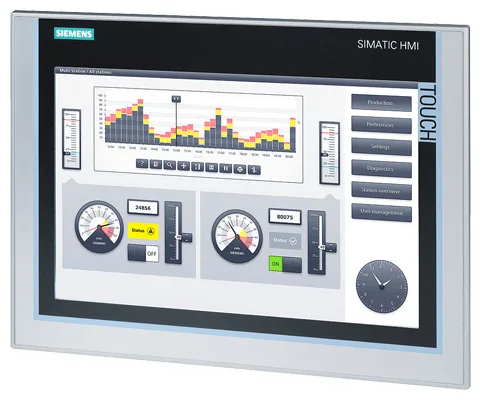
Siemens 6AV7605-1CE23-0CB1 SIMATIC Mobile Panel 177
€ 2.495,00
The Siemens 6AV7605-1CE23-0CB1 is a Mobile Panel 177 belonging to the SIMATIC HMI product family. It is a portable, handheld operator panel designed for flexible machine operation and monitoring in industrial environments. This unit features a 5.7-inch color display and is part of Siemens' second-generation Mobile Panel 177 series, offering robust performance in a compact, ergonomic form factor.
The Mobile Panel 177 (6AV7605-1CE23-0CB1) is equipped with a resistive touchscreen and function keys for versatile operator input. It communicates via PROFIBUS DP and MPI interfaces, enabling seamless integration with SIMATIC S7 PLCs. The panel includes an integrated enabling button and emergency stop button, making it suitable for safety-relevant applications. It operates on 24 V DC and supports configuring via WinCC flexible engineering software.
This mobile panel is widely used in manufacturing, automotive assembly, machine tool operation, and process industries where operators need to move freely around machinery while maintaining full control and monitoring capability. Its integrated safety features — including the enabling device and emergency stop — make it particularly suited for setup, maintenance, and commissioning tasks on large or complex machines where fixed HMI panels are impractical.
Technical Specifications
| Display Size | 5.7 inch |
|---|---|
| Display Colors | 256 colors |
| Touch Technology | Resistive touchscreen |
| Input/Operating Voltage | 24 V DC |
| Communication Interface | PROFIBUS DP, MPI |
| Operating Temperature | 0 °C to +50 °C |
| Storage Temperature | -20 °C to +60 °C |
| Relative Humidity | 10% to 90% (non-condensing) |
| IP/Protection Rating | IP65 (front) |
| Safety Features | Integrated enabling button, Emergency stop button |
| Engineering Software | WinCC flexible 2005 or higher |
| Series/Product Family | SIMATIC Mobile Panel 177 |
| Mounting | Handheld / portable |
| Certifications | CE, UL |
Common Error Codes & System Events
- Event ID: 1000
- System startup event indicating the HMI panel has completed its boot sequence successfully.
No action required. Verify that the panel connects to the configured PLC after startup. - Event ID: 10000
- Communication error between the HMI panel and the PLC. The configured connection cannot be established.
Check PROFIBUS/MPI cable connections and termination resistors. Verify the PLC address settings match the HMI project configuration. - Event ID: 10001
- Connection to the PLC was interrupted during operation.
Inspect the communication cable for damage. Check PLC status and ensure the bus address is correctly configured on both devices. - Event ID: 20000
- Project download error. The project could not be transferred to the panel.
Verify the transfer cable connection and PC settings. Ensure WinCC flexible project is compiled without errors before transfer. - Event ID: 40000
- Operating system error detected on the HMI panel.
Perform a panel reset. If the error persists, reload the operating system using the ProSave tool or WinCC flexible. - Event ID: 50000
- Enabling button released during active enabling mode, causing motion or operation to be halted.
This is normal safety behavior. Re-engage the enabling button to resume operation. Inspect the enabling button for mechanical wear if the event occurs unexpectedly. - Event ID: 60000
- Emergency stop button activated on the mobile panel.
Identify and resolve the cause of the emergency stop. Reset the E-stop button and acknowledge the fault in the PLC before resuming operation. - Event ID: 70000
- Internal device temperature exceeded the permissible operating range.
Allow the panel to cool down. Ensure the operating environment is within the specified 0 °C to +50 °C range and that ventilation is not obstructed.
Frequently Asked Questions
Which PLCs are compatible with the SIMATIC Mobile Panel 177 (6AV7605-1CE23-0CB1)?
This panel is compatible with SIMATIC S7-200, S7-300, and S7-400 PLCs via MPI or PROFIBUS DP interfaces. It can also communicate with other PROFIBUS-capable controllers.
What engineering software is required to configure this mobile panel?
The panel is configured using Siemens WinCC flexible 2005 or a later version. Projects are downloaded to the panel via a PC adapter or MPI/PROFIBUS connection.
Does this mobile panel include safety features?
Yes, the 6AV7605-1CE23-0CB1 includes an integrated three-position enabling button and a mushroom-head emergency stop button, making it suitable for safety-relevant setup and maintenance tasks.
What is the display type and size on this mobile panel?
The panel features a 5.7-inch STN color display with 256 colors and a resistive touchscreen for operator input.
Can the Mobile Panel 177 be used wirelessly?
No, the 6AV7605-1CE23-0CB1 is a wired mobile panel connecting via a spiral cable to a connection box. It does not support wireless communication.
Troubleshooting
Display remains blank after power on
Measure the 24 V DC supply voltage at the connection box. Check the spiral cable and connectors for damage or poor contact.
Restore the correct 24 V DC supply. Replace the spiral cable if damaged. If the display remains blank with confirmed power, the internal display or backlight may require replacement.
Communication to PLC cannot be established
Verify the PROFIBUS or MPI address configured in the HMI project matches the physical bus settings. Check cable termination and bus topology.
Correct any address mismatches in the WinCC flexible project. Ensure PROFIBUS termination resistors are active at both ends of the bus. Replace the communication cable if continuity testing reveals a fault.
Enabling button does not respond or is permanently active
Test the enabling button mechanically by pressing through all three positions. Inspect the button contacts and the spiral cable connector for damage.
If the enabling button is mechanically faulty, the handset unit requires repair or replacement. Do not bypass the enabling circuit, as this is a safety-critical component.
Project transfer from PC to panel fails
Check the PC adapter connection and COM port settings. Verify that the panel is set to Transfer mode and that the WinCC flexible project compiles without errors.
Set the panel to Transfer mode via the Start Center. Confirm the correct COM port and transfer speed in WinCC flexible. Re-compile the project and retry the download.
Touchscreen does not respond accurately to input
The resistive touchscreen may require recalibration. Check for physical damage or contamination on the screen surface.
Perform a touchscreen calibration via the panel's Start Center or control panel settings. Clean the screen surface with a soft, dry cloth. If calibration does not resolve the issue, the touchscreen assembly may need replacement.
| Condition | Repair, Used, Refurbished, New in box (sealed) |
|---|
Related products
-
Siemens 6AV6643-0AA01-1AX1 TP277
€ 249,00 -
Siemens 6AV3607-1NH00-0AX0 OP7
€ 615,00 -
Siemens 6AV6642-5AA00-0QE0 TP177B
€ 394,00