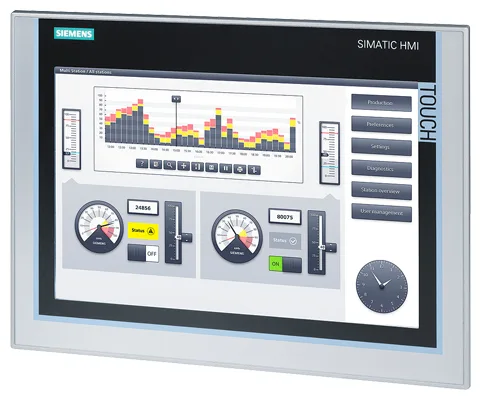
Siemens 6AV6362-4AA07-5AA0 SIMATIC HMI TP 177A
€ 414,00
The Siemens 6AV6362-4AA07-5AA0 is a Touch Panel belonging to the SIMATIC HMI TP 177A series, manufactured by Siemens as part of the SIMATIC HMI product line. It is a compact operator panel designed for machine-level visualization and control tasks in industrial automation environments. The unit provides a resistive touchscreen interface for operator interaction with connected PLCs and control systems.
The TP 177A features a 5.7-inch STN color display with a resolution of 320 x 240 pixels (QVGA), supporting a limited color palette suitable for standard HMI graphics and process visualization. It communicates with Siemens SIMATIC S7 PLCs via MPI/PROFIBUS DP interfaces and supports configuration through WinCC flexible 2007 or later engineering software. The panel operates on a 24 V DC supply and is rated IP65 on the front face, providing protection against dust and water ingress in industrial settings.
The SIMATIC TP 177A is widely deployed in machine building, packaging machinery, conveyor systems, and general factory automation where a cost-effective yet reliable touch-based HMI solution is required. Its compatibility with the SIMATIC S7-200, S7-300, and S7-400 PLC families makes it a versatile choice for both new installations and retrofit projects. The compact panel cutout dimensions allow integration into standard control cabinet doors and machine enclosures.
Technical Specifications
| Display Size | 5.7 inch |
|---|---|
| Display Type | STN color |
| Display Resolution | 320 x 240 pixels (QVGA) |
| Touch Technology | Resistive touchscreen |
| Input Voltage | 24 V DC |
| Power Consumption | Max. 6 W |
| Communication Interface | MPI / PROFIBUS DP (RS-485) |
| IP Rating (Front) | IP65 |
| IP Rating (Rear) | IP20 |
| Operating Temperature | 0 °C to +50 °C |
| Storage Temperature | -20 °C to +60 °C |
| Relative Humidity | 10 % to 90 % (non-condensing) |
| Mounting | Panel mounting |
| Certifications | CE, UL, cULus |
| Engineering Software | WinCC flexible 2007 or later |
Common Error Codes & System Events
- Event ID: 10000
- Connection to PLC lost or communication timeout on MPI/PROFIBUS DP interface.
Check MPI/PROFIBUS DP cable connections and termination resistors. Verify PLC address settings match the HMI project configuration. Restart both PLC and HMI panel. - Event ID: 10001
- No connection to configured PLC partner at startup.
Verify the PLC is powered and running. Check the communication cable and connector at both ends. Confirm the configured PLC station address in WinCC flexible matches the actual PLC address. - Event ID: 20000
- Project download failed or project data corrupted.
Re-download the project from the WinCC flexible engineering station. Ensure the correct communication interface and baud rate are selected during transfer. Check available memory on the panel. - Event ID: 40000
- System memory low or insufficient memory for project execution.
Reduce the project size by removing unused screens or graphics. Perform a full panel reset and re-download the project. Check that the project does not exceed the panel memory limits. - Event ID: 50000
- Operating system error or firmware mismatch detected.
Update the panel firmware to the version compatible with the WinCC flexible project. Perform a panel reset via the Start Center and re-download the project. - Event ID: 60000
- Configuration error: tag or variable address not found in PLC.
Open the WinCC flexible project and verify all tag addresses correspond to valid PLC data areas. Correct any mismatched addresses and re-download the project to the panel. - Event ID: 70000
- Screen object update error due to communication disruption.
Check the physical communication link between the HMI and PLC. Inspect for electromagnetic interference sources near the cable routing. Replace the communication cable if signal integrity is suspect.
Frequently Asked Questions
Which PLCs are compatible with the SIMATIC TP 177A (6AV6362-4AA07-5AA0)?
The TP 177A is compatible with Siemens SIMATIC S7-200, S7-300, and S7-400 PLCs via MPI or PROFIBUS DP interfaces. Third-party PLC connectivity may be possible through specific communication drivers available in WinCC flexible.
What engineering software is required to configure this HMI panel?
The TP 177A is configured using Siemens WinCC flexible 2007 or a later compatible version. Projects are downloaded to the panel via the MPI/PROFIBUS DP interface or using a PC adapter cable.
What is the supply voltage for the 6AV6362-4AA07-5AA0?
The panel operates on a 24 V DC supply voltage. Ensure the power supply is within the specified tolerance range to avoid operational issues.
What is the front panel protection rating of the TP 177A?
The front face of the TP 177A is rated IP65, providing full protection against dust and protection against low-pressure water jets. The rear of the unit is rated IP20.
Can the TP 177A display be used as a replacement for older SIMATIC OP 77A or TP 070 panels?
The TP 177A can serve as a functional replacement for older SIMATIC HMI panels such as the OP 77A or TP 070 in many applications, though the project must be migrated or reconfigured in WinCC flexible to match the new panel type and screen resolution.
Troubleshooting
Display remains blank after power is applied
Measure the 24 V DC supply voltage at the panel power connector. Check that the supply voltage is within the specified range and that polarity is correct.
Correct any wiring errors or supply voltage issues. If the supply is confirmed correct and the display remains blank, the internal power supply or backlight may have failed and the unit should be sent for repair or replacement.
Touchscreen does not respond or responds inaccurately to touch input
Attempt to recalibrate the touchscreen via the panel's Start Center menu. Check for physical damage, contamination, or excessive pressure marks on the touch surface.
Perform a touchscreen calibration from the Start Center. Clean the screen surface with a soft, dry cloth. If calibration does not resolve the issue, the resistive touch layer may be worn or damaged and requires hardware repair.
HMI panel cannot establish communication with the PLC
Verify the MPI/PROFIBUS DP cable is correctly connected and terminated at both ends. Check the station address configured in the HMI project matches the PLC address. Use a PROFIBUS diagnostic tool to check bus integrity.
Correct cable connections and ensure proper bus termination. Adjust the station address in the WinCC flexible project if there is a mismatch. Replace the communication cable if it is found to be faulty.
Project download from WinCC flexible fails or times out
Check the PC-to-panel communication interface settings in WinCC flexible, including the selected interface (MPI/PROFIBUS DP), baud rate, and station address. Verify the PC adapter cable or communication module is functioning correctly.
Correct the interface settings in WinCC flexible to match the physical connection. Try a lower baud rate if communication is unstable. Restart both the engineering PC and the HMI panel before retrying the download.
Panel repeatedly reboots or displays a system error after startup
Check whether the installed firmware version is compatible with the downloaded project version. Inspect the 24 V DC supply for voltage drops or ripple that may cause instability.
Update the panel firmware to the correct version using the Siemens ProSave tool or WinCC flexible. Ensure the power supply is stable and adequately rated. If the problem persists, perform a factory reset via the Start Center and re-download the project.
| Condition | Repair, Used, Refurbished, New in box (sealed) |
|---|
Related products
-
Siemens 6AV6545-0AA15-2AX0 TP 270
Price range: € 399,00 through € 1.149,00 -
Siemens 6AV6642-5AA00-0QE0 TP177B
€ 394,00