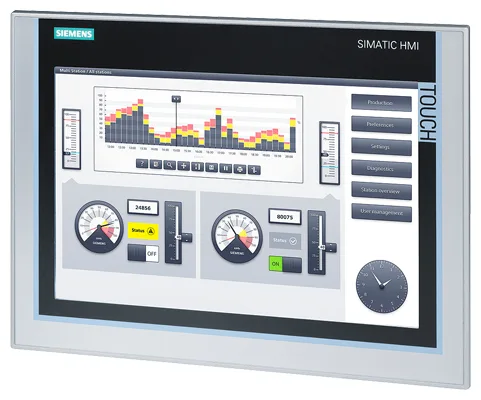
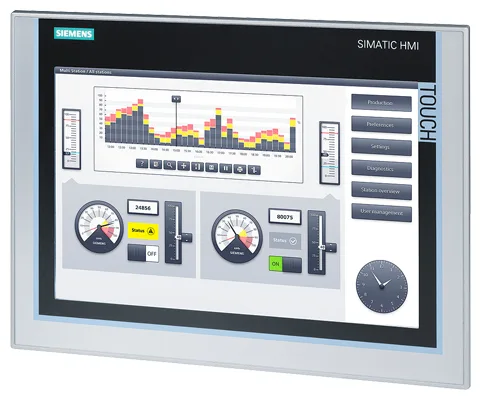
Siemens 6AV6355-1CA47-7EF0 OP 177B
€ 1.025,73
The Siemens 6AV6355-1CA47-7EF0 is an Operator Panel (OP 177B) belonging to the SIMATIC HMI series, designed for machine-level human-machine interface applications. This unit provides a monochrome or color display with touch and key-based operation, serving as a compact yet capable panel for process visualization and control. It is part of Siemens' established SIMATIC HMI product line, engineered for reliable operation in industrial environments.
The OP 177B features a 5.7-inch STN display and supports both MPI/PROFIBUS DP and Ethernet communication interfaces, enabling flexible integration into SIMATIC S7 automation networks. It is configured using WinCC flexible engineering software and supports recipe management, alarm logging, and trend displays. The panel operates on 24 V DC and is built to IP65 protection on the front face, making it suitable for panel-mount installations in demanding environments.
The OP 177B is widely used in manufacturing, packaging, and process industries where a compact operator interface is required at the machine level. It is commonly found on standalone machines, conveyor systems, and process control panels where operators need to monitor status, adjust parameters, and respond to alarms. Its compatibility with the SIMATIC S7-300 and S7-400 controller families makes it a standard choice for Siemens-based automation systems.
Technical Specifications
| Display Size | 5.7 inch |
|---|---|
| Display Type | STN LCD |
| Display Colors | 256 colors |
| Resolution | 320 x 240 pixels (QVGA) |
| Operating Voltage | 24 V DC |
| Power Consumption | Max. 12 W |
| Communication Interface | MPI/PROFIBUS DP, Ethernet (RJ45) |
| IP Protection Rating (Front) | IP65 |
| IP Protection Rating (Rear) | IP20 |
| Operating Temperature | 0 °C to +50 °C |
| Storage Temperature | -20 °C to +60 °C |
| Relative Humidity | 10% to 90%, non-condensing |
| Mounting | Panel mount |
| Certifications | CE, UL, cULus |
| Engineering Software | WinCC flexible 2005 or higher |
Common Error Codes and System Events
- Event ID: 10000
- Connection to PLC lost or communication timeout on MPI/PROFIBUS interface.
Check MPI/PROFIBUS cable connections and termination resistors. Verify PLC is powered and in RUN mode. Check configured station address matches PLC settings. - Event ID: 10001
- Connection to PLC via Ethernet could not be established.
Verify Ethernet cable and switch connections. Confirm IP address configuration on both the OP 177B and the PLC. Check for IP address conflicts on the network. - Event ID: 20000
- Project download failed or project data is corrupted.
Re-download the project from WinCC flexible. Ensure the correct panel type and firmware version are selected in the engineering tool before transfer. - Event ID: 40000
- Internal memory error or insufficient memory for project data.
Check available memory on the panel. Reduce project size if necessary or transfer project to an external memory card. Perform a panel reset if memory error persists. - Event ID: 50000
- Firmware update error or incompatible firmware version detected.
Verify the firmware version is compatible with the panel hardware revision. Re-attempt firmware update using ProSave or WinCC flexible. Ensure stable power supply during update. - Event ID: 60000
- System startup error — panel failed to complete boot sequence.
Perform a factory reset via the panel's loader menu. If the issue persists, check the 24 V DC power supply for voltage stability and inspect internal components for damage. - Event ID: 70000
- Tag or variable update error — configured variable cannot be read or written.
Verify the tag address in WinCC flexible matches the PLC data block structure. Check PLC program for correct data block definitions and access permissions.
Frequently Asked Questions
What communication interfaces does the OP 177B (6AV6355-1CA47-7EF0) support?
The OP 177B supports MPI and PROFIBUS DP communication as well as Ethernet (TCP/IP) via an RJ45 port, allowing connection to SIMATIC S7-300 and S7-400 PLCs over multiple network types.
Which engineering software is required to configure this panel?
The OP 177B is configured using Siemens WinCC flexible 2005 or a later version. ProSave can also be used for firmware updates and backup/restore operations.
Is the OP 177B compatible with SIMATIC S7-1200 or S7-1500 controllers?
The OP 177B has limited compatibility with S7-1200 and S7-1500 via Ethernet using the S7 communication protocol, but it is primarily designed for use with S7-300 and S7-400 systems. Full functionality is best guaranteed with the legacy controller families.
What is the front panel protection rating of this unit?
The front panel of the OP 177B carries an IP65 protection rating, making it resistant to dust ingress and low-pressure water jets, suitable for panel-mount installations in industrial environments.
Can the OP 177B operate a touch screen and physical keys simultaneously?
Yes, the OP 177B is equipped with both a touch-sensitive display and physical function keys, allowing operators to interact with the interface using either input method depending on the application configuration.
Troubleshooting
Display remains blank after power is applied
Measure the 24 V DC supply voltage at the power connector. Check that voltage is within the specified range and that polarity is correct. Inspect the internal fuse if accessible.
Correct any power supply issues and ensure stable 24 V DC input. If the supply is confirmed good but the display remains blank, the internal power supply board or backlight may require replacement.
Panel boots to loader screen and does not load the project
This typically indicates a missing, corrupted, or incompatible project file on the panel. Check whether a valid project has been downloaded to the device.
Use WinCC flexible or ProSave to re-download the project to the panel. Ensure the project was compiled without errors and is compatible with the panel's firmware version before transfer.
Communication fault displayed — no connection to PLC
Check the physical MPI, PROFIBUS, or Ethernet cable connections. Verify the bus address or IP address settings on the panel match the PLC configuration. Use a bus diagnostic tool to check for network errors.
Replace or reseat communication cables. Correct address or IP configuration in WinCC flexible and re-download. Ensure PROFIBUS termination resistors are correctly placed at both ends of the bus.
Touchscreen input is inaccurate or unresponsive
The touchscreen may require recalibration, or the screen surface may be contaminated. Check for physical damage to the display glass.
Access the panel's control panel via the loader menu and run the touchscreen calibration routine. Clean the screen surface with a soft, dry cloth. If calibration does not resolve the issue, the touch panel assembly may need replacement.
Panel freezes or restarts unexpectedly during operation
Unexpected restarts can be caused by power supply instability, excessive ambient temperature, or a software/project error. Check supply voltage under load and verify the ambient temperature is within specification.
Stabilize the 24 V DC power supply and ensure adequate ventilation around the panel. Review the project for infinite loops or communication watchdog settings. Update firmware to the latest compatible version if the issue persists.
| Condition | Repair, Used, Refurbished, New in box (sealed) |
|---|
Related products
-
Siemens 6AG1642-0BA01-4AX1 TP177B
€ 1.040,00 -
Siemens 6AV6545-0AA15-2AX0 TP 270
Price range: € 399,00 through € 1.149,00