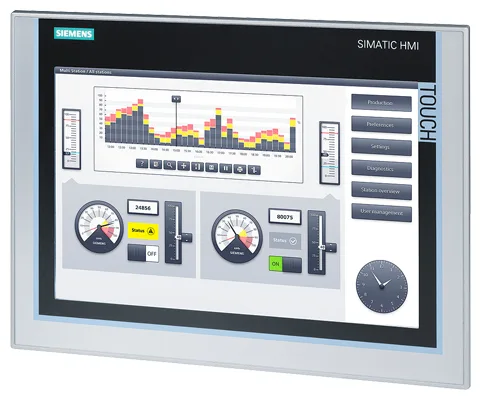
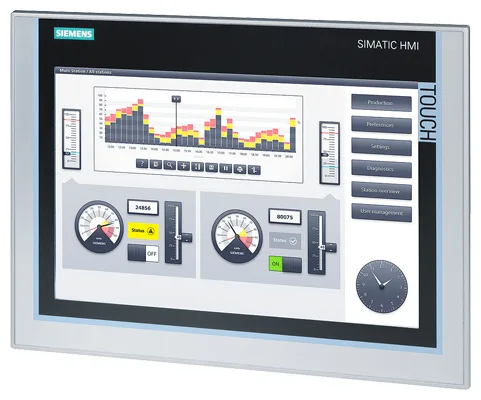
Siemens 6AV6355-1CA47-7CK3 OP 77B
€ 1.756,57
The Siemens 6AV6355-1CA47-7CK3 is an operator panel belonging to the OP 77B series within the Siemens SIMATIC HMI product family. This compact panel operator unit is designed for human-machine interface applications, providing a keypad-based interface for machine monitoring and control. It is a member of the Micro Panel range, intended for straightforward operator interaction in smaller automation systems.
The OP 77B features a monochrome STN LCD display and a membrane keypad with function keys, system keys, and numeric entry capability. It supports MPI and PROFIBUS DP communication interfaces for integration with Siemens SIMATIC S7 PLCs, as well as point-to-point serial communication via RS-422/RS-485. The unit operates on a 24 V DC supply and is built to meet industrial environmental requirements, carrying CE certification and conforming to relevant IEC standards for industrial equipment.
The OP 77B is widely used in manufacturing, machine building, and process automation environments where a cost-effective, robust operator interface is required. It is particularly suited for integration with Siemens S7-200, S7-300, and S7-400 PLC systems in applications such as packaging machinery, conveyor systems, and general-purpose industrial machines. Its compact form factor and keypad-based operation make it appropriate for panel installations where touchscreen functionality is not required.
Technical Specifications
| Display Type | Monochrome STN LCD |
|---|---|
| Display Size | 4 lines x 20 characters |
| Input Voltage | 24 V DC |
| Voltage Tolerance | 19.2 V DC to 28.8 V DC |
| Power Consumption | 4 W (typical) |
| Communication Interface | MPI, PROFIBUS DP, RS-422/RS-485 |
| Operating Temperature | 0 °C to 50 °C |
| Storage Temperature | -20 °C to 60 °C |
| Relative Humidity | 10 % to 90 % (non-condensing) |
| IP Rating (Front) | IP65 |
| IP Rating (Rear) | IP20 |
| Mounting | Panel mounting |
| Certifications | CE, UL |
| Series/Product Family | SIMATIC HMI OP 77B |
Common Error Codes and System Events
- Event ID: 10000
- No connection to PLC or controller. Communication between the OP 77B and the configured PLC cannot be established.
Check MPI or PROFIBUS DP cable connections and termination resistors. Verify PLC address settings match the project configuration. Ensure the PLC is powered and running. - Event ID: 10001
- Connection to PLC interrupted during operation. An existing communication link has been lost.
Inspect cabling for damage or loose connectors. Check bus termination and cable shielding. Verify PLC is still operational and network addresses are correct. - Event ID: 20000
- Project download error. Transfer of the configuration project from the engineering PC to the OP 77B has failed.
Verify the transfer cable is correctly connected and the panel is in transfer mode. Check that the correct communication port and baud rate are configured in SIMATIC WinCC flexible or ProTool. - Event ID: 40000
- System memory low. Available memory for runtime operation is insufficient.
Reduce the size of the project, decrease the number of tags or screens, and re-download the project. Check for memory leaks in the configuration. - Event ID: 50000
- Illegal tag address. A configured tag references an address that does not exist or is not accessible in the connected PLC.
Review tag configuration in the engineering software. Verify that all PLC data block addresses and memory areas referenced in the project are valid and accessible. - Event ID: 60000
- Operating system error. An internal system fault has been detected in the panel firmware.
Perform a panel restart. If the fault persists, perform a factory reset and re-download the project. Contact Siemens technical support if the issue recurs. - Event ID: 70000
- Configuration error detected at startup. The loaded project is incompatible with the current firmware version of the panel.
Update the panel firmware to the version compatible with the project, or recompile and re-download the project using the matching version of SIMATIC WinCC flexible.
Frequently Asked Questions
Which PLCs are compatible with the OP 77B (6AV6355-1CA47-7CK3)?
The OP 77B is compatible with Siemens SIMATIC S7-200, S7-300, and S7-400 PLCs via MPI or PROFIBUS DP. Point-to-point serial communication via RS-422/RS-485 is also supported for connection to other controllers.
What software is used to configure and program the OP 77B?
The OP 77B is configured using Siemens SIMATIC WinCC flexible (Compact or Standard edition) or the legacy ProTool configuration software. Projects are downloaded to the panel via a PC adapter or MPI/PROFIBUS connection.
What is the supply voltage for the 6AV6355-1CA47-7CK3?
The panel requires a 24 V DC supply voltage, with an acceptable range of 19.2 V DC to 28.8 V DC. An external 24 V DC power supply must be provided.
What is the front panel protection rating of the OP 77B?
The front panel of the OP 77B carries an IP65 protection rating, making it suitable for panel-mount installations where resistance to dust and water jets is required.
Can the OP 77B display graphics or only text?
The OP 77B is a character-based operator panel and displays text in a 4-line by 20-character format. It does not support graphical screen content or bitmap images.
Troubleshooting
Display remains blank after power on
Check that 24 V DC is present at the power supply terminals. Measure voltage at the panel connector to confirm supply is within the 19.2 V to 28.8 V range. Inspect the supply cable and connector for damage.
Restore correct 24 V DC supply voltage. Replace damaged supply cable or connector. If voltage is correct and display remains blank, the internal power supply or display unit may be faulty and the panel should be sent for repair.
Panel shows 'No connection to PLC' message at startup
Verify MPI or PROFIBUS DP cable is securely connected at both the panel and PLC ends. Check that bus termination resistors are correctly installed at both ends of the network segment. Confirm that the PLC station address in the project matches the actual PLC configuration.
Correct any wiring faults, ensure proper bus termination, and verify address settings in both the PLC and the WinCC flexible project. Re-download the project if address changes are made.
Project download fails or transfer mode cannot be entered
Confirm the panel is set to transfer mode by navigating to the system menu on the panel. Verify the PC adapter is correctly connected and the correct COM port and baud rate are selected in the configuration software.
Restart the panel and re-enter transfer mode. Check and replace the PC adapter cable if necessary. Ensure the engineering PC has the correct driver installed for the PC adapter being used.
Function keys do not respond or produce incorrect actions
Check the project configuration in WinCC flexible to verify that function key assignments are correctly defined for the active screen. Test whether the issue occurs on all screens or only specific ones.
Correct the function key assignments in the project and re-download to the panel. If keys are physically unresponsive, inspect the membrane keypad for damage and replace if necessary.
Panel restarts repeatedly or enters a boot loop
Check the supply voltage for stability and ripple. A fluctuating or noisy 24 V DC supply can cause unexpected resets. Also check whether the loaded project is compatible with the installed firmware version.
Replace or stabilize the 24 V DC power supply. If the project is incompatible, update the firmware or re-download a compatible project. Perform a factory reset if the panel cannot complete startup.
| Condition | Repair, Used, Refurbished, New in box (sealed) |
|---|
Related products
-
Siemens 6AG1642-0BD01-2AX0 TP177B
€ 714,00 -
Siemens 6AV6545-0AA15-2AX0 TP 270
Price range: € 399,00 through € 1.149,00 -
Siemens 6AG1642-0BA01-4AX0 TP177B
€ 675,00