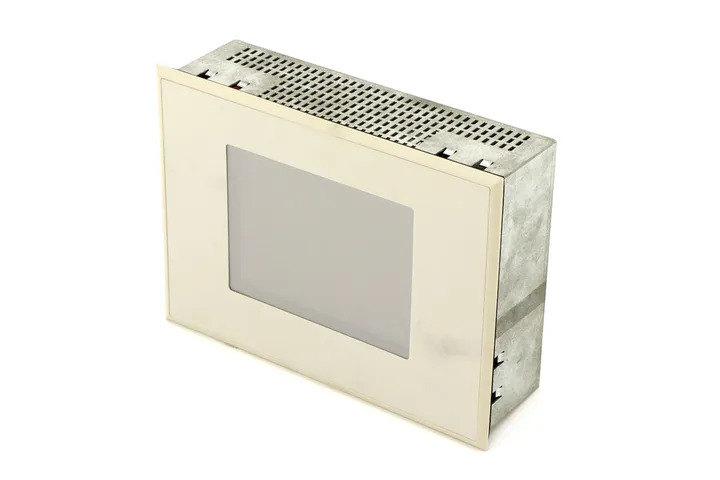
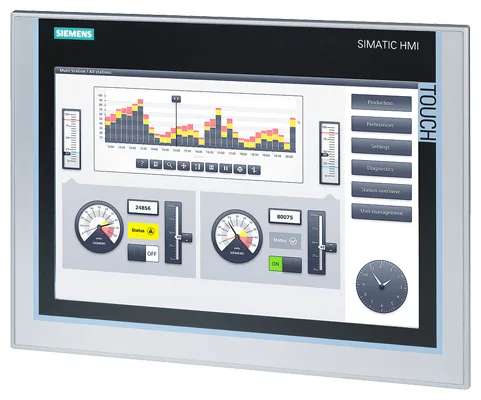
Siemens 6AV6355-1CA47-7BB4 OP 77B
€ 1.995,00
The Siemens 6AV6355-1CA47-7BB4 is an operator panel belonging to the OP 77B series, part of the SIMATIC HMI Basic Panels product family manufactured by Siemens. This unit serves as a compact human-machine interface designed for machine-level visualization and operator control tasks. It provides a monochrome display with a membrane keypad for straightforward process monitoring and parameter input in automation environments.
The OP 77B features a 4-inch STN monochrome display with a resolution of 320 x 240 pixels and supports communication via PROFIBUS DP and MPI interfaces, enabling direct integration with SIMATIC S7 PLCs. The panel includes configurable function keys and system keys for navigation and control, and is configured using the WinCC flexible software environment. It operates on a 24 V DC supply and is built to withstand industrial conditions with a front-panel IP65 protection rating.
The OP 77B is widely used in manufacturing, machine building, and process automation applications where a cost-effective, reliable operator interface is required at the machine level. It is suitable for integration with conveyor systems, packaging machinery, and general-purpose industrial equipment controlled by Siemens S7-200, S7-300, and S7-400 PLCs. Its compact form factor and robust keypad design make it appropriate for environments where touchscreen interfaces are not practical.
Technical Specifications
| Display Size | 4 inch |
|---|---|
| Display Type | STN monochrome LCD |
| Display Resolution | 320 x 240 pixels |
| Display Colors | Monochrome (blue/white) |
| Input/Operating Voltage | 24 V DC |
| Power Consumption | Max. 6 W |
| Communication Interface | PROFIBUS DP, MPI |
| IP Protection Rating (Front) | IP65 |
| IP Protection Rating (Rear) | IP20 |
| Operating Temperature | 0 °C to +50 °C |
| Storage Temperature | -20 °C to +60 °C |
| Relative Humidity | 10% to 90% (non-condensing) |
| Configuration Software | WinCC flexible 2008 or higher |
| Mounting | Panel mounting |
| Certifications | CE, UL, cULus |
Common Error Codes & System Events
- Event ID: 10000
- Communication error between the HMI panel and the connected PLC. The connection to the controller has been lost or cannot be established.
Check PROFIBUS/MPI cable connections and termination resistors. Verify the PLC address settings match the HMI project configuration. Restart both the panel and the PLC. - Event ID: 10001
- Timeout error on the communication link. The PLC did not respond within the expected time window.
Check network cabling and connector integrity. Verify PROFIBUS DP baud rate settings are consistent across all nodes. Reduce network load if possible. - Event ID: 20000
- Project download error. The configuration project could not be transferred to the panel successfully.
Verify the PC-to-panel communication cable is correctly connected. Ensure the WinCC flexible project is compiled without errors before transfer. Check available memory on the panel. - Event ID: 40000
- System memory low. The panel's available memory for runtime operation is insufficient.
Reduce the number of active alarms or data records stored on the device. Simplify the project configuration and re-download to the panel. - Event ID: 50000
- Internal device error. A hardware or firmware fault has been detected within the panel.
Perform a factory reset of the panel. If the error persists after reset and re-download of the project, the unit may require repair or replacement. - Event ID: 70000
- Configuration error. The loaded project is incompatible with the current firmware version of the panel.
Update the panel firmware to the version required by the WinCC flexible project, or recompile the project targeting the installed firmware version and re-download. - Event ID: 30000
- Tag read/write error. A process variable (tag) could not be read from or written to the connected controller.
Verify the tag address in the WinCC flexible project matches the actual PLC data block or memory address. Check PLC program for address conflicts.
Frequently Asked Questions
Which PLCs are compatible with the OP 77B (6AV6355-1CA47-7BB4)?
The OP 77B is compatible with Siemens SIMATIC S7-200, S7-300, and S7-400 PLCs via MPI or PROFIBUS DP interfaces. It can also communicate with S7-1200 in some configurations depending on firmware version.
What software is used to configure the OP 77B?
The OP 77B is configured using Siemens WinCC flexible 2008 or a compatible version. Projects are compiled in WinCC flexible and downloaded to the panel via a PC adapter or MPI/PROFIBUS connection.
What is the front panel protection rating of the 6AV6355-1CA47-7BB4?
The front panel of the OP 77B carries an IP65 protection rating, making it resistant to dust ingress and low-pressure water jets, suitable for typical industrial machine environments.
Does the OP 77B support recipe management or data logging?
The OP 77B supports basic recipe management and alarm logging functions within the limits of its available memory. Advanced data logging capabilities are limited compared to higher-tier SIMATIC HMI panels.
What is the supply voltage for the OP 77B?
The OP 77B operates on a 24 V DC supply voltage, which is standard for SIMATIC HMI panels and compatible with typical industrial control cabinet power supplies.
Troubleshooting
Display remains blank after power on
Check that 24 V DC is present at the power supply terminals of the panel using a multimeter. Inspect the supply cable and connector for damage or loose connections.
Restore correct 24 V DC supply to the panel. If voltage is confirmed present and the display remains blank, the internal power supply board or backlight may be faulty and the unit should be sent for repair.
Panel shows 'No connection to PLC' or communication error on startup
Verify the PROFIBUS DP or MPI cable is securely connected to both the panel and the PLC. Check that bus termination resistors are correctly installed at both ends of the network segment.
Replace or reseat the communication cable. Confirm that the PLC address configured in the WinCC flexible project matches the actual PLC station address. Ensure baud rate settings are consistent across all devices on the bus.
Project download fails or transfer is interrupted
Check the PC-to-panel connection cable (typically a PC adapter USB or MPI adapter). Confirm the panel is in transfer mode and that the correct communication port is selected in WinCC flexible.
Place the panel in transfer mode via the Start Center menu. Use a known-good PC adapter cable and verify COM port or USB driver installation on the PC. Recompile the project and retry the download.
Function keys do not respond or produce incorrect actions
Inspect the membrane keypad for physical damage, contamination, or deformation. Verify the key assignments in the WinCC flexible project are correctly configured for the installed panel variant.
Clean the keypad surface and check for mechanical damage. If keys are unresponsive due to hardware failure, the membrane keypad assembly may need replacement. Re-download the project to rule out configuration errors.
Panel restarts repeatedly or enters a boot loop
This may indicate a corrupted project file on the panel or a firmware issue. Attempt to access the Start Center during boot by pressing the appropriate key combination at power on.
Use the Start Center to perform a factory reset and clear the panel memory. Re-download a freshly compiled WinCC flexible project. If the boot loop persists, update the panel firmware using the Siemens ProSave tool.
| Condition | Repair, Used, Refurbished, New in box (sealed) |
|---|
Related products
-
Siemens 6AG1643-0AA01-4AX0 MP 277
€ 1.278,00 -
Siemens 6AV6642-8BA12-0AB0 TP177B
€ 879,00