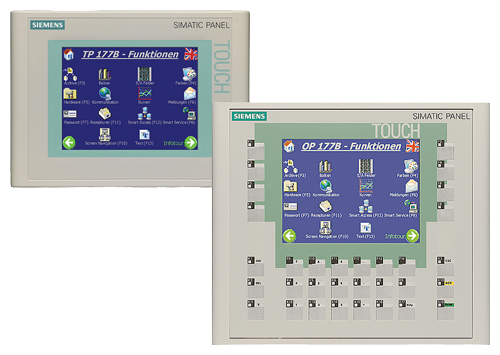
Siemens 6AV6355-1AA47-7EQ3 TP177B
€ 1.974,65
The Siemens 6AV6355-1AA47-7EQ3 is a SIMATIC TP177B touch panel HMI device belonging to the SIMATIC HMI 170 series from Siemens. This unit is a 5.7-inch color touch panel designed for machine-level human-machine interface applications, providing operator control and monitoring capabilities in industrial environments. It runs on the WinCC flexible runtime environment and is engineered for demanding industrial use.
The TP177B features a 5.7-inch STN color display with a resolution of 320 x 240 pixels (QVGA) and supports touch-based input via a resistive touchscreen. It is equipped with MPI/PROFIBUS DP and RS-422/RS-485 serial interfaces for PLC connectivity, along with a USB port for data transfer and project download. The panel operates on 24 V DC supply voltage and offers 6 MB of user memory for project storage. Configuration is performed using WinCC flexible software on a PC.
The TP177B is widely deployed in machine building, packaging machinery, conveyor systems, and process automation where a compact, robust operator panel is required. Its compatibility with Siemens S7-200, S7-300, and S7-400 PLCs makes it a standard choice in Siemens-based automation architectures. The panel's compact form factor and IP65 front protection rating make it suitable for flush panel mounting in control cabinets across manufacturing and process industries.
Technical Specifications
| Display Size | 5.7 inch |
|---|---|
| Display Resolution | 320 x 240 pixels (QVGA) |
| Display Type | STN Color LCD |
| Display Colors | 256 colors |
| Touch Technology | Resistive touchscreen |
| Input Voltage | 24 V DC |
| Power Consumption | Approx. 6 W |
| User Memory | 6 MB |
| Communication Interface | MPI/PROFIBUS DP, RS-422/RS-485, USB |
| Operating Temperature | 0 °C to +50 °C |
| Storage Temperature | -20 °C to +60 °C |
| Relative Humidity | 10% to 90% (non-condensing) |
| IP Rating (Front) | IP65 |
| IP Rating (Rear) | IP20 |
| Mounting | Panel mounting (flush) |
| Certifications | CE, UL, cULus |
Common Error Codes & System Events
- Event ID: 10000
- Communication error between HMI panel and connected PLC. The panel cannot establish or maintain a connection to the configured controller.
Check MPI/PROFIBUS DP cable connections and termination resistors. Verify the PLC address and baud rate settings match the HMI project configuration. Ensure the PLC is powered and in RUN mode. - Event ID: 10001
- Connection to PLC interrupted during runtime. The HMI lost communication with the controller after an initial successful connection.
Inspect cable integrity and connector seating. Check for electromagnetic interference sources near the communication cable. Verify PLC program is still running and not in STOP mode. - Event ID: 20000
- Project download failed or project data is corrupted on the panel.
Re-download the WinCC flexible project to the panel via USB or MPI. Ensure the WinCC flexible version used for compilation is compatible with the panel firmware version. - Event ID: 40000
- System memory low. Available runtime memory on the panel is insufficient for the loaded project.
Reduce the project size by optimizing graphics, reducing the number of screens, or compressing images. Ensure no unnecessary background tasks are running. - Event ID: 50000
- Firmware version mismatch. The project was compiled for a different firmware version than what is installed on the panel.
Update the panel firmware using ProSave or WinCC flexible to match the version required by the project, or recompile the project targeting the installed firmware version. - Event ID: 60000
- Internal device error or hardware fault detected during self-test at startup.
Perform a panel reset. If the error persists, check the 24 V DC supply voltage for stability. Contact Siemens technical support or arrange for hardware inspection and repair. - Event ID: 70000
- Tag update error. One or more configured tags cannot be read from or written to the PLC.
Verify the tag addresses in the WinCC flexible project match the actual PLC data block or memory addresses. Check PLC program for address changes.
Frequently Asked Questions
Which PLCs are compatible with the Siemens 6AV6355-1AA47-7EQ3 TP177B?
The TP177B is compatible with Siemens S7-200, S7-300, and S7-400 PLCs via MPI or PROFIBUS DP. It also supports communication with third-party controllers via the RS-422/RS-485 serial interface using standard protocols.
What software is required to configure and program the TP177B?
The TP177B is configured using Siemens WinCC flexible software on a Windows PC. Projects are downloaded to the panel via USB or MPI connection.
What is the supply voltage for the 6AV6355-1AA47-7EQ3?
The panel operates on a 24 V DC supply voltage. Ensure a stable, regulated 24 V DC power source is used to avoid operational issues.
What is the front protection rating of the TP177B?
The front panel of the TP177B carries an IP65 protection rating, making it resistant to dust ingress and low-pressure water jets, suitable for industrial panel mounting.
Can the TP177B firmware be updated in the field?
Yes, the firmware can be updated using the Siemens ProSave tool or via WinCC flexible. The update can be performed through the USB interface or MPI connection.
Troubleshooting
Display remains blank after power on
Measure the 24 V DC supply voltage at the panel power connector. Check that the voltage is within the specified range and that polarity is correct.
Correct any supply voltage issues. If the supply is confirmed good, check the internal backlight. A failed backlight may require panel repair or replacement of the display assembly.
Touch input is unresponsive or inaccurate
Determine whether the touchscreen is completely unresponsive or just misaligned. Access the panel's calibration mode by pressing and holding the touch area during startup.
Perform a touchscreen recalibration through the panel's system settings. If the touchscreen remains unresponsive after calibration, the resistive touch layer may be damaged and require hardware repair.
Panel cannot communicate with the PLC
Verify the MPI or PROFIBUS DP cable is correctly connected and terminated. Check the bus address and baud rate configured in the HMI project against the PLC settings.
Correct any address or baud rate mismatches in the WinCC flexible project and re-download. Replace the communication cable if continuity testing reveals a fault. Ensure termination resistors are fitted at both ends of the bus.
Project download fails via USB
Check that the USB cable is functional and that the PC recognizes the panel as a connected device. Verify the WinCC flexible project version is compatible with the panel firmware.
Try a different USB cable or USB port on the PC. Update the panel firmware using ProSave if a version mismatch is detected. Ensure the panel is in transfer mode before initiating the download.
Panel displays 'No project' message after startup
The panel's internal flash memory may not contain a valid project, or the project data may have been corrupted due to a power interruption during a previous download.
Re-download the WinCC flexible project to the panel. If the panel does not accept the download, perform a factory reset using ProSave and then re-download the project.
| Condition | Repair, Used, Refurbished, New in box (sealed) |
|---|
Related products
-
Siemens 6AV6642-8BA10-0AA0 TP177B
Price range: € 964,00 through € 1.611,00 -
Siemens 6AV6642-0BC01-1AX1 TP177B
Price range: € 657,00 through € 1.249,00 -
Siemens 6AV6642-0BA01-1AX1 TP177B
Price range: € 723,00 through € 2.499,00