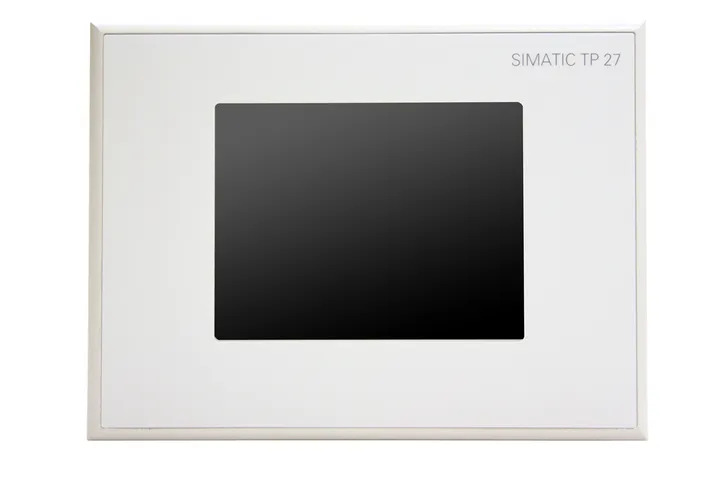
Siemens 6AV6321-1FC04-0CY6 SIMATIC HMI OP3
€ 2.495,00
The Siemens 6AV6321-1FC04-0CY6 is a compact operator panel belonging to the SIMATIC HMI OP3 series, manufactured by Siemens. It is a text-based operator panel designed for straightforward machine-level human-machine interface applications. The unit provides basic process visualization and operator control functionality within a rugged, space-saving housing.
The OP3 features a 2-line LCD text display capable of showing alphanumeric characters, along with a membrane keypad for operator input. It communicates via the MPI (Multi-Point Interface) and PROFIBUS-DP protocols, enabling direct integration with Siemens S7-200, S7-300, and S7-400 PLCs. The panel is configured using Siemens ProTool software and supports alarm display, setpoint entry, and recipe management within its onboard memory.
The SIMATIC OP3 is widely used in manufacturing, packaging, and process automation environments where a cost-effective, compact operator interface is required. It is particularly suited for local machine control panels where full graphical HMI capability is not necessary but reliable text-based status and control interaction is needed. Its small footprint and panel-mount design make it appropriate for integration into existing control cabinet doors and machine enclosures.
Technical Specifications
| Display Type | LCD text display |
|---|---|
| Display Lines | 2 lines |
| Characters per Line | 16 characters |
| Input/Operating Voltage | 24 V DC |
| Power Consumption | 2.5 W |
| Communication Interface | MPI, PROFIBUS-DP |
| Operating Temperature | 0 °C to +50 °C |
| Storage Temperature | -20 °C to +60 °C |
| Relative Humidity | 10% to 90% (non-condensing) |
| IP Rating (Front) | IP65 |
| IP Rating (Rear) | IP20 |
| Mounting | Panel mounting |
| Series/Product Family | SIMATIC HMI OP3 |
| Configuration Software | ProTool |
Common Error Codes & System Events
- Event ID: 10000
- Communication error between the OP3 and the connected PLC. The panel cannot establish or maintain a connection to the configured controller.
Check MPI or PROFIBUS-DP cable connections and termination resistors. Verify the PLC address and baud rate settings match the OP3 configuration. Ensure the PLC is powered and in RUN mode. - Event ID: 10001
- Connection to PLC interrupted during operation. The panel lost communication with the controller after a previously established connection.
Inspect cable integrity and connector seating. Check for electromagnetic interference sources near the communication cable. Verify PLC is still operational and network addresses have not changed. - Event ID: 20000
- Configuration error detected. The project loaded on the OP3 is incompatible or corrupted.
Reload the project from ProTool to the OP3. Verify the project was compiled without errors before transfer. Check that the correct PLC type and firmware version are selected in the project settings. - Event ID: 40000
- Operating system error on the OP3. An internal system fault has been detected.
Perform a power cycle of the OP3. If the error persists, reload the operating system and project firmware using ProTool. Contact Siemens technical support if the fault recurs. - Event ID: 50000
- Alarm buffer overflow. The number of pending alarms has exceeded the panel's buffer capacity.
Acknowledge and clear existing alarms on the panel. Review the alarm configuration in ProTool to reduce the number of simultaneously active alarms or increase acknowledgement frequency. - Event ID: 60000
- Tag update error. A configured variable tag could not be read from or written to the PLC.
Verify the tag address in the ProTool project matches the actual PLC data block or memory address. Check that the PLC program has not been modified to remove or relocate the referenced variable.
Frequently Asked Questions
Which PLCs are compatible with the SIMATIC OP3 (6AV6321-1FC04-0CY6)?
The OP3 is compatible with Siemens S7-200, S7-300, and S7-400 PLCs via MPI or PROFIBUS-DP communication. It also supports connection to SIMATIC S5 controllers via appropriate interface adapters.
What software is used to configure and program the OP3 panel?
The OP3 is configured using Siemens ProTool software. Projects are created on a PC and then downloaded to the panel via the MPI interface.
What is the supply voltage required for the 6AV6321-1FC04-0CY6?
The panel requires a 24 V DC supply voltage for operation.
What is the front panel protection rating of the OP3?
The front panel of the OP3 carries an IP65 protection rating, making it suitable for environments where dust and water spray may be present.
Can the OP3 display graphical content or images?
No, the OP3 is a text-only operator panel with a 2-line alphanumeric LCD display. It does not support graphical or bitmap image display.
Troubleshooting
Display remains blank after power on
Check the 24 V DC supply voltage at the panel power connector using a multimeter. Verify the supply is within the specified tolerance range.
Ensure the power supply is providing stable 24 V DC. Check wiring connections at the panel terminal. If voltage is correct and display remains blank, the internal power regulation circuit or LCD may be faulty and the unit may require repair or replacement.
Panel shows communication error and cannot connect to PLC
Verify MPI or PROFIBUS-DP cable connections at both the OP3 and PLC ends. Check that bus termination resistors are correctly installed at both ends of the network segment.
Correct any loose or damaged cable connections. Ensure the MPI/PROFIBUS address configured in the OP3 project matches the PLC network settings. Confirm baud rate settings are consistent across all devices on the network.
Project download from ProTool fails or is incomplete
Check the PC-to-OP3 communication cable (PC-MPI adapter or USB-MPI adapter). Verify the correct COM port and transfer settings are selected in ProTool.
Replace or reseat the programming cable. Ensure the OP3 is in transfer mode before initiating the download. Try a different USB port or PC if the issue persists. Confirm the ProTool project version is compatible with the OP3 firmware version.
Keypad buttons do not respond or register incorrect inputs
Inspect the membrane keypad surface for physical damage, contamination, or deformation. Test each key systematically using the panel's built-in key test function if available.
Clean the keypad surface with a dry cloth. If individual keys are unresponsive, the membrane keypad assembly may be worn or damaged and requires replacement. Ensure no external mechanical pressure is being applied to the panel face.
Alarms are displayed but cannot be acknowledged
Check the alarm configuration in the ProTool project to confirm acknowledgement is enabled for the relevant alarm class. Verify the PLC bit associated with alarm acknowledgement is functioning correctly.
Modify the ProTool project to ensure the alarm class requires and allows operator acknowledgement. Verify the PLC logic is not preventing the acknowledgement bit from being reset. Re-download the corrected project to the panel.
| Condition | Repair, Used, Refurbished, New in box (sealed) |
|---|
Related products
-
Siemens 6AG1545-0CC10-4AX0 SIPLUS HMI TP900
€ 1.340,00 -
Siemens 6AV6642-8BA10-0AA0 TP177B
Price range: € 964,00 through € 1.611,00 -
Siemens 6AV3627-1NK00-2AX0 SIMATIC OP 27
Price range: € 749,00 through € 964,00