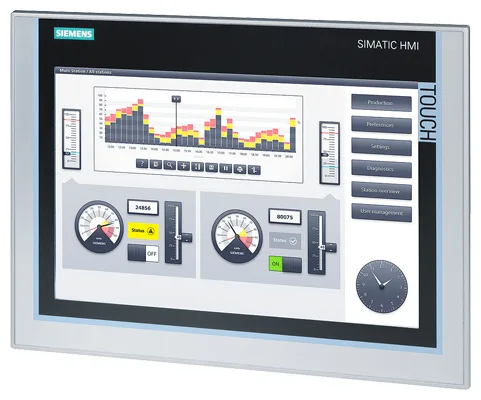
Siemens 6AV6146-5QQ45-2LY5 SIMATIC HMI MP 377
€ 2.495,00
The Siemens 6AV6146-5QQ45-2LY5 is a high-performance Multi Panel from the SIMATIC HMI MP 377 series, designed for demanding human-machine interface applications in industrial automation environments. This panel belongs to Siemens' established MP 377 product family, which offers large-format display solutions for complex visualization and control tasks. It functions as an operator panel capable of running SIMATIC WinCC flexible runtime software for process visualization and machine control.
The MP 377 panel features a large 15-inch TFT display with a resolution of 1024 x 768 pixels and 64,000 colors, providing clear and detailed process visualization. It is equipped with a resistive touch screen as well as function keys, offering flexible operator input options. The unit supports multiple communication interfaces including PROFIBUS DP and Ethernet (PROFINET), enabling integration into a wide range of automation network architectures. It runs on Microsoft Windows CE and provides substantial onboard memory for project data and runtime applications, with options for additional storage via CompactFlash card.
The SIMATIC MP 377 is widely deployed in manufacturing, process industries, energy management, and machine building applications where large-format visualization and robust operator interaction are required. Its compatibility with Siemens S7-300 and S7-400 PLC families makes it a standard choice for system integrators working within the Siemens TIA and SIMATIC automation ecosystem. The panel's industrial-grade construction and wide operating temperature range make it suitable for installation in control cabinets across automotive, chemical, food and beverage, and water treatment industries.
Technical Specifications
| Display Size | 15 inch |
|---|---|
| Display Resolution | 1024 x 768 pixels |
| Display Colors | 64,000 colors |
| Display Type | TFT LCD |
| Touch Technology | Resistive touchscreen |
| Input/Operating Voltage | 24 V DC |
| Power Consumption | Approx. 40 W |
| Communication Interface | PROFIBUS DP, Ethernet (PROFINET), RS-422/485, USB |
| Operating System | Microsoft Windows CE |
| Memory | 12 MB user memory onboard; CompactFlash slot for expansion |
| Operating Temperature | 0 °C to +50 °C |
| Storage Temperature | -20 °C to +60 °C |
| Relative Humidity | 10% to 90% (non-condensing) |
| IP/Protection Rating | IP65 (front), IP20 (rear) |
| Mounting | Panel mounting |
| Certifications | CE, UL, cULus |
| Series/Product Family | SIMATIC HMI MP 377 |
Common Error Codes & System Events
- Event ID: 10000
- Connection to PLC lost or communication timeout on configured connection.
Check network cables and PROFIBUS/Ethernet connections. Verify PLC is powered and running. Check connection settings in WinCC flexible project. - Event ID: 10001
- Connection to PLC established after previous failure.
Informational event. No corrective action required. Monitor for recurring disconnections that may indicate network instability. - Event ID: 20000
- Tag read/write error — the panel cannot read or write a configured tag from the PLC.
Verify the tag address in the WinCC flexible project matches the actual PLC data block or memory address. Check PLC program for address conflicts. - Event ID: 40000
- System memory low — available runtime memory is insufficient for current project.
Reduce project size, limit number of active screens or logged data. Consider clearing the CompactFlash card of unnecessary files. - Event ID: 50000
- Project download error — transfer of project data from engineering PC to panel failed.
Check USB or Ethernet transfer cable. Ensure panel is in transfer mode. Verify WinCC flexible version compatibility between engineering PC and panel runtime. - Event ID: 60000
- Runtime startup error — WinCC flexible runtime failed to start correctly.
Restart the panel. If the error persists, reload the project via transfer. Check for corrupted project files on the CompactFlash card. - Event ID: 70000
- Alarm buffer overflow — the number of pending alarms exceeds the configured buffer size.
Acknowledge and clear active alarms. Increase alarm buffer size in the WinCC flexible project configuration if overflow occurs frequently.
Frequently Asked Questions
What PLC families are compatible with the SIMATIC MP 377?
The MP 377 is compatible with Siemens S7-200, S7-300, S7-400, and S7-1200 PLC families via PROFIBUS DP or Ethernet connections. It can also communicate with third-party controllers using supported drivers in WinCC flexible.
What software is used to program and configure the MP 377 panel?
The MP 377 is configured using Siemens SIMATIC WinCC flexible engineering software. Projects are created on a PC and transferred to the panel via USB, Ethernet, or PROFIBUS.
Does the MP 377 support both touch and key-based operation?
Yes, the MP 377 features a resistive touchscreen combined with physical function keys, allowing operators to interact with the panel using either input method.
Can the MP 377 store data locally?
Yes, the panel supports a CompactFlash card for expanded storage of project data, recipes, and data logs. The onboard memory provides approximately 12 MB for user projects.
What is the supply voltage for the 6AV6146-5QQ45-2LY5?
The panel operates on a 24 V DC supply voltage, which is the standard supply used across the SIMATIC HMI panel range.
Troubleshooting
Display remains blank after power on
Measure 24 V DC at the power supply connector on the rear of the panel. Check that the supply current is sufficient for the panel's power consumption. Inspect the internal fuse if accessible.
Ensure the 24 V DC supply is stable and within tolerance. Replace the power supply if voltage is absent. If supply is correct but display remains blank, the backlight or internal power board may require replacement.
Touchscreen does not respond or responds inaccurately
Check whether the touch input is misaligned by testing multiple screen areas. Determine if the issue is a calibration problem or a hardware fault by observing if any touch input is registered at all.
Recalibrate the touchscreen via the Windows CE control panel or the Siemens panel startup menu. If calibration does not resolve the issue, the resistive touch overlay may be damaged and require replacement.
Panel fails to communicate with the PLC over PROFIBUS
Verify the PROFIBUS address configured on the panel matches the address expected by the PLC. Check the PROFIBUS cable termination resistors at both ends of the network segment.
Correct the PROFIBUS station address in the WinCC flexible project and reload. Ensure proper cable termination is applied. Replace the PROFIBUS cable if signal integrity is poor.
Project transfer from engineering PC fails
Check that the panel is set to transfer mode (accessible via the Start Center on the panel). Verify the IP address or PROFIBUS address of the panel is correctly configured in WinCC flexible transfer settings.
Set the panel to transfer mode manually via the Start Center. Confirm network connectivity between PC and panel. Ensure WinCC flexible runtime version on the panel is compatible with the engineering software version used.
Panel reboots repeatedly or freezes during operation
Check the CompactFlash card for errors or corruption. Monitor the 24 V DC supply for voltage drops or ripple that may cause instability. Review the event log in WinCC flexible for runtime errors.
Replace or reformat the CompactFlash card and reload the project. Stabilize the power supply. If the issue persists, perform a factory reset via the panel's Start Center and reload the project from scratch.
| Condition | Repair, Used, Refurbished, New in box (sealed) |
|---|
Related products
-
Siemens 6AG1642-0BA01-4AX0 TP177B
€ 675,00 -
Siemens 6AV6642-5AA00-0QE0 TP177B
€ 394,00 -
Siemens 6AV3627-1QK00-2AX0 OP27
Price range: € 749,00 through € 1.658,00