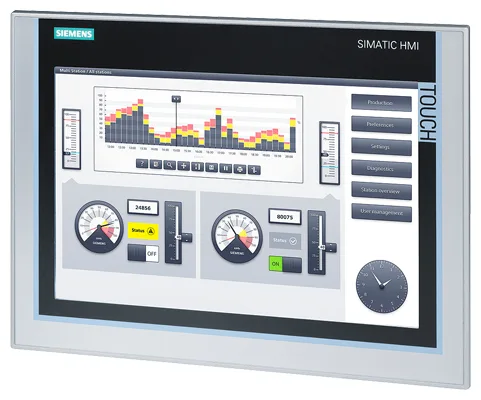
Siemens 6AV6146-5QQ45-0LY4 SIMATIC IPC477E
€ 2.495,00
The Siemens 6AV6146-5QQ45-0LY4 is a panel PC belonging to the SIMATIC IPC477E series, a high-performance industrial PC platform developed by Siemens for demanding human-machine interface and visualization applications. This unit integrates a multi-touch display with an embedded PC architecture, providing a combined operator panel and computing platform in a single device. It is designed for continuous industrial operation and is built to withstand the environmental conditions typical of factory floors and process plants.
The SIMATIC IPC477E features an Intel Core processor architecture, offering substantial computing performance for complex SCADA, visualization, and data processing tasks. It supports multiple communication interfaces including Ethernet (RJ45), USB ports, and optional PROFINET connectivity, enabling seamless integration into Siemens TIA Portal environments and third-party automation systems. The unit supports Windows 10 IoT Enterprise as its operating system and provides solid-state storage options for improved reliability in vibration-prone environments. The projected capacitive (PCT) multi-touch screen supports gesture-based operation, and the fanless or actively cooled design variants ensure suitability for different thermal environments.
The IPC477E is widely deployed in the automotive, food and beverage, pharmaceutical, and chemical processing industries, where a robust and capable visualization platform is required at the machine or line level. Its panel-mount form factor allows direct integration into control cabinet doors or operator stations. The combination of industrial-grade hardware, broad software compatibility, and Siemens ecosystem integration makes it a practical choice for machine builders and system integrators requiring a centralized HMI and edge computing node.
Technical Specifications
| Series | SIMATIC IPC477E |
|---|---|
| Display Type | Projected Capacitive Multi-Touch (PCT) |
| Display Size | 19 inch |
| Display Resolution | 1280 x 1024 px (SXGA) |
| Touch Technology | Projected Capacitive (PCT), Multi-Touch |
| Processor | Intel Core i5 (6th Generation) |
| Operating System | Windows 10 IoT Enterprise |
| Input Voltage | 24 V DC |
| Communication Interface | 2x Ethernet RJ45 (10/100/1000 Mbit/s), 4x USB 3.0 |
| Mounting | Panel mounting |
| Operating Temperature | 0 °C to +50 °C |
| Storage Temperature | -20 °C to +60 °C |
| Relative Humidity | 5 % to 90 % (non-condensing) |
| Protection Rating | IP65 (front), IP20 (rear) |
| Certifications | CE, UL, cULus |
Common Error Codes & System Events
- Event ID: 100
- Operating system startup error or boot failure detected during POST sequence.
Check storage device integrity, verify boot order in BIOS/UEFI settings, and replace SSD/HDD if diagnostics indicate a storage fault. - Event ID: 1000
- Application crash or unexpected termination of the visualization runtime software (e.g., WinCC Runtime).
Review Windows Event Viewer logs for the faulting module, reinstall or repair the runtime software, and check for OS or driver updates. - Event ID: 6008
- Unexpected system shutdown recorded by the operating system, indicating a previous unclean power-off or system crash.
Check 24 V DC supply stability, inspect UPS if present, and review system logs for preceding hardware or software faults. - Hardware Error: Temperature Warning
- Internal temperature sensor reports that the CPU or system temperature has exceeded the warning threshold.
Check ambient temperature, clean air vents or heat sink fins, verify fan operation (if active cooling variant), and ensure adequate panel cutout ventilation. - Hardware Error: Fan Failure
- System fan has stopped or is operating below the minimum speed threshold (active cooling variants only).
Replace the system fan with the correct Siemens spare part. Do not continue operation with a failed fan in high-ambient-temperature environments. - BIOS POST Error: Memory
- Memory module not detected or memory test failed during power-on self-test.
Reseat RAM modules, verify compatibility with the IPC477E memory specification, and replace faulty RAM if the error persists. - WinCC Runtime: Connection Error
- WinCC Runtime cannot establish communication with the configured PLC or data source.
Verify Ethernet cable connections, confirm IP address configuration, check PLC program and communication settings in TIA Portal, and test network connectivity using ping. - Hardware Error: Storage Device
- SSD or HDD not detected or reporting read/write errors during operation.
Run storage diagnostics via SIMATIC IPC DiagBase or Windows tools, back up data immediately, and replace the storage device if errors are confirmed.
Frequently Asked Questions
What operating system does the SIMATIC IPC477E 6AV6146-5QQ45-0LY4 run?
This unit runs Windows 10 IoT Enterprise, which is pre-installed and optimized for industrial continuous-operation environments.
What is the supply voltage for this panel PC?
The IPC477E operates on a 24 V DC supply voltage, which is standard for industrial panel PCs in control cabinet installations.
Is this panel PC compatible with Siemens TIA Portal and WinCC?
Yes, the SIMATIC IPC477E is fully compatible with Siemens TIA Portal and supports WinCC Runtime Advanced and WinCC Runtime Professional visualization software.
What is the front panel protection rating of this unit?
The front panel of the IPC477E carries an IP65 protection rating, making it resistant to dust ingress and low-pressure water jets, suitable for washdown-adjacent environments.
Can the display be operated with gloves?
The projected capacitive (PCT) multi-touch screen is primarily designed for bare-finger operation; glove operability depends on glove thickness and material, and is not guaranteed for all glove types.
Troubleshooting
Display remains blank after power is applied
Measure the 24 V DC supply voltage at the input connector and verify it is within tolerance. Check whether the power LED on the unit illuminates. Connect an external monitor via DisplayPort or VGA if available to determine whether the issue is with the display or the PC itself.
If the supply voltage is correct but the display is blank, reseat internal display cable connections. If the PC boots but the display does not activate, update or reinstall the graphics driver. If no boot activity is detected, inspect the internal power supply board and replace if faulty.
Touch input is unresponsive or inaccurate
Check whether the touch controller is recognized in Windows Device Manager. Inspect the screen surface for contamination, moisture, or physical damage that could interfere with the capacitive sensor.
Clean the screen surface with a dry lint-free cloth. Recalibrate the touch screen via the Windows touch calibration utility. If the touch controller is not recognized, reinstall the touch driver from the Siemens IPC support package or replace the touch panel assembly.
System freezes or reboots unexpectedly during operation
Review Windows Event Viewer for critical errors or blue screen stop codes. Monitor CPU and system temperatures using SIMATIC IPC DiagBase software. Check the 24 V DC supply for voltage dips or ripple using an oscilloscope.
Ensure the power supply is adequately rated and stable. If thermal issues are identified, improve ventilation around the panel cutout. Apply all pending Windows and firmware updates. If the issue persists, run a memory diagnostic and replace faulty RAM modules.
Ethernet communication to PLC is intermittent or lost
Check physical Ethernet cable connections and verify link LEDs on the RJ45 ports are active. Confirm IP address settings in Windows Network Adapter properties. Use the ping command to test connectivity to the PLC IP address.
Replace the Ethernet cable if damaged. Ensure the correct network adapter is configured with a static IP address matching the PLC subnet. Disable energy-saving settings on the Ethernet adapter in Windows Device Manager to prevent the adapter from entering low-power states during operation.
WinCC Runtime fails to start or displays a license error
Check the Windows Event Viewer application log for WinCC-specific error entries. Verify that the software license (Automation License Manager) shows a valid, active license for the installed WinCC Runtime version.
Open the Siemens Automation License Manager and confirm the license is present and not expired or transferred. If the license is missing, restore it from the original license data medium. Reinstall WinCC Runtime if the application files are corrupted, using the original installation media.
| Condition | Repair, Used, Refurbished, New in box (sealed) |
|---|
Related products
-
Siemens 6AV3607-1NH00-0AX0 OP7
€ 615,00 -
Siemens 6AG1642-0BA01-4AX1 TP177B
€ 1.040,00 -
Siemens 6AG1642-0BD01-2AX0 TP177B
€ 714,00