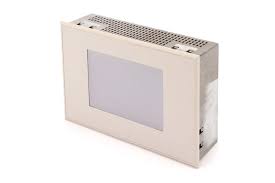
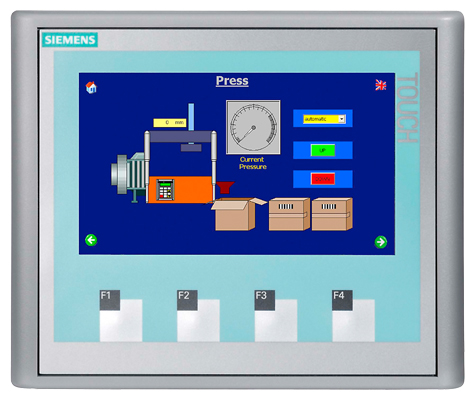
Siemens 6AV6146-1NP05-1LY3 SIMATIC MP 377
€ 3.495,00
The Siemens 6AV6146-1NP05-1LY3 is a Multi Panel from the SIMATIC MP 377 series, part of Siemens' SIMATIC HMI product line. This high-performance operator panel is designed for demanding industrial visualization and control tasks, offering a large-format display with robust construction. It belongs to the MP 377 family, which represents Siemens' advanced multi-panel range capable of running WinCC flexible runtime software.
The MP 377 panel features a 15-inch TFT display with a resolution of 1024 x 768 pixels and 64,000 colors, providing clear and detailed process visualization. It is equipped with a resistive touchscreen and an integrated membrane keyboard for flexible operator input. The unit supports multiple communication interfaces including PROFIBUS DP, PROFINET/Ethernet, USB, and MPI, enabling seamless integration into a wide range of automation architectures. It runs on a Windows CE operating system and provides substantial onboard memory for project data and logging.
The SIMATIC MP 377 is widely deployed in industries such as automotive manufacturing, chemical processing, food and beverage, water treatment, and machine building. Its large display area and multi-interface connectivity make it suitable for complex SCADA-level visualization at the machine or line level. The panel is particularly well suited for applications requiring simultaneous display of multiple process variables, alarm management, and recipe handling in harsh industrial environments.
Technical Specifications
| Display Size | 15 inch |
|---|---|
| Display Resolution | 1024 x 768 pixels (XGA) |
| Display Colors | 64,000 colors |
| Display Type | TFT LCD |
| Touch Technology | Resistive touchscreen |
| Input/Operating Voltage | 24 V DC |
| Power Consumption | Max. 60 W |
| Communication Interface | PROFIBUS DP, MPI, PROFINET, Ethernet (RJ45), USB |
| Operating System | Windows CE 6.0 |
| Operating Temperature | 0 °C to +50 °C |
| Storage Temperature | -20 °C to +60 °C |
| Relative Humidity | 10% to 90% (non-condensing) |
| IP/Protection Rating | IP65 (front), IP20 (rear) |
| Mounting | Panel mounting |
| Certifications | CE, UL, cULus |
| Series/Product Family | SIMATIC MP 377 |
Common Error Codes & System Events
- Event ID: 10000
- Communication error between the HMI panel and the connected PLC or controller. The configured connection cannot be established.
Check the communication cable and connector integrity. Verify the PLC address settings and ensure the communication parameters in the HMI project match the PLC configuration. Check PROFIBUS or Ethernet network status. - Event ID: 10001
- Connection to the PLC was interrupted during operation. The HMI panel lost communication with the configured controller.
Inspect the communication cable for damage or loose connections. Verify the PLC is powered and running. Check for network faults on PROFIBUS or Ethernet. Restart the HMI and PLC if necessary. - Event ID: 20000
- Project download error. The HMI panel was unable to receive or store the project data transferred from the engineering station.
Ensure sufficient free memory on the panel. Verify the WinCC flexible project is compiled without errors. Check the transfer cable or network connection between the PC and the HMI panel. - Event ID: 40000
- System memory low. The available RAM or flash memory on the HMI panel is critically low, which may affect runtime performance.
Delete unnecessary archived data, log files, and recipes from the panel memory. Reduce the size of the HMI project or increase the use of external memory cards. Restart the panel to free temporary memory. - Event ID: 50000
- Tag read/write error. The HMI panel was unable to read from or write to a configured PLC tag or variable.
Verify the tag address in the HMI project matches the actual PLC data block or memory address. Check that the PLC program is running and the relevant data areas are accessible. Review communication diagnostics in WinCC flexible. - Event ID: 70000
- Runtime software error or crash. The WinCC flexible runtime application has encountered an internal error and may have stopped.
Restart the WinCC flexible runtime from the Start Center. If the error persists, reload the project from the engineering station. Check for known firmware or runtime compatibility issues and update firmware if required. - Event ID: 110000
- Backup battery low or missing. The internal backup battery voltage has dropped below the minimum threshold, risking loss of time/date and buffered data.
Replace the internal backup battery with the correct type as specified in the device manual. After replacement, reset the real-time clock and verify buffered data integrity.
Frequently Asked Questions
What software is used to program and configure the SIMATIC MP 377?
The MP 377 is configured using Siemens WinCC flexible engineering software. Projects are compiled in WinCC flexible and transferred to the panel via Ethernet, USB, or MPI/PROFIBUS connection.
What communication protocols does the 6AV6146-1NP05-1LY3 support?
This panel supports MPI, PROFIBUS DP, PROFINET, and standard Ethernet (TCP/IP). USB ports are also available for project transfer and peripheral devices.
Is the MP 377 compatible with SIMATIC S7-300 and S7-400 PLCs?
Yes, the MP 377 is fully compatible with Siemens SIMATIC S7-300 and S7-400 PLCs via MPI, PROFIBUS DP, or PROFINET/Ethernet connections. It can also communicate with S7-1200 and S7-1500 controllers via Ethernet.
What is the display size and resolution of this panel?
The 6AV6146-1NP05-1LY3 features a 15-inch TFT display with a resolution of 1024 x 768 pixels (XGA) and 64,000 colors.
What is the front panel protection rating of the MP 377?
The front panel of the MP 377 is rated IP65, making it protected against dust ingress and low-pressure water jets, suitable for installation in industrial control cabinet doors.
Troubleshooting
Display remains blank after power on
Measure the 24 V DC supply voltage at the power connector. Check that the voltage is within the specified range. Inspect the internal fuse if accessible. Verify the backlight is not simply set to minimum brightness.
Restore the 24 V DC supply to within specification. If the supply is correct and the display remains blank, the backlight inverter or display assembly may require replacement. Contact a qualified repair technician to replace the backlight or display unit.
Touchscreen does not respond or responds inaccurately
Check whether the touchscreen is physically damaged or contaminated. Attempt to recalibrate the touchscreen through the panel's Start Center or Control Panel settings. Verify that no external objects are pressing against the screen surface.
Clean the touchscreen surface with a soft, dry cloth. Perform a touchscreen recalibration via the Start Center. If calibration does not resolve the issue, the resistive touchscreen overlay may be worn or damaged and should be replaced.
HMI panel fails to establish communication with the PLC
Verify the communication cable type and wiring are correct for the selected interface (MPI, PROFIBUS, or Ethernet). Check the bus address and baud rate settings on both the HMI and the PLC. Use the panel's diagnostic tools to check connection status.
Correct any address or baud rate mismatches between the HMI project configuration and the PLC settings. Replace the communication cable if damaged. Ensure the PROFIBUS termination resistors are correctly set at both ends of the bus.
Project transfer from PC to panel fails
Check the transfer cable or network connection between the engineering PC and the HMI panel. Ensure the panel is set to Transfer mode via the Start Center. Verify that the WinCC flexible project has been compiled without errors before transfer.
Switch the panel to Transfer mode manually from the Start Center. Verify firewall settings on the PC are not blocking the transfer. If using USB, try a different USB cable or port. Re-compile the project and retry the transfer.
Panel reboots unexpectedly or freezes during operation
Check the 24 V DC supply for voltage drops or ripple, which can cause instability. Review the system event log on the panel for error codes recorded before the reboot. Check panel operating temperature and ensure adequate ventilation around the unit.
Stabilize the power supply and ensure it meets the panel's current requirements. Reduce ambient temperature or improve cabinet ventilation if overheating is suspected. Update the panel firmware to the latest version. If the problem persists, the internal hardware may require professional inspection.
| Condition | Repair, Used, Refurbished, New in box (sealed) |
|---|
Related products
-
Siemens 6AV6642-5AA00-0QE0 TP177B
€ 394,00 -
Siemens 6AV3627-1QK00-2AX0 OP27
Price range: € 749,00 through € 1.658,00 -
Siemens 6AG1642-0BD01-4AX0 TP177B
€ 555,00