Siemens 6AV3607-1JC20-0AX2 OP7
€ 442,00
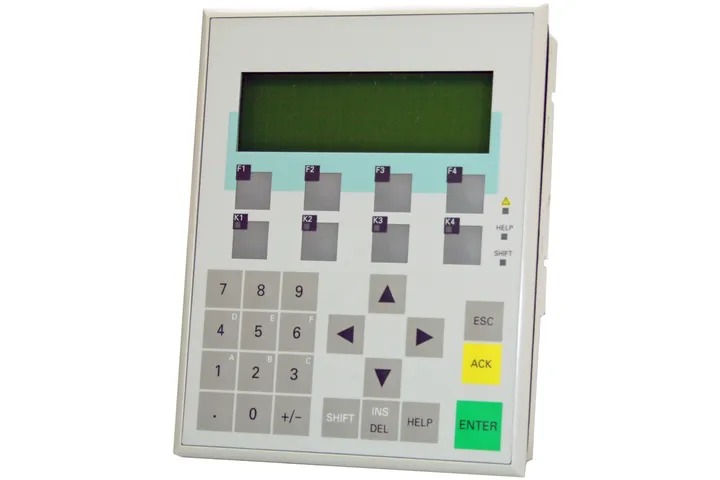
The Siemens OP7 (6AV3607-1JC20-0AX2) is a compact operator panel belonging to the SIMATIC HMI family. It is designed for human-machine interface applications where text-based process visualization and operator input are required. This unit provides a straightforward interface for monitoring and controlling industrial automation systems via a membrane keypad and alphanumeric display.
The 6AV3607-1JC20-0AX2 features a 4-line, 20-character per line LCD display capable of showing alphanumeric text and special characters. It communicates with host PLCs via an MPI (Multi-Point Interface) or PROFIBUS DP interface, enabling direct integration with Siemens SIMATIC S7 and S5 controller families. The panel is configured using Siemens ProTool software and supports recipe management, alarm logging, and message display functions. It operates on a 24 V DC supply and is rated for industrial environments with a protection class of IP65 on the front face.
The OP7 is widely used in machine building, packaging, material handling, and process automation applications where a cost-effective, robust text-based HMI is sufficient. Its compact form factor and panel-mount design make it suitable for integration into control cabinets and machine enclosures with limited space. The unit is particularly common in retrofit and upgrade projects for existing SIMATIC S5 and S7 installations.
Technical Specifications
| Display Type | LCD, 4 lines x 20 characters |
|---|---|
| Input/Operating Voltage | 24 V DC |
| Power Consumption | 4 W (typical) |
| Communication Interface | MPI / PROFIBUS DP |
| IP/Protection Rating | IP65 (front panel) |
| Operating Temperature | 0 °C to +50 °C |
| Storage Temperature | -20 °C to +70 °C |
| Relative Humidity | 10% to 90%, non-condensing |
| Mounting | Panel mounting |
| Series/Product Family | SIMATIC HMI OP7 |
| Configuration Software | ProTool |
| PLC Compatibility | SIMATIC S5, S7 |
| Certifications | CE, UL |
| Dimensions (W x H x D) | 144 mm x 72 mm x 55 mm |
Common Error Codes & System Events
- Event ID: 10000
- No connection to the configured PLC or controller. Communication link cannot be established.
Check MPI/PROFIBUS cable connections and termination resistors. Verify PLC address settings match the OP7 configuration. Confirm PLC is powered and running. - Event ID: 10001
- Connection to PLC interrupted during operation.
Inspect cable integrity and connector seating. Check for electromagnetic interference sources near the communication cable. Restart both the OP7 and the PLC if the connection does not recover automatically. - Event ID: 20000
- Tag read error. The OP7 cannot read a configured variable from the PLC.
Verify that the data block or memory address configured in ProTool exists in the PLC program. Check for address mismatches between the HMI project and the PLC. - Event ID: 20001
- Tag write error. The OP7 cannot write a value to the configured PLC address.
Confirm the target PLC address is writable and not protected. Check that the data type configured in ProTool matches the PLC variable type. - Event ID: 40000
- Project download error. Transfer of the configuration project to the OP7 failed.
Check the PC-to-OP7 transfer cable and port settings. Ensure the OP7 is in transfer mode before initiating download. Retry the download from ProTool. - Event ID: 50000
- Internal device error or hardware fault detected.
Perform a power cycle on the OP7. If the error persists, back up the project and perform a factory reset. Contact Siemens technical support or arrange for unit repair if the fault remains. - Event ID: 60000
- Alarm buffer overflow. The number of pending alarms exceeds the buffer capacity.
Acknowledge and clear existing alarms in the alarm list. Review the PLC program to identify the root cause of excessive alarm generation and resolve the underlying process issue.
Frequently Asked Questions
What communication interfaces does the OP7 (6AV3607-1JC20-0AX2) support?
The OP7 supports MPI (Multi-Point Interface) and PROFIBUS DP for communication with Siemens SIMATIC S5 and S7 PLCs. The interface is configured via the ProTool software.
What software is used to configure and program the OP7?
The OP7 is configured using Siemens ProTool software. Projects are downloaded to the panel via a dedicated PC-to-OP transfer cable.
What is the supply voltage for the 6AV3607-1JC20-0AX2?
The OP7 operates on a 24 V DC supply voltage.
Is the OP7 compatible with SIMATIC S7-300 and S7-400 PLCs?
Yes, the OP7 can communicate directly with SIMATIC S7-300 and S7-400 PLCs via MPI or PROFIBUS DP, as well as with older SIMATIC S5 controllers.
What is the front panel protection rating of the OP7?
The front panel of the OP7 carries an IP65 protection rating, making it suitable for installation in environments where dust and water spray may be present.
Troubleshooting
Display remains blank after power on
Measure the 24 V DC supply voltage at the power connector. Check for blown internal fuse. Inspect the display contrast setting if the unit appears to power on but shows no text.
Restore correct 24 V DC supply if voltage is out of range. Replace the internal fuse if blown. Adjust the display contrast using the contrast control potentiometer located on the rear of the unit.
OP7 shows 'No connection' or communication error on startup
Verify MPI or PROFIBUS DP cable connections at both the OP7 and PLC ends. Check that bus termination resistors are correctly placed at both ends of the bus. Confirm the PLC station address matches the address configured in the ProTool project.
Reseat all connectors and replace damaged cables. Enable bus termination on the end nodes only. Correct the station address in the ProTool project and re-download the configuration.
Operator keypad buttons do not respond or are intermittent
Inspect the membrane keypad for physical damage, contamination, or wear. Check the internal ribbon cable connection between the keypad and the main PCB.
Clean the keypad surface with a dry cloth. If the ribbon cable is loose or damaged, reseat or replace it. If the membrane keypad is worn, replace the keypad assembly.
Project download from ProTool fails
Confirm the OP7 is set to transfer mode before initiating the download. Check the PC serial port settings and the transfer cable type. Verify that the ProTool project is configured for the correct OP7 device type.
Switch the OP7 to transfer mode via the start menu. Use the correct Siemens PC-to-OP transfer cable and match the COM port settings in ProTool. Reselect the correct device type in the project settings and retry the download.
Alarm messages display incorrectly or are missing
Check the alarm text configuration in the ProTool project for correct PLC bit addresses. Verify that the PLC program is setting the correct alarm bits. Confirm the alarm buffer has not overflowed.
Correct any address mismatches in the ProTool alarm configuration and re-download the project. Resolve the root cause of excessive alarms in the PLC program. Acknowledge and clear the alarm buffer if it is full.
| Condition | Repair, Used, Refurbished, New in box (sealed) |
|---|
Related products
-
Siemens 6AV6642-0BC01-1AX1 TP177B
Price range: € 657,00 through € 1.249,00 -
Siemens 6AV6642-5AA00-0QE0 TP177B
€ 394,00 -
Siemens 6AV6640-0CA01-0AX0 OP 73micro
Price range: € 279,00 through € 444,13